User Manual
48
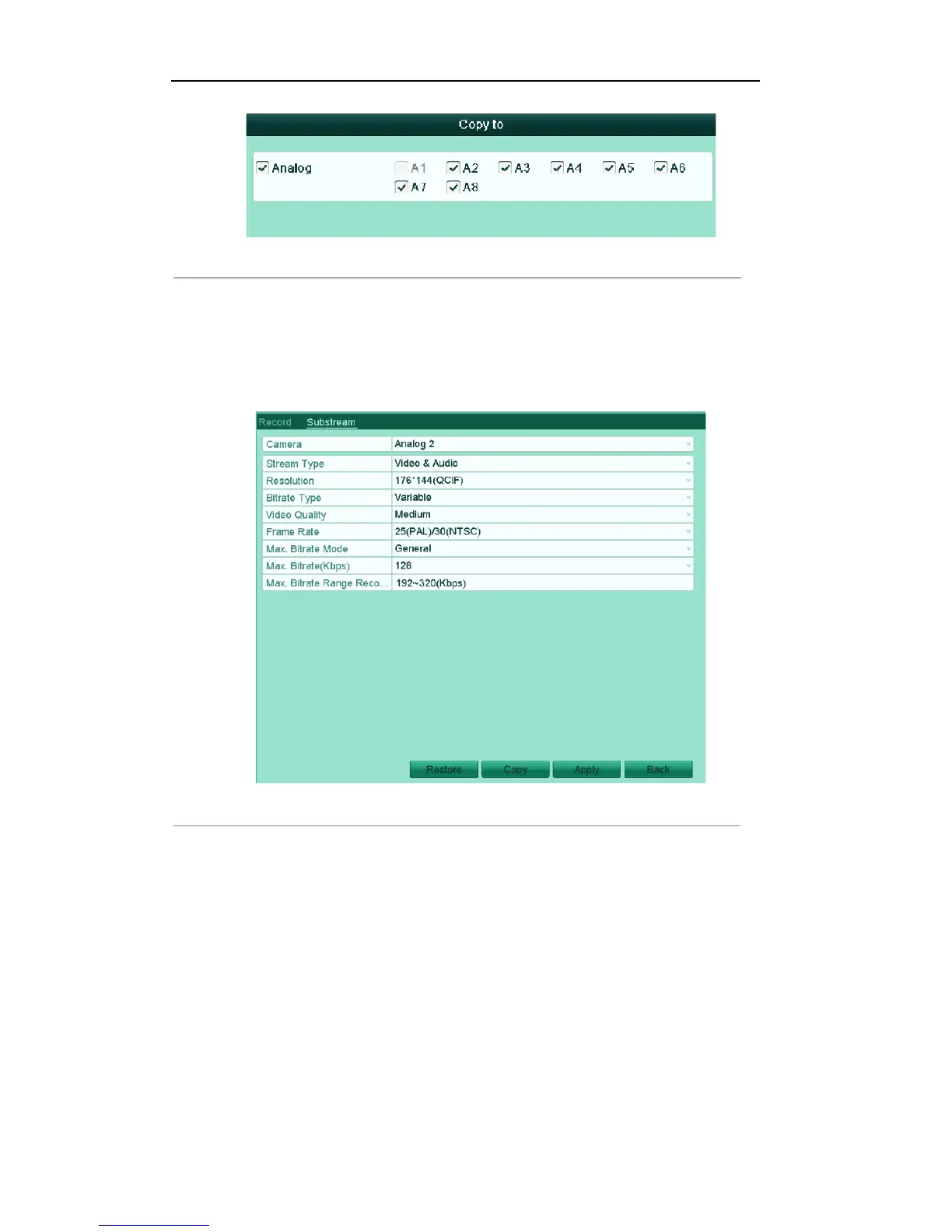
Figure'5.5'Copy'Camera'Settings'
7) On the Record settings interface, click Apply to save the settings.
Note: For the analog cameras, you can click the Restore button to restore the current main stream
settings to the default parameters.
3. Set encoding parameters for sub-stream.
1) Click the Substream tab to enter the Substream settings interface.
Figure'5.6'Encoding'Parameters[Sub[stream'
2) Configure the parameters for the sub-stream. Refer to the step of main stream settings.
3) Click Apply to save the settings.
Note: You can click the Restore button to restore the current sub-stream settings to the default
parameters.
4) If you want to copy the current sub-stream settings to other camera (s), click Copy to enter the
Copy Camera interface. Select the camera (s) and click OK to finish the copy settings.
4.2 Configuring Record Schedule
Purpose:
Set the record schedule, and then the camera automatically starts/stops recording according to the configured
schedule.


 To Next Page