User Manual
22
1) Click the IP Camera Import/Export tab.
2) Select the backup device from the drop-down list. You can click the Refresh button to get the
latest information of the backup device.
3) Click the Export button to export the configuration file of IP cameras to the backup device.
4) Click OK on the pop-up message box after the exporting process is complete. The configuration
file of IP cameras will be displayed on a list.
1.3.2!Configuring!the!Connected!IP!Cameras!
Editing the connected IP cameras
Purpose:
The detailed information of the added IP cameras will be displayed on a list, and you can configure the basic
setting of the cameras if needed.
Steps:
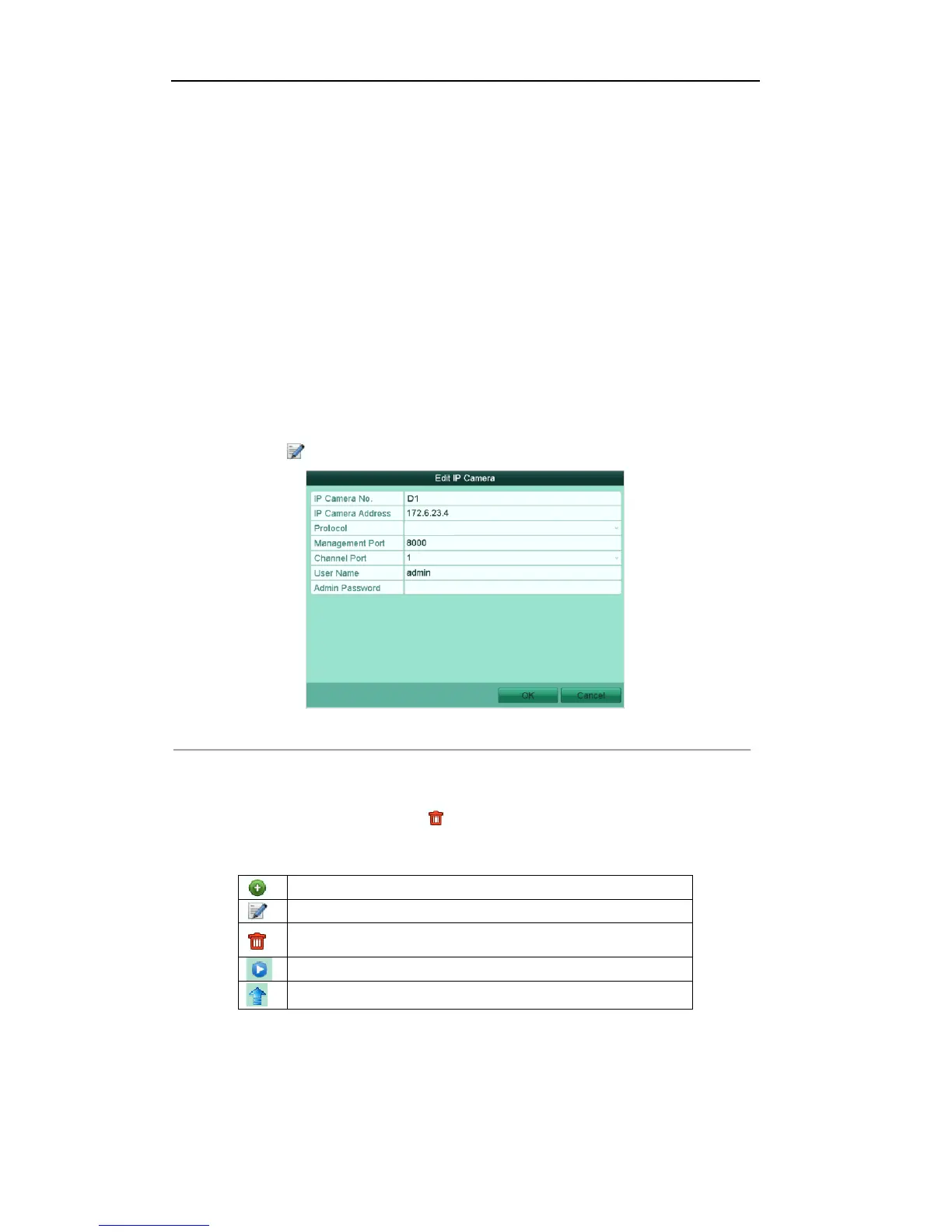
1. Click the icon on the camera list to enter the Edit IP Camera interface.
Figure'2.17'Edit'IP'Camera'
2. Edit the camera information, such as the IP address, protocol, port, etc.
3. Click the button OK to save the new settings.
4. To delete the added camera, click the icon ;
Or check the corresponding checkbox and click the button Delete.
Description of the icons:


 To Next Page