User Manual
63
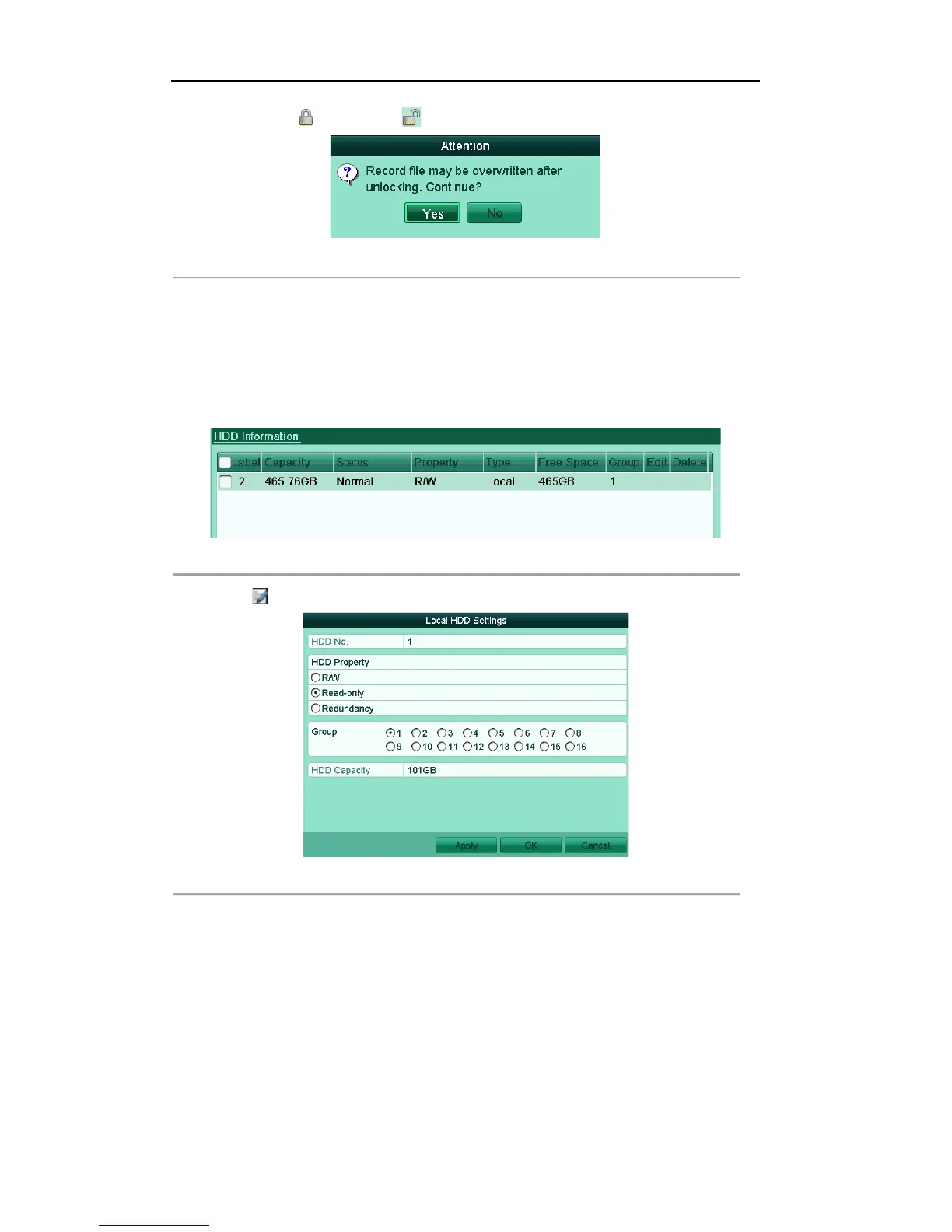
2) Click to change it to to unlock the file and the file is not protected.
Figure'5.32'Unlocking'Attention'
Protect file by setting HDD property to Read-only
Note: To edit HDD property, you need to set the storage mode of the HDD to Group. See Chapter 10.3
Managing HDD Group.
Steps:
1. Enter HDD setting interface.
Menu> HDD
Figure'5.33'HDD'General'
2. Click to edit the HDD you want to protect.
Figure'5.34'HDD'General['Editing'
3. Set the HDD to Read-only.
4. Click OK to save settings and back to the upper level menu.
Note: You can’t save any files in a Read-only HDD. If you want to save files in the HDD, change the
property to R/W.
Note: If there is only one HDD and is set to Read-only, the device can’t record any files. Only live view
mode is available.
If you set the HDD to Read-only when the device is saving files in it, then the file will be saved in next
R/W HDD. If there is only one HDD, the recording will be stopped.


 To Next Page