AHD DVR User Manual
59
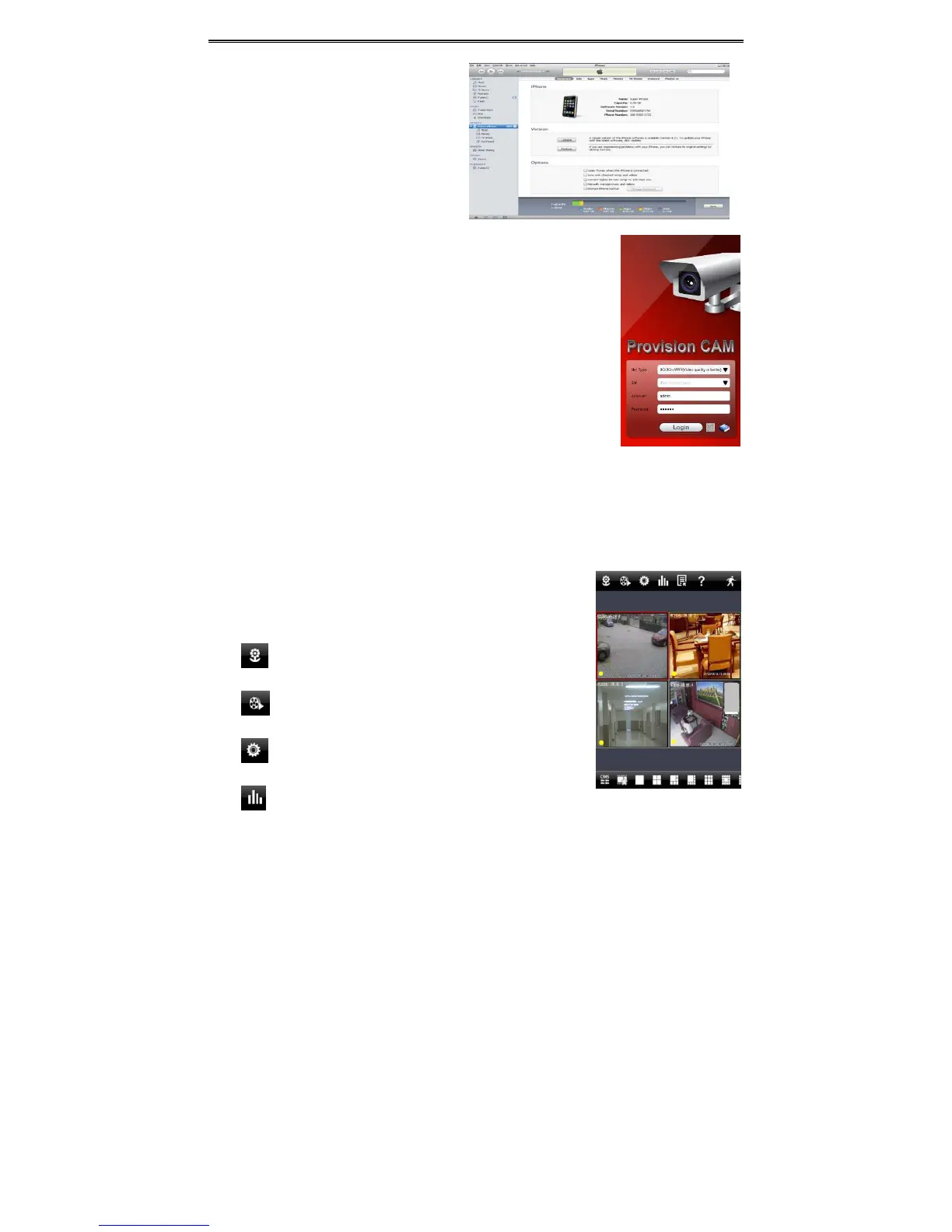
Step2:ConnectiPhoneandPC.
Step3:Search“Pr ovisionCam”andselectit.
Step4:Click“Download”button.
Step5:Inputusernameandpassword.
Step6:Synchronouslyapply"ProvisionCam"
softwaretoiPhone/iPad.
"ProvisionCam"Instructio ns
1. Login
Step1:Choosenetworktype.Therearetwonetworkconnectionways:
3G/3G+WIFI,wellvideoquality.Thisnetworksupportsmainstreamandsub
stream.Thereal‐timeimagewillbedisplayedbyusingsubstream.
3G‐,poorvideoqualitycontrasttotheabovementionednetwork.
Step2:Inputserver,
accountandpassword.
Server:Option1(availableonlyifNATP2Pserverisen abled,please referto
section5.6.4):ClickonthesmallQRcodeiconinthebottomofthelogin
screenthensnaptheQRcodefromthestickerontheDVRorfromtheDVR
interface(Menu
InformationQRCODE).
Server, Option 2: WAN IP address (or domain name) plus HTTP port of the device. For example:
210.21.183:89or123.dvrdydns.com:89.Note:Thedef a ulthttpportofthedevice is80.Ifthisportismodified,
pleaseusethemodifiedport.
AccountandPassword:Theloginaccountand
passwordofthedevice. Thedefaultaccountisadminand
thedefaultpasswordis123456.
Step3:Click【Login】buttontoaccessthedevice.
2. MainInterface
Thereare many buttons in the main interface,such as, screenmode,
favoritechannel,snap,record,open/closeaudio,talk,PTZ.,etc.
:Imageviewbutton.Thepicturessnappedinthelivewillbe
checkedbyclickingthisbutton.
:Playbackbutton.Clickthisbuttontoenterintoplayback
interface.
:Settingsbutton.Clickthisbuttontosetlocalconfiguration
(Somecanalsosupportremoteconfiguration).
:Informationbutton.Clickthisbuttontochecklotsof
information



 To Next Page