80
8.2.7 Controlling the Sensor via Geo-Lock
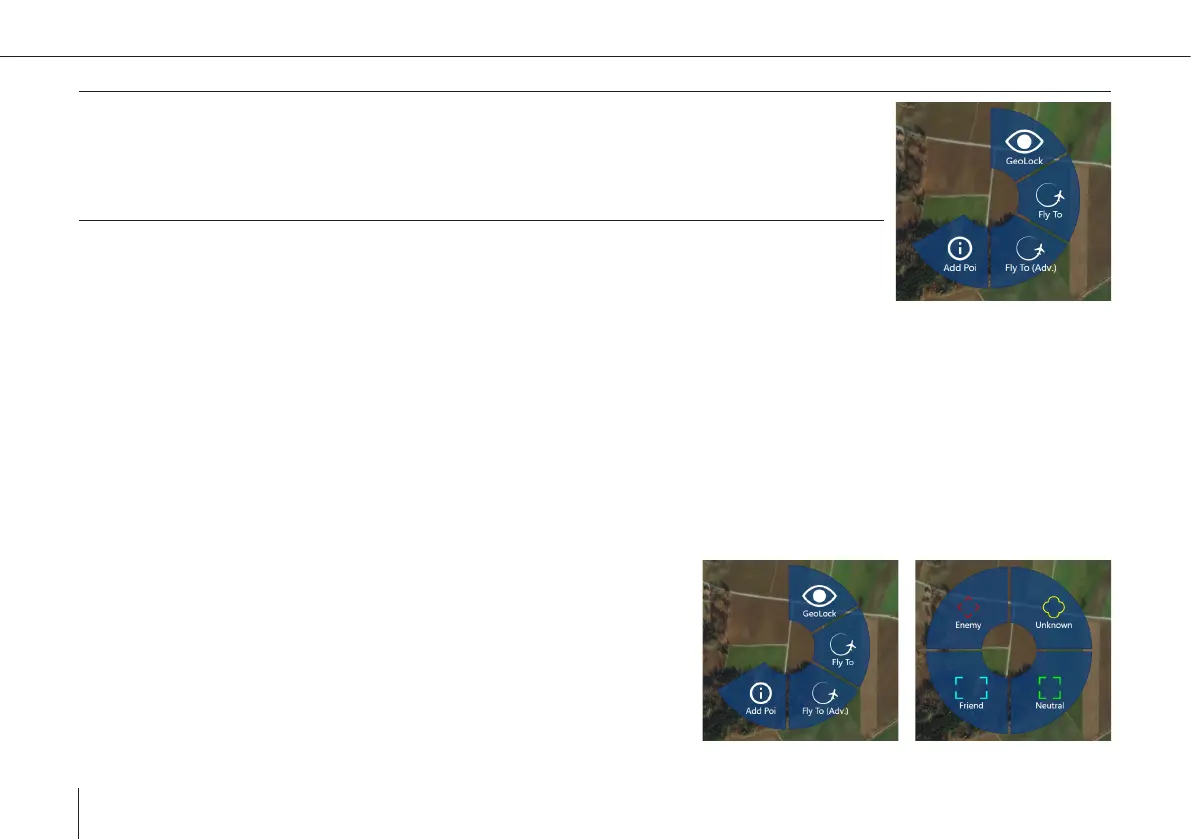
Activate: Click on the map, select GeoLock
• Use in sensor screen: Clicking on the ground in the image will align the sensor to this position.
8.2.8 Controlling the Sensor via Tracking
• Activate: Select Tracking mode from the Gimbal Mode Menu in the sensor screen
• Click on sensor image to select a target
°
A rectangle around the closest identied object will appear and the sensor starts tracking this target. Since tracking is
depending on image information, it can be disturbed by objects getting between the sensor and the target, like UAV
parts at low tilt angles, trees, houses, etc. The track can also be lost, if the target changes too much in appearance (e.g. a
person changing clothes, a car turning around fast).
8.3 Point of Interest (POI)
POIs are used to mark objects or events in location and time. There are 4 types: Enemy, Friend, Neutral and Unknown. POIs
are visible on the map, the sensor image, if in view, and in the sidebar under the POI tab.
Adding
1. Enter a POI by clicking on the map, selecting the Add POI button and
choosing the type. The POI is created at that location with the current
timestamp.


 To Next Page