107
Updates, Settings & Maintenance
11
11.8 Connecting an additional Laptop over the same GCS
Introduction
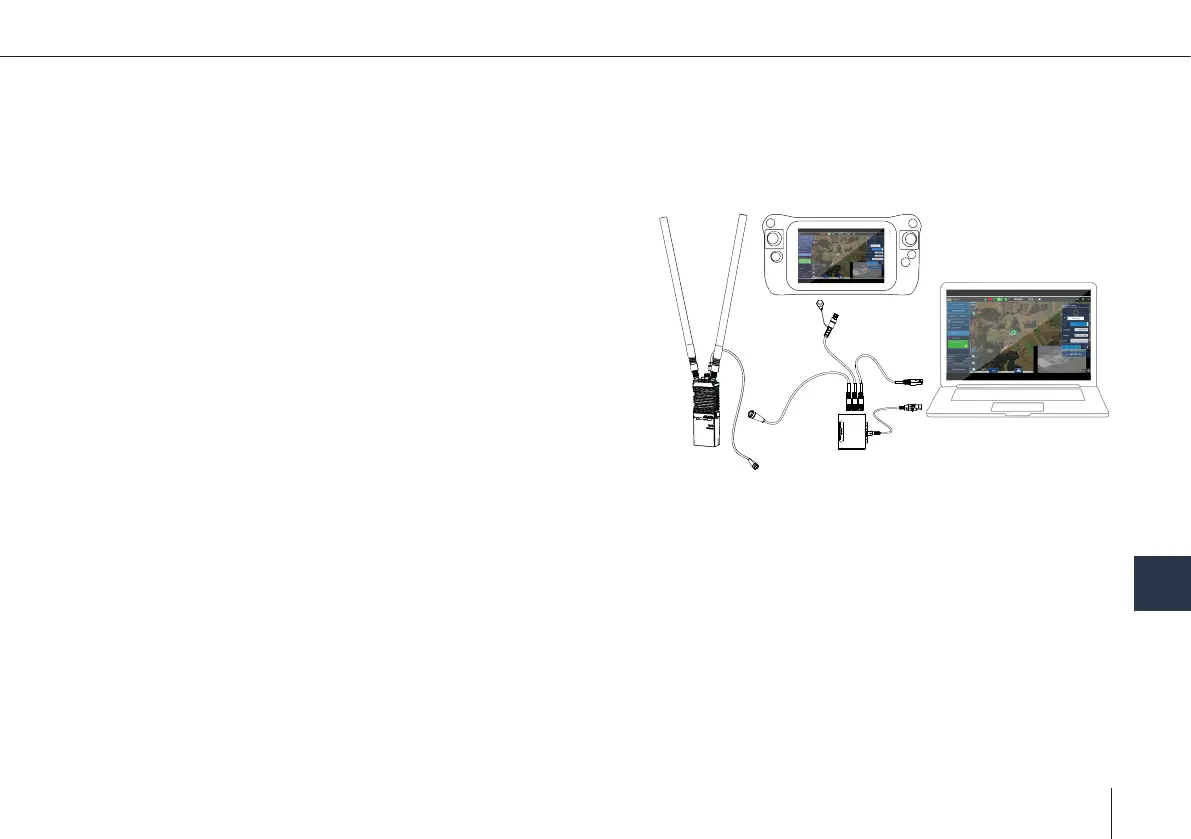
Having an additional QBase Tactical on a larger screen can give you additional insight in the mission status or can help you to
support the pilot in command on the SkyNav. Alternatively, the video stream can be received by third party software (e.g. VLC)
Hardware Setup
1. Connect the Silvus Radio with the RJ45 cable to the switch
2. Connect the SkyNav with the RJ45 cable to the switch
3. Connect your PC with an RJ45 cable to the switch
Network Conguration of own PC
1. Set your used ethernet IPv4 settings to the following:
• IP-Adress: 172.20.5.xxx (xxx can be chosen between
1 and 253, but must not already exist in the network)
• Subnet mask: 255.255.0.0
• Gateway: 172.20.1.1
2. Deactivate other network interfaces, e.g. WiFi, LTE, other connected
ethernet ports
3. Setup a rewall rule to allow input from UDP ports 5000 and 15004
QBase Setup
The second QBase Tactical will automatically connect to the aircraft
Video Stream in Third Party Software
• The video stream is available at udp://235.20.2.xxx:15004
xxx is the gimbal IP, which can be acquired from Quantum-Systems.
• For VLC select “Open Network Stream” from the “Media” menu and enter the address as (notice the @ symbol):
udp://@235.20.2.xxx:15004
Remark: VLC adds a delay of 1 second for buffering
Important Remarks: Always use the controller (Skynav/QS-Joystick-Controller) for Preight Checking, Arming and Takeoff


 To Next Page