86
9.1 Downloading the FlyLog including KML
FlyLogs are generated during the ight and saved on the autopilot board of the UAV.
QBase offers the opportunity to create a KML (Keyhole Markup Language) le from the Fly-
Log. The KML les can be used to display the ight path in an Earth browser.
Please note that only the last ten
FlyLog
s are saved on the autopilot.
In order to prevent loss of data, please download the
FlyLog
s regularly, at least after every
10th ight.
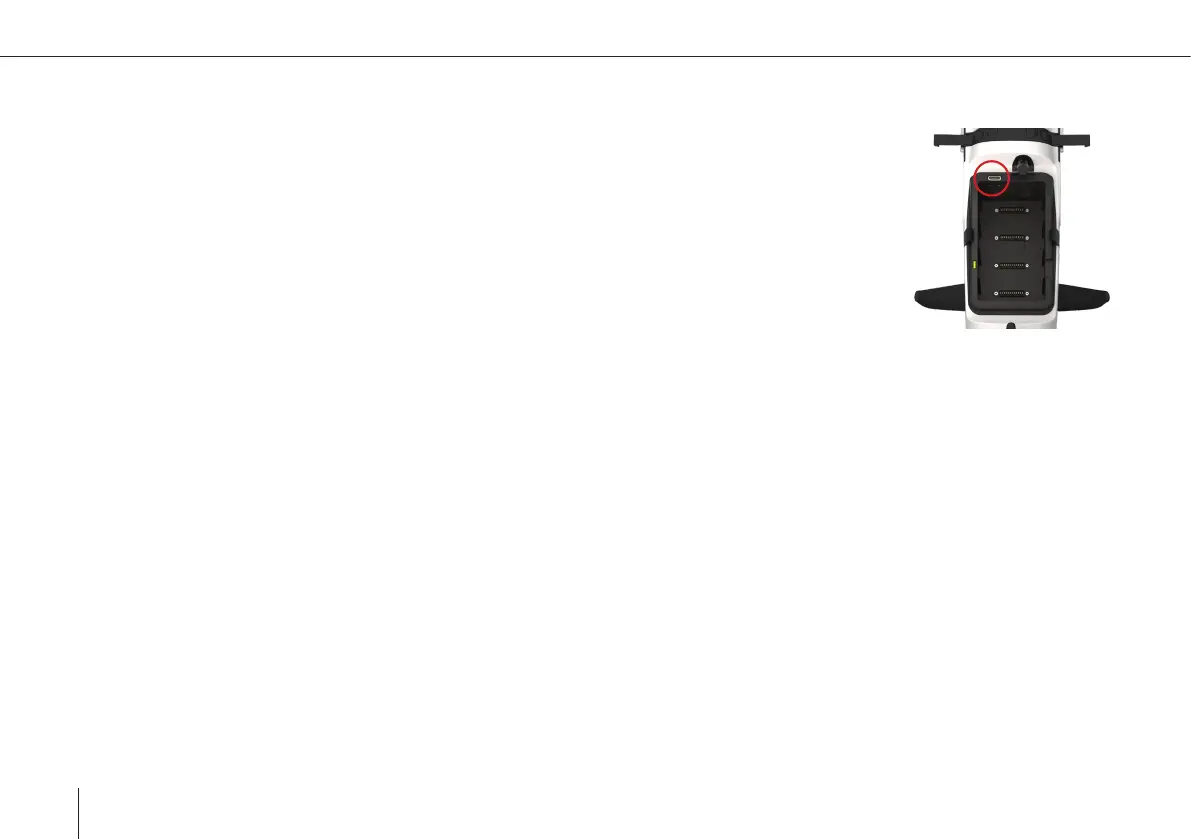
1. Connect the UAV main body to your computer via magnetic USB (see picture).
Do not connect the battery, the power is supplied by the USB connection.
2. Open QBase, select Tools and select FlyLog Debrief.
3. Show the list of Logs by selecting “refresh” .
4. Select if you wish to download the FlyLog or if you would also like to create the KML and the tagging le
generated from the FlyLog.
5. Select the
FlyLog
that you wish to download from the UAV and select Download.
6. Choose a directory.
7. By selecting Load from Folder it is also possible to create a KML le and a tagging le from a previously downloaded Fly-
Log, that is saved on your computer.
9.2 Downloading a LOG le from the autopilot SD card
The log le includes all data of the ight and might be needed by your sales agent for troubleshooting.
In order to download the log le follow the steps:
1. Connect the main body of the UAV to your computer, laptop or tablet via magnetic USB.
Do not connect the battery. The power supply is guaranteed by the USB connection.
2. Open QBase.
3. Select Updates.


 To Next Page