RAUMED NeuroSmart Instruction Manual
Manufacturer: RAUMEDIC AG, Hermann-Staudinger-Strasse 2, 95233 Helmbrechts, Germany
zwo-541EN Rev 3 / 2022-05-03
Page 22 of 61
3.5 Adjusting the settings / installing the NeuroSmart
3.5.1 General adjustment of settings
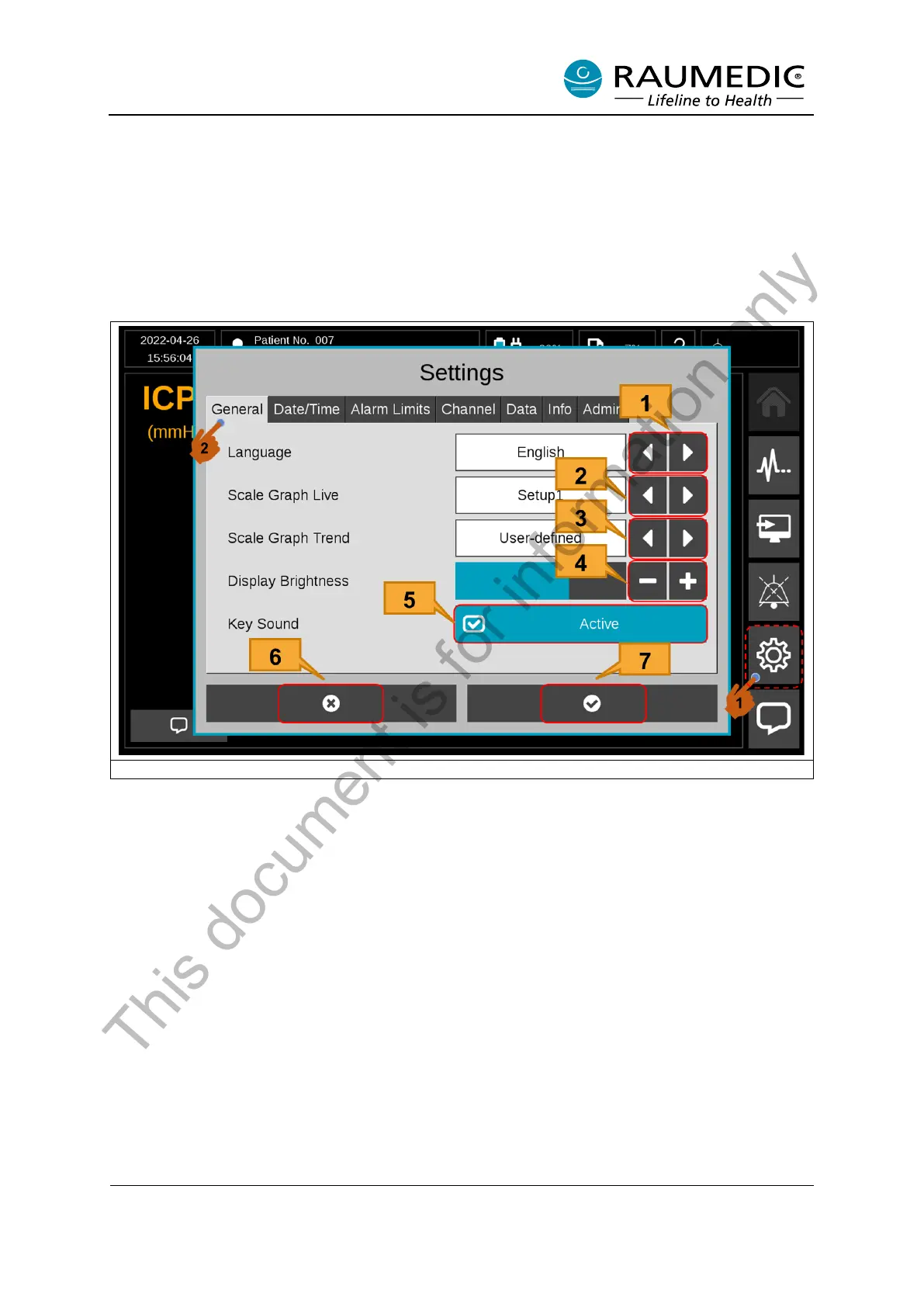
To access the general Settings menu, please carry out the following steps: <1> Settings then <2> Gen-
eral. See Figure 11.
In this menu, you can adjust the settings for the system language, scaling, alarm limits, and key sound
as explained in more detail below.
Figure 11: General settings
[1] Language select buttons
[2] Scale Graph Live select buttons: Selectable: Autoscae, Setup 1, Setup 2, Setup 3 and User-Defined
[3] Scale Graph Trend select buttons: Selectable: Setup 1, Setup 2, User-defined
[4] The display brightness can be adjusted by pressing the plus/minus key.
[5] Key Sound can be activated/deactivated.
[6] Do not save settings and quit Settings menu.
[7] Save settings and quit Settings menu.
• Languages
The Language Select button can be used to select between several languages that can be used
for the NeuroSmart display.
• Scale Graph Live
Scaling of pressure and temperature axes can be adjusted in the Live Graph mode. The default
setting for scaling is “automatic”, i.e. the scaling is automatically matched to the signal value. Alter-
natively one of the three following setup settings can be selected for the scaling.
Temperature and CPP are not displayed as a curve but a numerical value in the Live Graph mode.
This document is for information only


 To Next Page