Textual tool bar
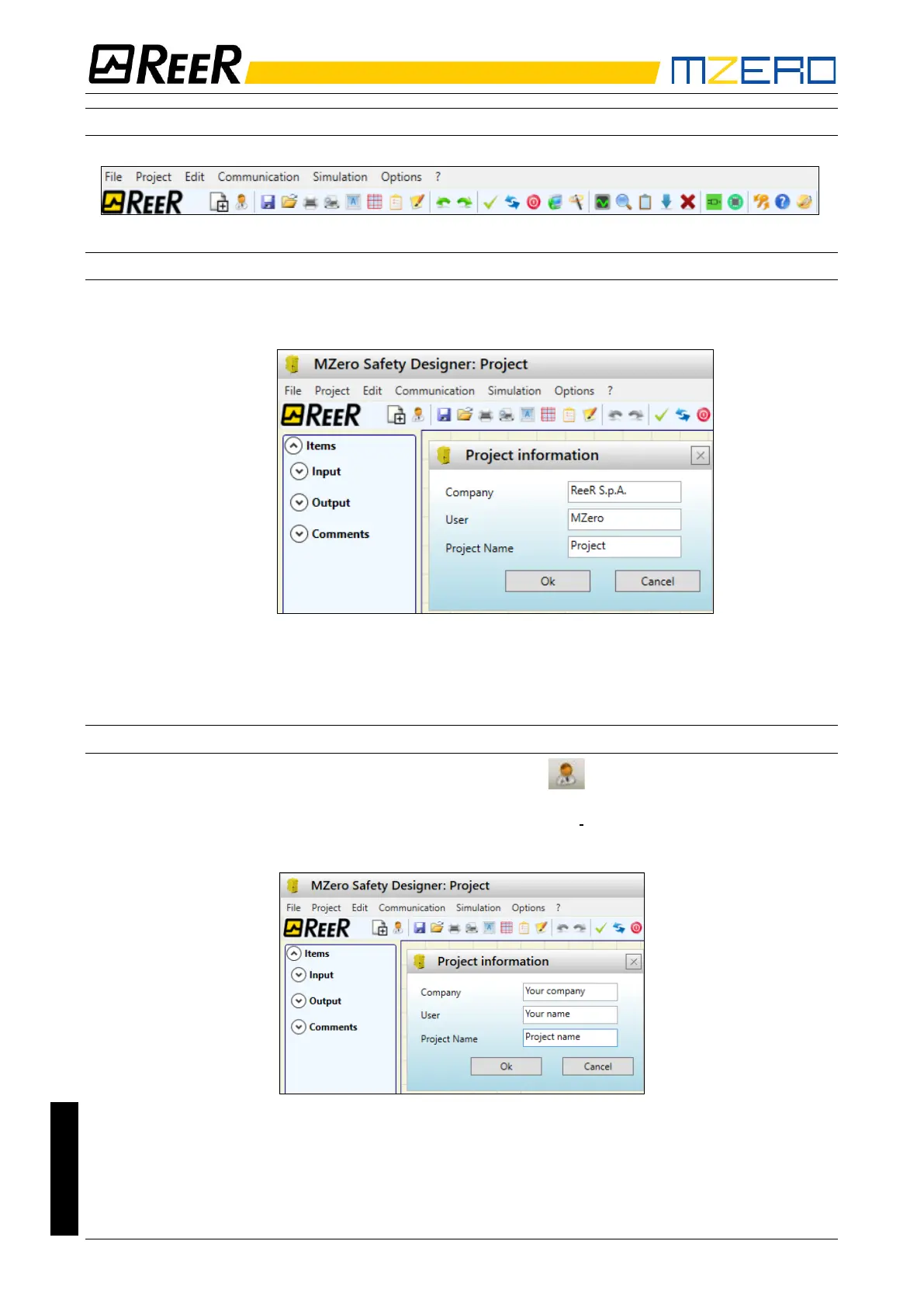
Optionally the textual tool bar shown below is also available (drop down).
Figure 15
Create a new project (configure the MZERO system)
• Select icon CREATE (Figure 14) from the standard tool bar to start a new project. The user
authentication window is displayed (Figure 16).
Figure 16
• Next the MZD displays a window showing the MZERO controller on the right-bottom angle.
Change user parameters
The change of user parameters is obtained with the icon .
The dialog user identification request appears (Figure 17). To accomplish this operation is not
necessary to Log out from MZERO. Generally it serves when the user must create a new project
(even using a previously created).
Figure 17


 To Next Page