www.resourcedm.com
Revision 2.3 Page 11 of 72
Commissioning & Service Guide DMTouch
Warning
Please Note
The specifications of the product detailed on this
Set-Up Guide may change without notice. RDM
Ltd. shall not be liable for errors or for incidental
or consequential damages, directly and indirectly,
in connection with the furnishing, performance or
misuse of this product or document.
Ensure that all power is
switched off before
installing or maintaining
this product
Alarms
Alarm Comments
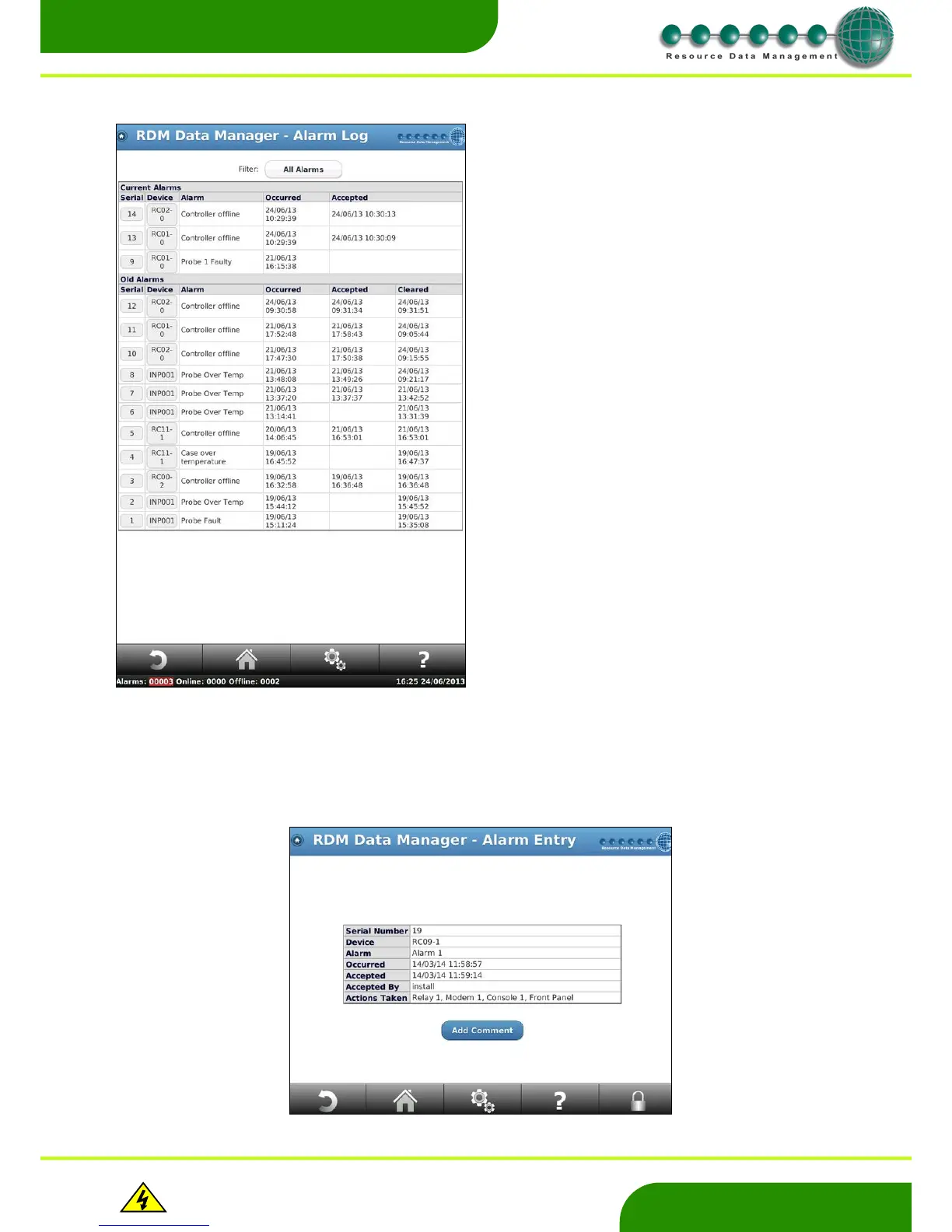
Firstly ensure the “Allow alarm comments” feature is enabled under the Site Setup page. Navigate to the Alarm Log from the Home
Page. Now select the alarm you wish to add a comment against by pressing on the hyperlink. The screen below will then be shown. By
pressing on ‘Add Comment’ the user will be asked to login.
From the “Home” screen press “Alarm”. This result’s with the page shown
opposite.
Here, the current alarms are shown with the serial number of the alarm,
the device that generated the alarm, the reason the alarm occurred and
the time and date the alarm was generated.
By pressing on the filter at the top, the user can view All, Current or Old
alarms.
By pressing on the serial number the user can see what action has been
taken against this alarm. And by pressing on the controller name they will
be taken to the current values of the device


 To Next Page