Various Scan Settings
126
6
B Select a file type.
C Press [OK].
Note
❒ In some cases, even if [Compression (Black & White)] is set to [On] in [Scanner
Features], the file size may be bigger than the one when [Compression (Black
& White)] is set to [Off].
Setting File Name
This section explains the procedure for setting a file name.
Scanned file will be given a file name consisting of the time and date of scanning,
4-digit page number, etc.
• Single-page and divided multi-page files are assigned file names that contain
the date and time of scanning and a four-digit page number. An underscore
is inserted between the date and time and the four-digit page number.
(Example: For a file scanned in single-page TIFF at 10 ms, 15 sec., 15:30 hours
on Dec. 31, 2020, the file name will be 20201231153015010_0001.tif)
• Multi-page files are given file names that contain the time and date of scanning.
(Example: For a file scanned in multi-page TIFF at 10 ms, 15 sec., 15:30 hours
on Dec. 31, 2020, the file name will be 20201231153015010.tif)
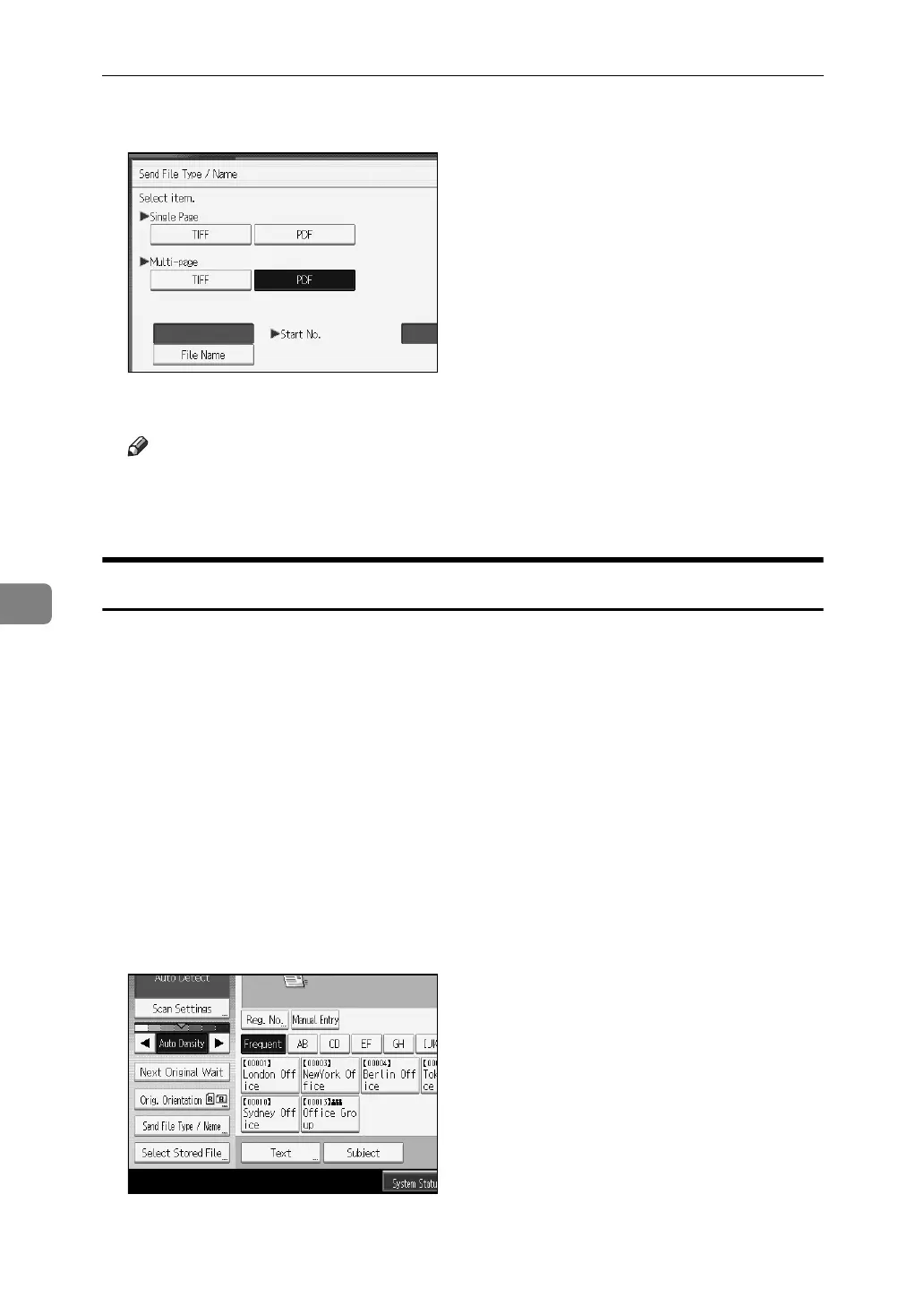
If necessary, you can change the file name.
A Press [Send File Type / Name].



 To Next Page
 Loading...