Alpha5000ML owner’s manual 30
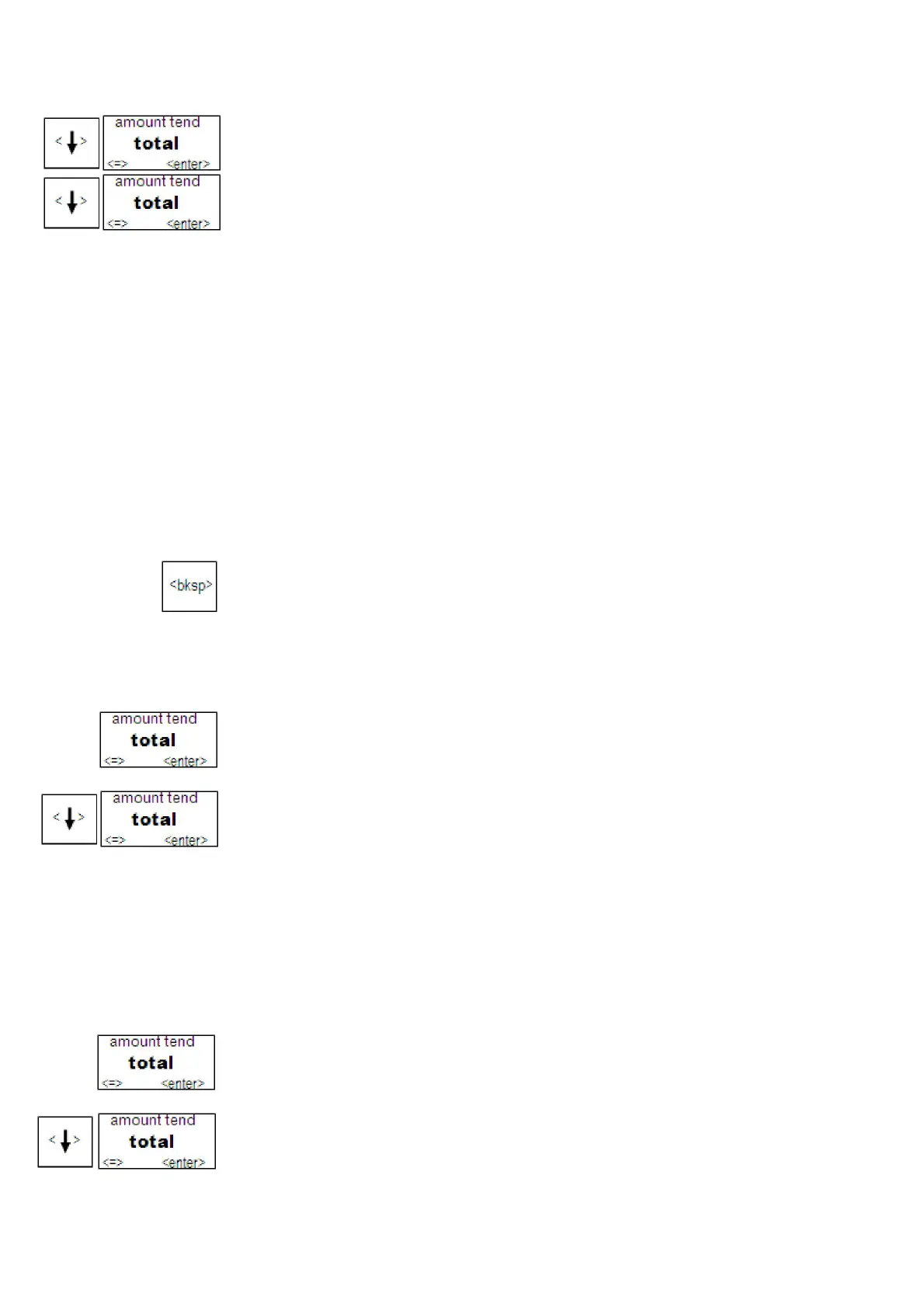
3 Press the Arrow Down key to select RECEIPT SETTING. Press the enter
key.
4 Press the Arrow Down key to select Print Parameters. Press the enter key.
5 Press the Arrow Down key and enter to .choose whether to print
Setting Clerk Numbers and Names
You can program and assign up to 50 Clerk Names Each clerk name can also be
assigned a 12 character.
To see the sales totals for each clerk, a Clerk Report is available in both the X and
Z modes.
You can spell names by using alpha keys.
You must turn on Clerk passwords separately.
Note
When clerks enter Passwords, Passwords appear as asterisks *** on
the displays for extra security.
Important
If you enter the wrong character, press the bksp key to clear the character.
Now you can continue.
To set a clerk name and Password
PRG CLERK SETTING
1 Switch the control lock to PRG.
2 If you are prompted for a Manager Password, type the Password number and then
press the enter key. If you did not program a Manager Password, go to the next
step.
3 Press the Arrow Down key to select CLERK SETTING. Press the enter key.
4 Press the Arrow Down key to select one clerk to set. Press the enter key.
5 Follow the instructions on the display. Now you need to turn on Clerk System
(Default is on).
To turn on Clerk System
PRG CLERK SETTING
1 Press the Switch the control lock to PRG.
2 If you are prompted for a Manager Password, type the Password number and then
press the enter key. If you did not program a Manager Password, go to the next
step.
3 Press the Arrow Down key to select CLERK SETTING. Press the enter key.
4 Press the Arrow Down key to select Clerk Active. Press the enter key.



 To Next Page