8
Introducing the ZoneFlex Access Point
Getting to Know the Access Point Features
4 WLAN LED • Green: The wireless LAN (WLAN) service is up and
at least one wireless client is associated with it. If
mesh networking is enabled, there are no
downlink MAPs connected to this Access Point.
• Fast flashing green (two flashes every second):
The WLAN service is up and at least one wireless
client is associated with it. Mesh networking is
enabled and at least one downlink MAP is
connected to this Access Point.
• Slow flashing green (one flash every two seconds):
The WLAN service is up, but no wireless clients
are currently associated with it. Mesh networking
is enabled and at least one downlink MAP is
connected to this Access Point.
• Amber: The WLAN service is up, but no wireless
clients are currently associated with it. Mesh
networking is disabled.
• Off: Either the WLAN is down, or it is up but no
wireless clients are currently associated with it. If
mesh networking is enabled, there are no
downlink MAPs connected to this Access Point.
5 HARD RESET
Button
Pushing and quickly releasing this internal button
reboots the AP. Pushing and holding it for six
seconds resets the AP to factory defaults.
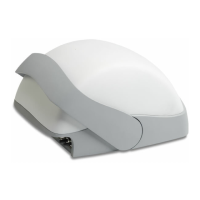
6 Sliding Door Protects the ports, buttons, and connector on rear
panel
7 Kensington Lock The Kensington lock feature, located on the
opposite side of the unit from the pictured LEDs, is
designed to prevent the sliding door from opening,
thus locking the unit. The Kensington lock works with
a Kensington MicroSaver lock.
Table 5. ZoneFlex 2942/7942 side panel elements
Number LED/Button Name Description










 To Next Page