4. Click Update Settings to save your settings.
Configuring Static IP
Unless you are able to determine the IP address assigned to the AP by the DHCP/Auto
Configuration server, it can be useful for anyone needing administrative access to
configure a static IP address.
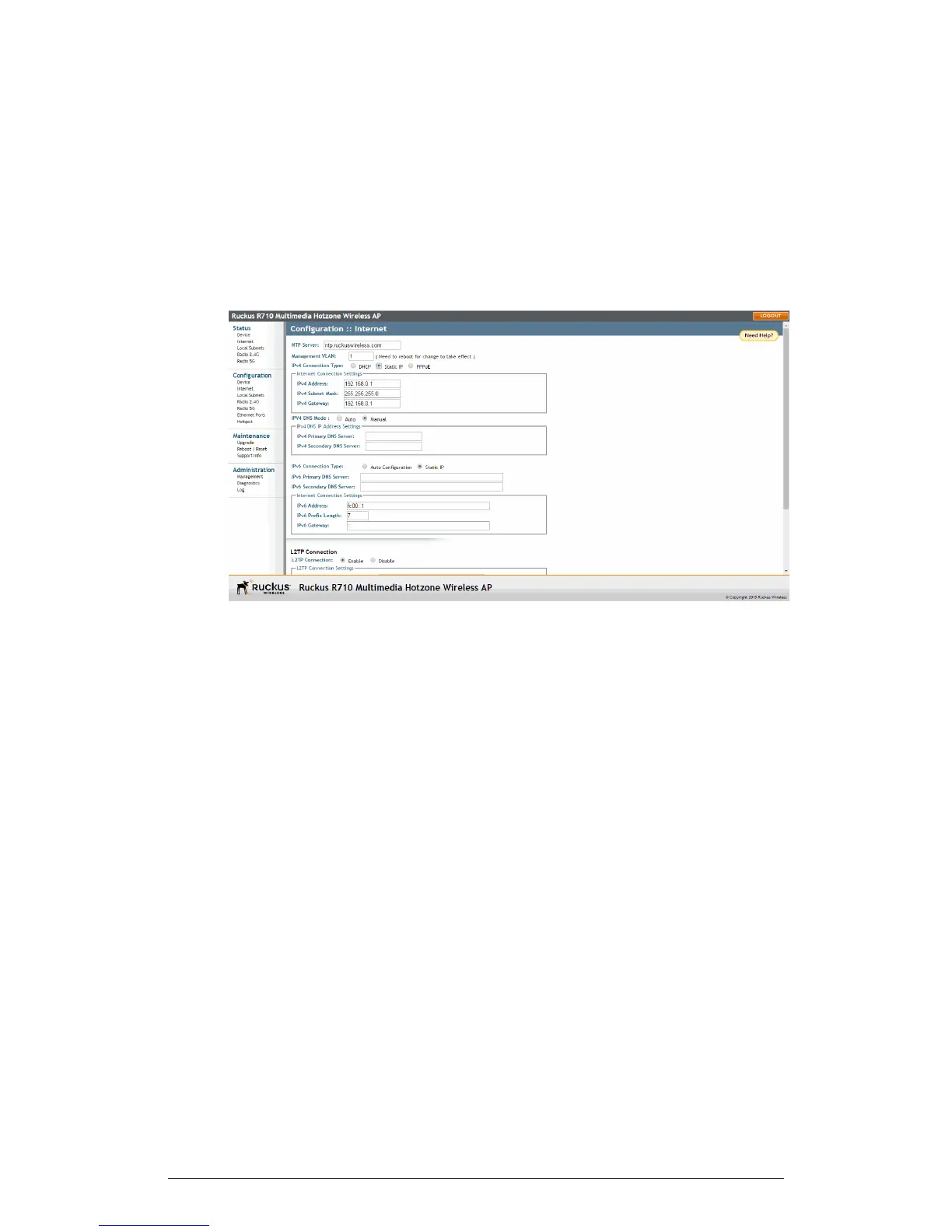
1. Go to Configuration > Internet. The Configuration :: Internet page appears.
Figure 49: The Configuration > Internet page
2. You can configure static addresses for IPv4, IPv6 or both. The AP maintains both
sets of IP address settings when both are configured.
Static IPv4
Use the following procedure to configure a static IPv4 address.
1. In IPv4 Connection Type, select Static IP.
2. When the Internet Connection Settings options appear, you can make changes to
the following settings:
• IPv4 Address: Enter the static IP address that you want to assign to the AP in
IPv4 (dot-decimal) format.
• IPv4 Subnet Mask: Enter the subnet mask for the network.
• IPv4 Gateway: Enter the gateway IP address of the Internet interface.
3. To allow the DNS mode to be determined automatically, set IPV4 DNS Mode to
Auto.
4. To set the DNS mode manually, set IPV4 DNS Mode to Manual. Then enter the
following:
• IPv4 Primary DNS Server: The IP address of the primary Domain Name System
(DNS) server.
ZoneFlex Indoor Access Point Release 104.0 User Guide
95
Configuration
Configuring the AP








 To Next Page