English - 57
Rotating
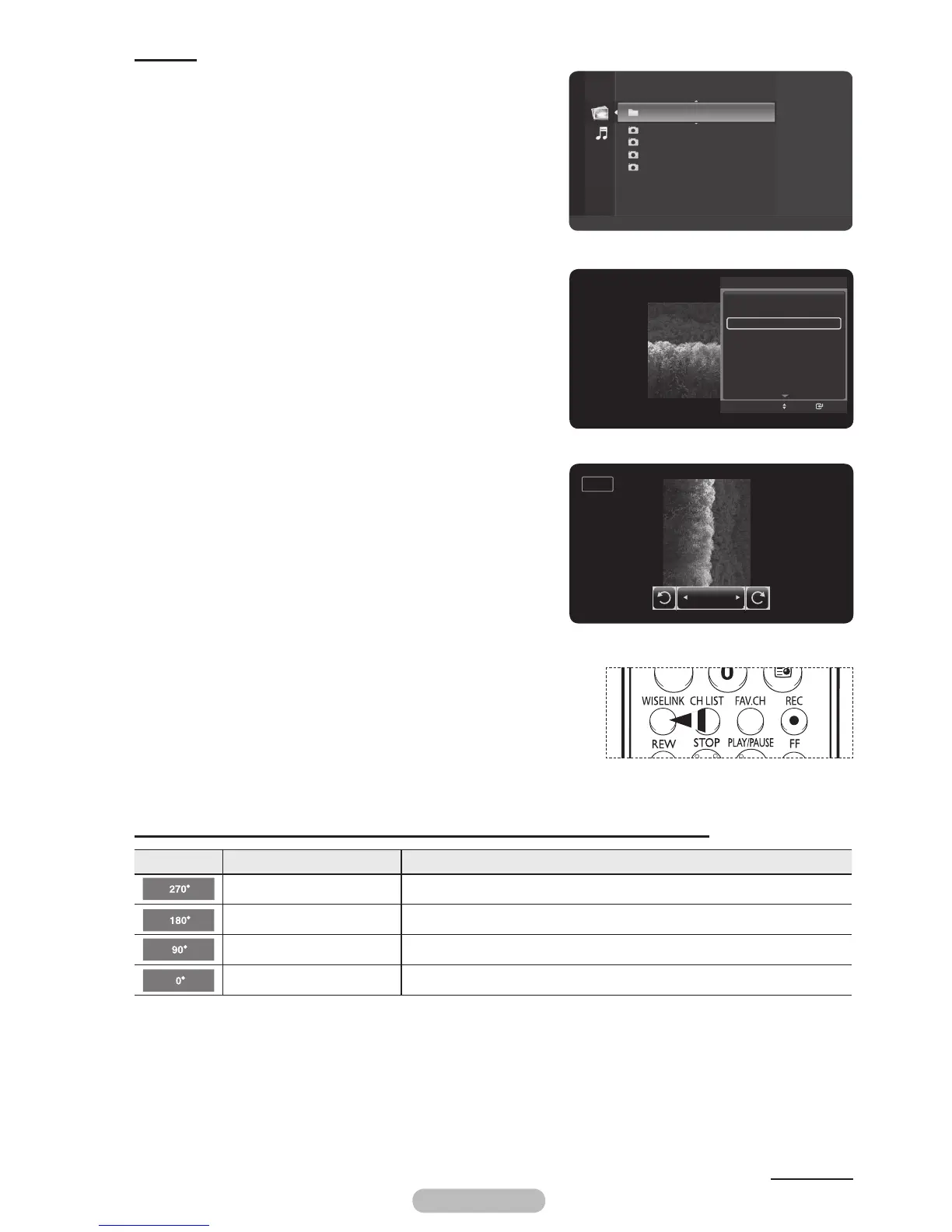
1 After switching the mode to WISELINK, select a memory
device that you have installed. (Refer to page 50~51)
2 Press the ENTER/OK button to select Photo.
JPEG files and existing folders are displayed.
3 Press the ▲ or ▼ button to select a photo, then press the
ENTER/OK button.
➢
Pressing the button over a photo icon shows the
currently selected photo in full screen.
4 Press the TOOLS button.
Press the ▲ or ▼ button to select Rotate, then press the
ENTER/OK button.
Press the ◄ or ► button to rotate the photo by the
required amount.
➢
Whenever you press the ◄ button, it rotates by 270˚,
180˚, 90˚, and 0˚.
➢
Whenever you press the ► button, it rotates by 90˚,
180˚, 270˚, and 0˚.
➢
Rotating directly from 90 degrees to 270 degrees is
not allowed.
5 To exit WISELINK mode, press the EXIT button on the
remote control.
➢
The rotated file is not saved.
➢
If you have select ZOOM, the Rotate function is
deactivate
➢
Press the WISELINK button on the remote control to turn on
the WISELINK mode.
The Rotating function information icon (Displayed at the top left of the screen).
Icon Current OSD Function
Rotating (270°) To rotate a photo by 270 degrees
Rotating (180°) To rotate a photo by 180 degrees
Rotating (90°) To rotate a photo by 90 degrees
Rotating (0°) To rotate a photo to its original state
Continued...
Folder 1 2007/1/2
File 1.jpg 2007/1/2
File 2.jpg 2007/1/2
File 3.jpg 2007/1/2
File 4.jpg 2007/1/2
USB
Device
Zoom
Option
Photo
Start Slide Show
Zoom
Rotate
Background Music : On
Background Music Setting
Delete
Picture Mode : Dynamic
Sound Mode : Standard
Information
Move
Enter
TOOLS
90°
Rotate
BN68-01314A-02Eng.indd 58 2007-08-22 ¿ÀÀü 10:37:36



 To Next Page