English - 58
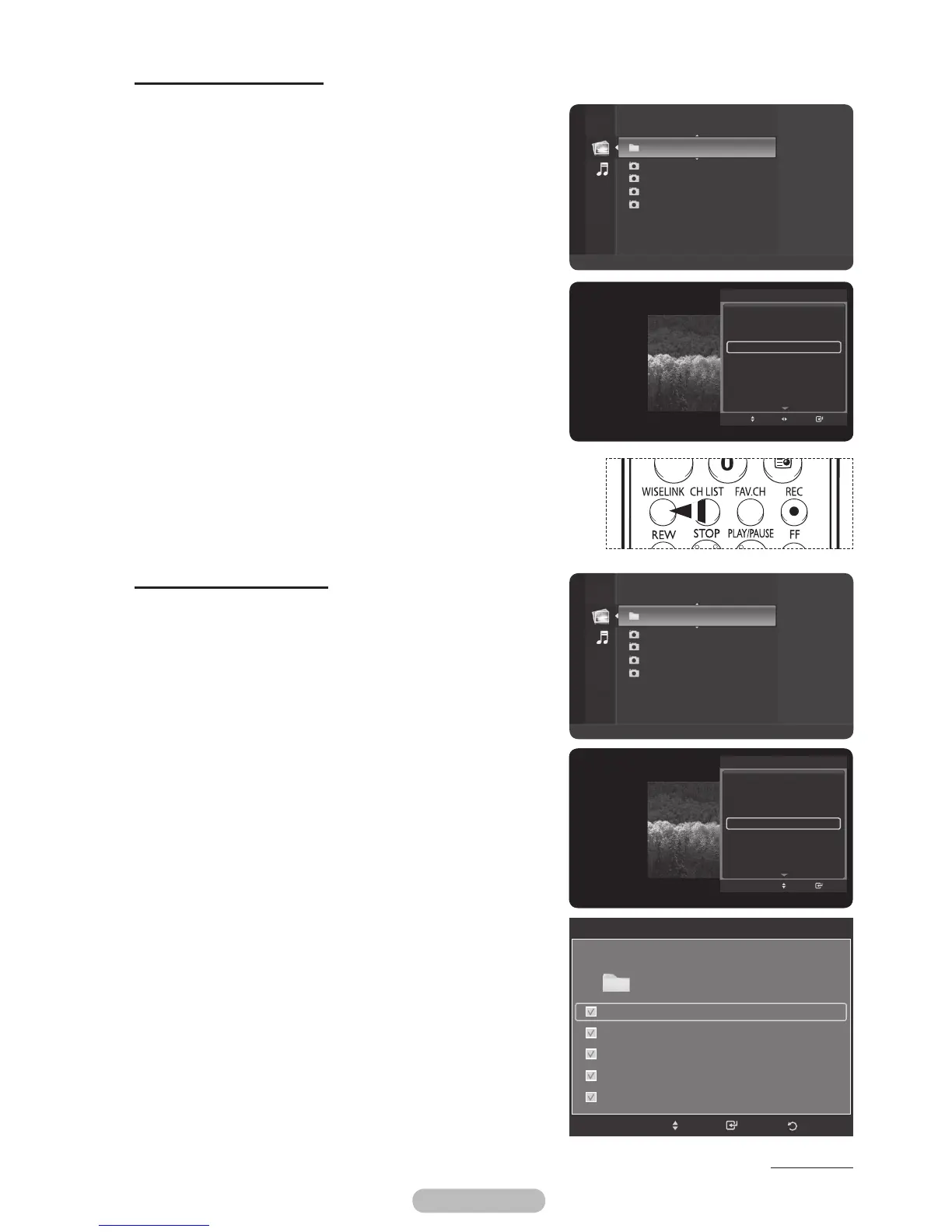
Background Music On/Off
If you set Background Music On, the background music
will be played when viewing photos one by one or in a
Slide Show.
1 After switching the mode to WISELINK, select a memory
device that you have installed. (Refer to page 50~51)
2 Press the ENTER/OK button to select Photo.
JPEG files and existing folders are displayed.
3 Press the ▲ or ▼ button to select a photo, then press the
ENTER/OK button.
➢
Pressing the button over a photo icon shows the
currently selected photo in full screen.
4 Press the TOOLS button.
Press the ▲ or ▼ button to select Background Music,
then press the ◄ or ► button to select On or Off.
➢
On: When the background music is available, if you
select On, the music is played back.
➢
Off: Background music is not played.
5 To exit WISELINK mode, press the EXIT button on the
remote control.
➢
Press the WISELINK button on the remote control to turn on
the WISELINK mode.
Background Music Setting
1 After switching the mode to WISELINK, select a memory
device that you have installed. (Refer to page 50~51)
2 Press the ENTER/OK button to select Photo.
JPEG files and existing folders are displayed.
3 Press the ▲ or ▼ button to select a photo, then press the
ENTER/OK button.
➢
Pressing the button over a photo icon shows the
currently selected photo in full screen.
4 Press the TOOLS button.
Press the ▲ or ▼ button to select Background Music
Setting, then press the ENTER/OK button.
The music (MP3) files are listed.
5 Press the ▲ or ▼ button to select a particular music file
and press the yellow button.
➢
The <✔> mark appears to the left of the selected
music (MP3).
➢
Repeat the above operation to select multiple music
files.
6 Press the ENTER/OK button to save the current
selections.
7 To exit WISELINK mode, press the EXIT button on the
remote control.
➢
If you turn Off the Background Music, even if the
Background Music Settings have been set up, the
background music will not be played.
Continued...
Start Slide Show
Zoom
Rotate
Background Music : On
Background Music Setting
Delete
Picture Mode : Dynamic
Sound Mode : Standard
Information
Move
Enter
TOOLS
Folder 1 2007/1/2
File 1.jpg 2007/1/2
File 2.jpg 2007/1/2
File 3.jpg 2007/1/2
File 4.jpg 2007/1/2
Photo
Flash Disk
Device
Zoom
Select
Option
II
Slide Show
Save
Background Music Setting
Select
Folder 1
Steve-Love.mp3
Tomas-Feel So Good.mp3
Jane-Holiday.mp3
Rachel-Happy day.mp3
Maritha-Rain.mp3
Move
Return
Flash Disk/ 5File(s) Selected
Folder 1 2007/1/2
File 1.jpg 2007/1/2
File 2.jpg 2007/1/2
File 3.jpg 2007/1/2
File 4.jpg 2007/1/2
Photo
Flash Disk
Device
Zoom
Select
Option
II
Slide Show
Start Slide Show
Zoom
Rotate
Background Music : On
Background Music Setting
Delete
Picture Mode : Dynamic
Sound Mode : Standard
Information
TOOLS
Adjust
Enter
Move
BN68-01314A-02Eng.indd 59 2007-08-22 ¿ÀÀü 10:37:38




 To Next Page