5Versions
5.4 Configuration Ethernet/Online using FRECO
Page 58
Art. no.: 0-48-0013 Rev. m
FRED easy
5.4 Configuration Ethernet/Online using FRECO
5.4.1 Configuring the "Network" tab
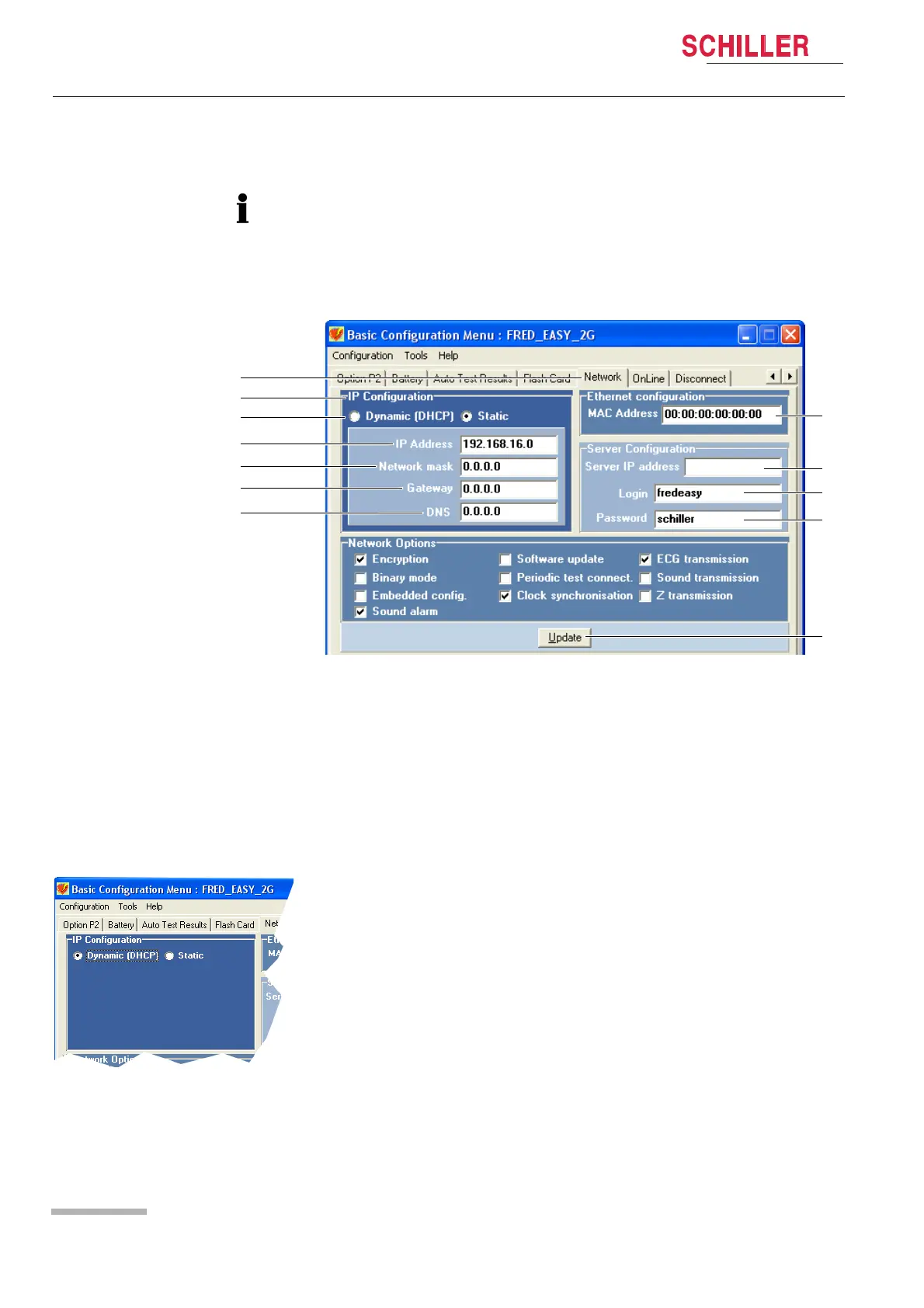
• Start the FREDCO® software program and select the "Network" tab (1).
Fig. 5.12 Network configuration ("Network" tab)
• Check that the "MAC Address" (8) displayed on the screen is identical to the ad-
dress indicated on the underside of the device.
A password provided by SCHILLER must be entered to access the network parameters.
Fig. 5.13 Configuring the dynamic mode
(1) "Network" tab in FREDCO®
(2) IP address configuration section
(3) Selection of IP address configuration mode: dynamic or static
(4) IP address of the FRED easy® Ethernet version
(5) IP address of the network mask (depends on the network infrastructure)
(6) IP address of the network gateway (depends on the network infrastructure)
(7) IP address of the domain name system (depends on the network infrastructure)
(8) MAC address of the FRED easy® Ethernet version (located on the label on the
underside of the device)
(9) IP address of the server's network interface, used by FRED easy® to connect
and transmit data
(10) Login of a user with access to the server on which LifeDataNet® is installed
(11) User password
(12) Confirmation of "Network" tab configuration
• The parameters of the "IP Configuration" section (2) depend on the network infra-
structure:
– in "Static" mode (3), your network administrator will provide this information and
you are required to fill in (4), (5), (6), and (7).
– In "Dynamic" mode (3), the 4 parameters are automatically configured (see Fig.
5.13 Configuring the dynamic mode).




 To Next Page