Create a new email
• You can create a new email by selecting the
new email
icon.
• To select the new email icon, press the
OK key
for two seconds (Long press). This will
invoke the
Virtual mouse.
• When the pointer is displayed on the screen, using the
Navigation key
, move the
pointer and position it on top of the
new email
icon and press the
OK key
.
• To disable the
Virtual mouse
, press the
OK key
for two seconds (Long press).
• Using the physical
Keypad
, add the recipients email address and using the
Navigation key scroll down to the body of the email.
• Using the physical
Keypad
, write the email.
• Using the
Navigation key
scroll up until the selection tool jumps to the top, select the
send
icon and press the
OK key
.
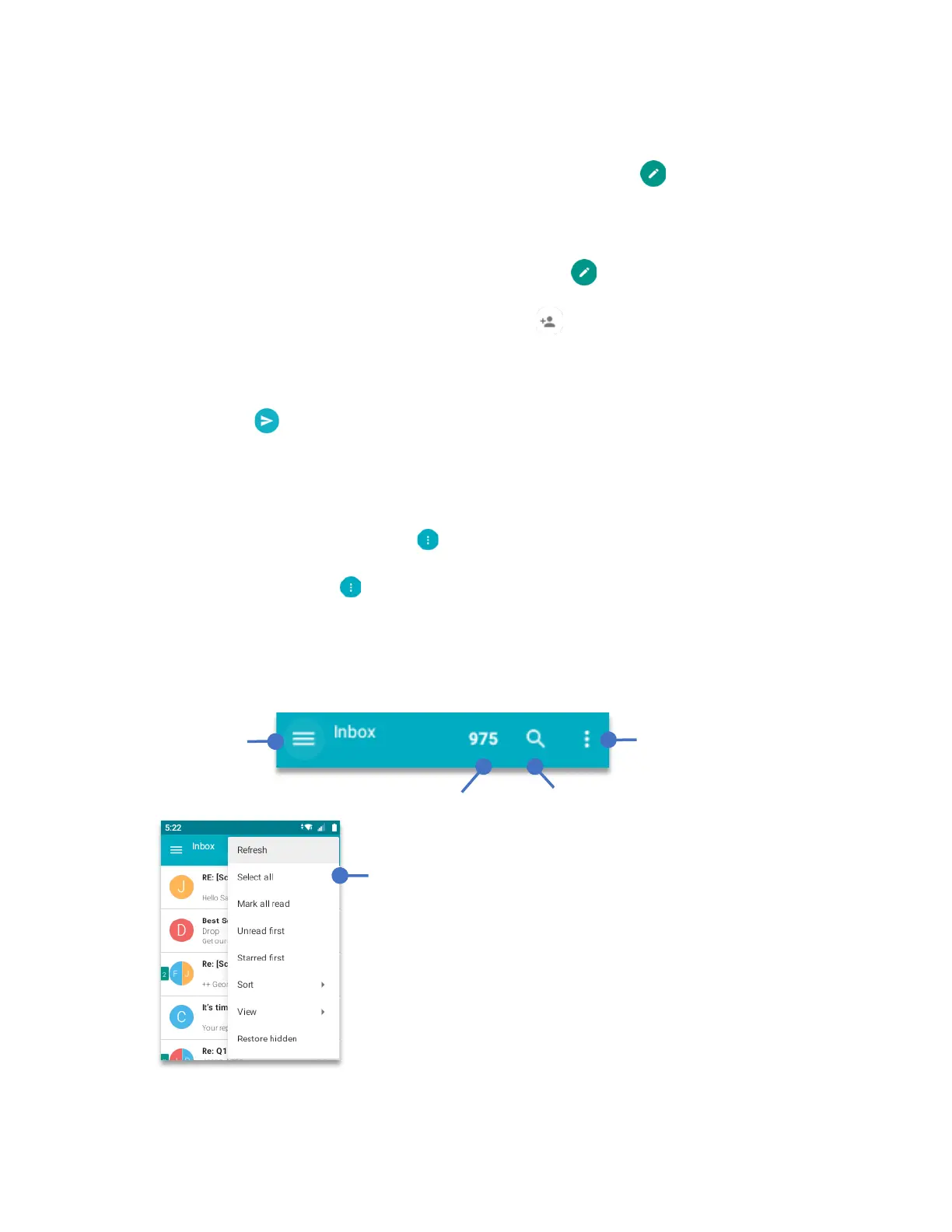
Working with multiple emails.
From Inbox you can delete, archive or move multiple messages at the same time. To do this,
you need to open the
“Options menu”.
To open the
“Options menu” ,
navigate to top bar. To do so, using your
Navigation Key
scroll to the top, press again to jump to the
navigation top bar
.
Using your
Navigation key
, press the
Right Navigation key
until the
“Options menu”
is
selected. Press
OK key.
Search anything under inbox
Number of emails on inbox
Options menu displaying all options



 To Next Page