Instructions for Use
Resting & Stress ECG with seca
ct330/331 and seca diagnostic 5.9
3.8.3 Screens of the stress ECG evaluation
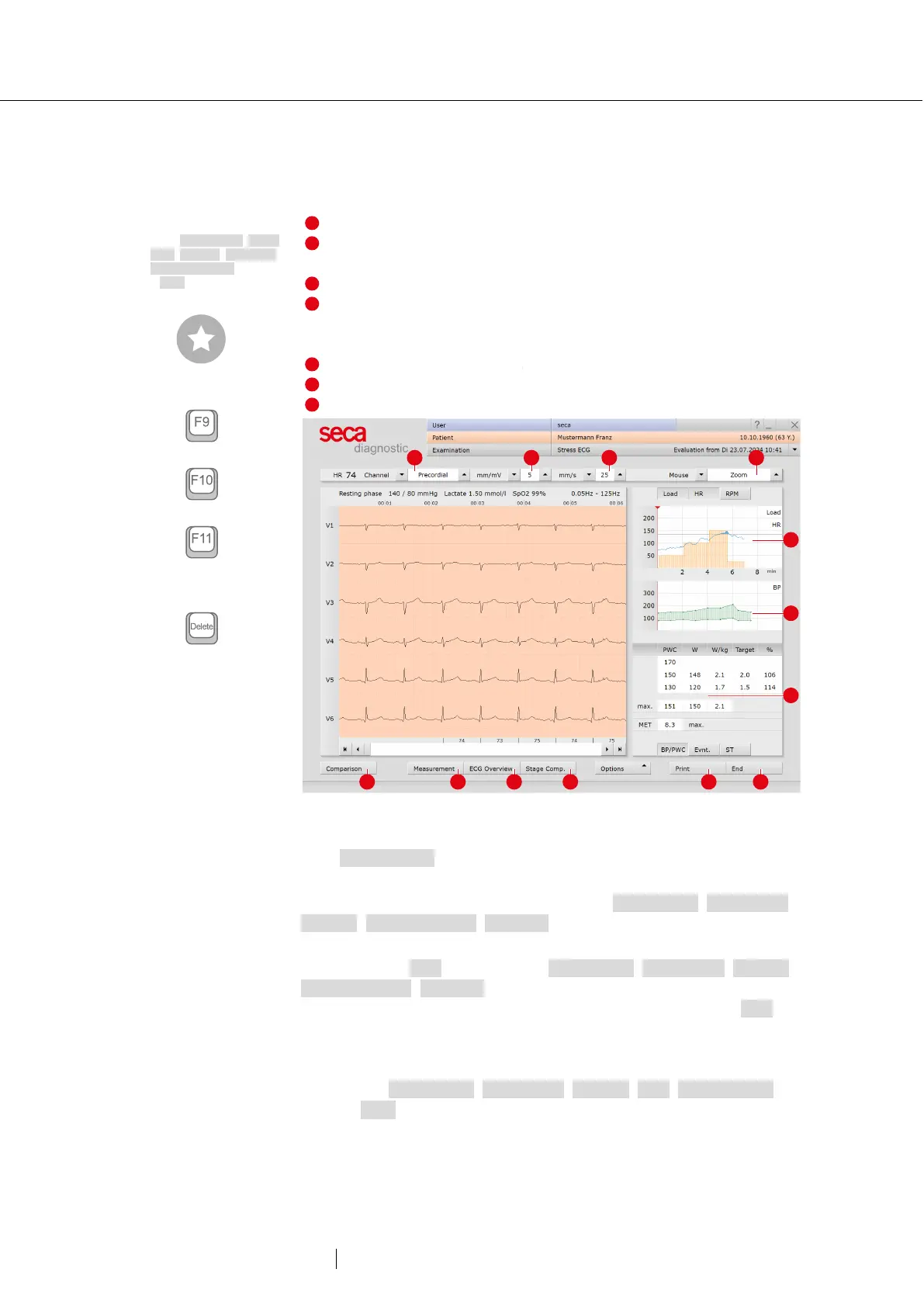
ECG start screen
Setting options for ECG display
Mouse functions for precise viewing and measuring of the ECG
signal (Zoom, Analysis, Measure HR, Measure, Marking)
Stress profile with heart rate and blood pressure curve
Tabular display of PWC (Physical Working Capacity
1)
(Metabolic Equivalent); further information on PWC and MET can
be found in the appendix.
Further evaluation screens
Button for closing the evaluation
Fig. 41: Evaluation Stress ECG, ECG start screen
If the Measurement view is set as the start screen, you will find the same
operating and navigation elements (1 to 7) there.
The evaluation start screen can be set under Examination, Stress ECG,
Settings, Menu/Functions, Workflow in the “Workflow, Show evaluation”
area.
Settings for the Print button: On the Examination, Stress ECG, Settings,
Menu/Functions, Workflow screen, in the “Workflow, Print” area, you can
specify whether the advanced print menu is displayed when the Print
button is clicked (default) or whether printing is performed automatically
and without further settings, according to the default print settings (=
defined printout). The standard print settings for Stress ECG can be
found under Examination, Stress ECG, Settings, Print, Printed pages.
Click on Save to apply your input.
1) The PWC predicted values
are preset in seca diagnostic
and can be changed on the
screen Examination, Stress
ECG, Settings, Diagnostic,
Reference values. Click on
Save to apply your input.
Tip: Keyboard shortcuts
Blood pressure input
Lactate input
SPO2 input
Deletes a marking if it was
previously selected by mouse
click


 To Next Page