Using the “Conference Manager” software
130 | ADN Digital Conference System
Adjusting the audio settings
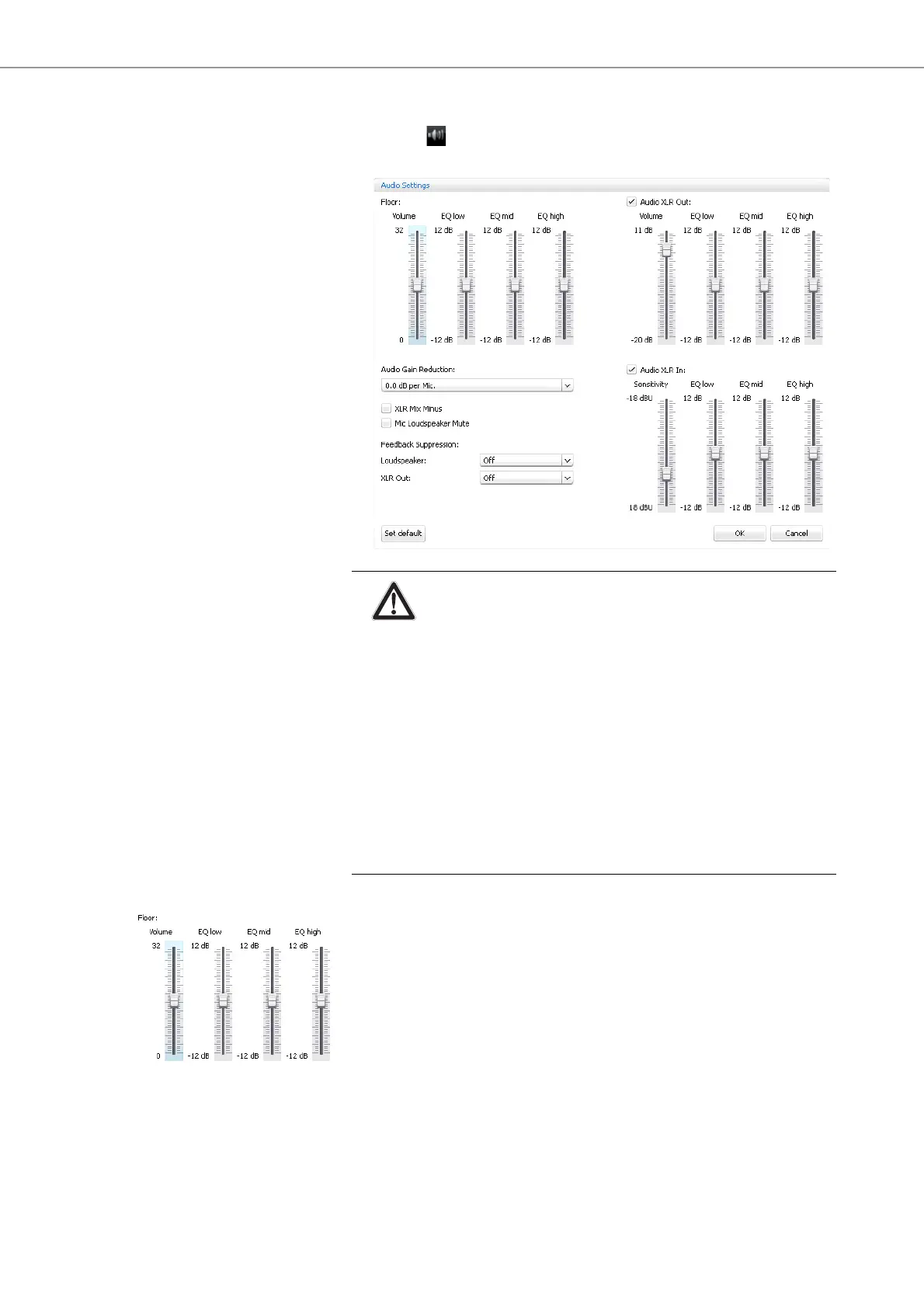
왘 Click the button on the toolbar.
The “Audio Settings” window appears.
Setting the volume and the tone color
of the floor channel
To set the floor channel volume:
In the “Floor” area, move the “Volume” slider
– upwards to increase the floor channel volume or
– downwards to reduce the floor channel volume.
The floor channel volume is changed immediately.
To set the tone color of the floor channel:
왘 In the “Floor” area, move the “EQ low”, “EQ mid” or “EQ high” sliders to change
the tone color.
왘 Click “OK”.
Your settings are saved and the “Audio Settings” window closes.
CAUTION
Danger of hearing damage due to loud hissing!
When the floor channel volume is set to a high level or when several
participants speak simultaneously, feedback (loud hissing noise) can
occur. This can cause hearing damage.
왘 Reduce the floor channel volume (see page 130 or page 140).
왘 Activate the “Feedback Suppression” function to be able to
increase the volume before feedback can occur (see page 57 or
page 132).
왘 Make sure that the “Audio Gain Reduction” function is activated
(see page 131).
This function reduces the gain per active microphone by the
selected level and thus prevents feedback.
왘 Increase the distance between the individual conference units to
at least 50 cm.



 To Next Page