8 9Chapter 1: Getting Started
Sequential Prophet X User’s Guide
Chapter 1: Getting Started
To save a program to a different location:
1. Press the save/load button. Its LED begins blinking.
2. Turn the bank or program knobs (or Soft Knob 1 and Soft Knob 2) to
select a new location. You can only save to banks U1-U4.
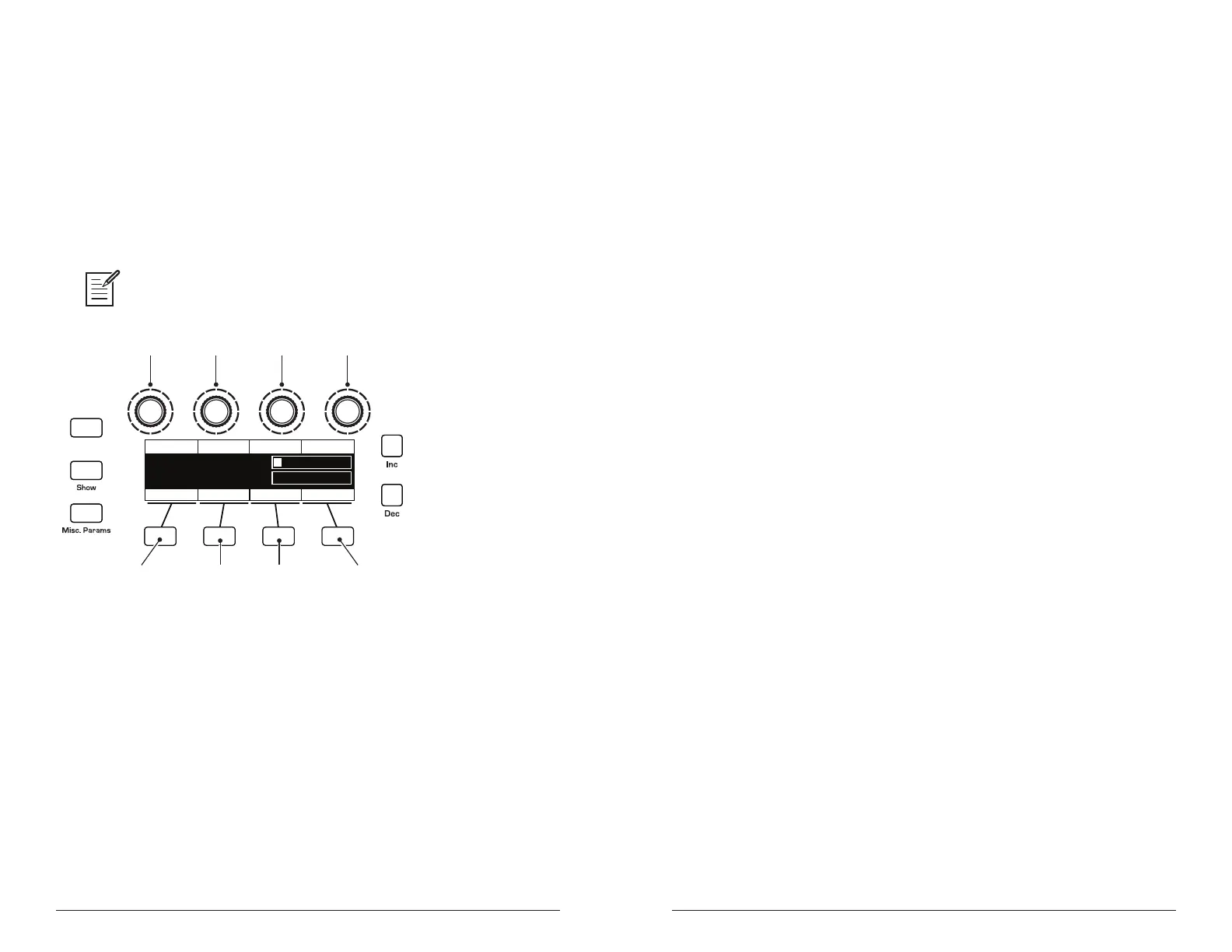
3. Enter a name for the program using the appropriate Soft Knobs and
Soft Keys. (See the illustration that follows for their functions.)
4. Press the save/load button again. Its LED stops blinking and the
program is saved.
Saving a program saves any edits to programs on both Layer A and Layer B.
Revert
Writing to Bank:1 Program:1 A:
uper Strings
Hit ‘Write’ to Save Prog
Hit ‘Global’ to Exit
Write Bank Write Prog Select Char Edit Char
S
B:
Basic Program
Key AssignInsert CharCopy Name A>B Delete Char Select B
select bank
insert character delete character toggle to “B”
to edit the name
of Layer B
copy name
from layer A/B
select program select character edit character
Saving a Program
Canceling Save
Sometimes you may want to cancel saving a program before you
commit.
To cancel the save process before you commit:
• If the save/load button LED is ashing, press the global button. The
save/load LED stops ashing and saving is canceled. You can return to
editing if you want.
Comparing Before You Save
Before saving a program to a new location, it’s a good idea to listen to the
program in the target location to make sure you really want to overwrite it.
To evaluate a program before you overwrite it:
1. Get ready to save by pressing the save/load button. It starts ashing.
2. Press the compare button. Its LED lights up.
3. Use the bank and program knobs to navigate to the sound you want to
compare and play the keyboard to hear the sound.
4. To disable the compare function and go back to the edited sound, press
the compare button again to turn it off. (Programs can’t be written
while in compare mode.)
5. If you want to save the edited sound, the save/load button is still
ashing and ready to save, so navigate to a location with the bank and
program knobs and press save/load. The sound is saved.
6. Alternatively, if you want to cancel saving and continue editing, press
the global button. Saving is canceled.
Working with Stacked or Split Programs
The Prophet X is bi-timbral, meaning that it can produce two different
sounds/programs at the same time, either by stacking them, or by
allowing you to split the keyboard and assign one sound to the upper
section of the keyboard and a different sound to the lower section of the
keyboard.
The two layers are referred to as Layer A and Layer B. By default, Layer
A is always active when you recall a program. If either the
split button
or the stack button is lit, then Layer B is also active. Each Layer can
have different Effects, Unison, Arpeggiator, and Sequencer settings. This
allows for some very interesting combinations of sounds.
As you scroll through various factory programs, you can tell which are
stacked and which are split. On stacked sounds, the
stack button is lit.
On split sounds, the split button is lit.















 To Next Page