76 77Transpose
Sequential Prophet X User’s Guide
Glide
Transpose
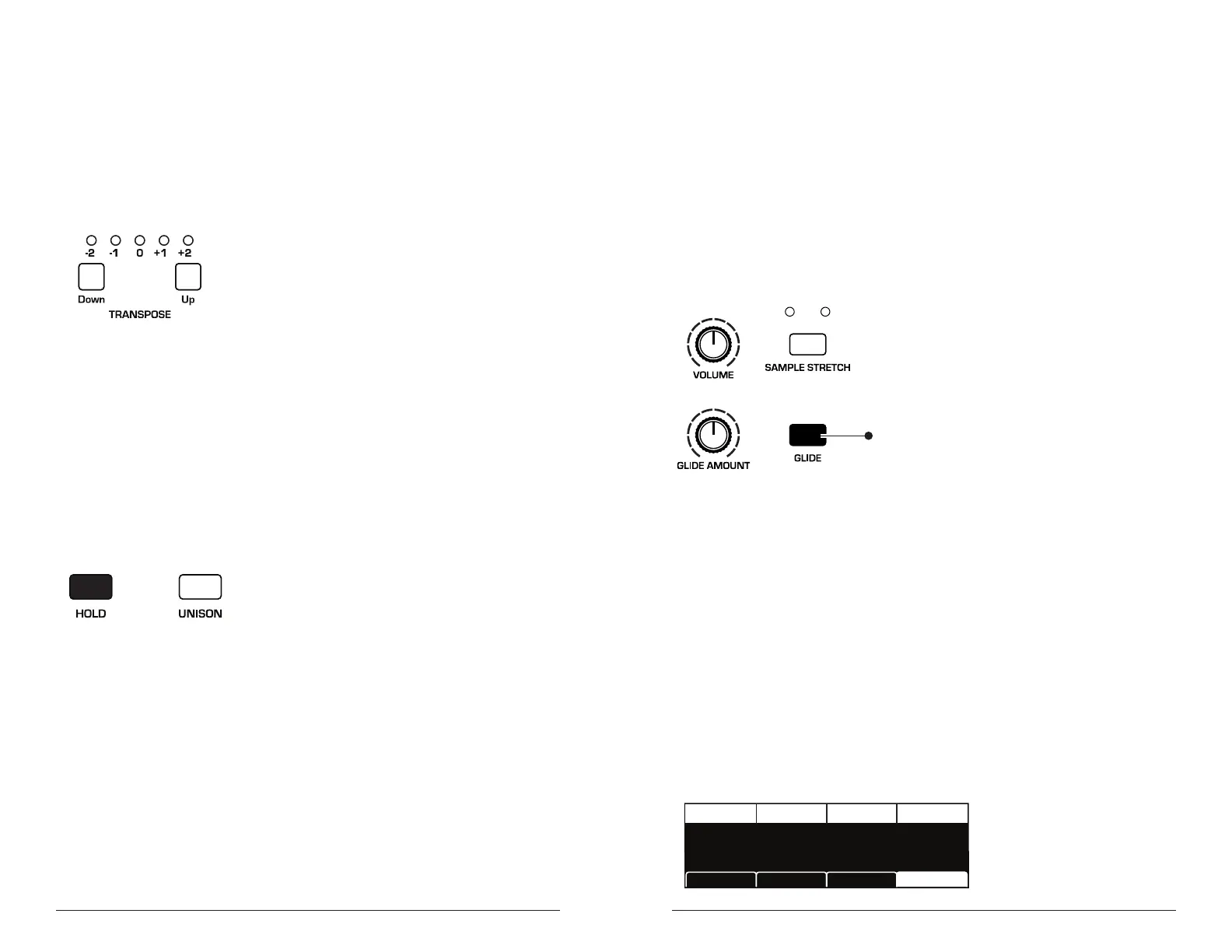
The up and down buttons in the transpose section transpose the keyboard
up or down in octaves. The LED indicates the current keyboard trans-
position state. Transposing the keyboard also changes the MIDI note
numbers of the keys so that MIDI notes sent are also transposed. Trans-
pose settings are global and are not saved with individual programs.
The Transpose controls
Hold
When hold is on, any notes played will continue to play until hold is
turned off. When used in conjunction with the arpeggiator, notes are
latched on. If hold is on and at least one key continuously held down,
any new notes played are added to the arpeggio.
The Hold button
Glide
Glide causes the pitch of a note to glide up or down from the pitch of the
previously played note. Glide is turned on and off using the glide switch,
but the rate must also be set. If the glide button is on, but rate is set to
0, glide has no effect.
Glide can be set individually for each oscillator and, if
sample stretch
(see “Using Sample Stretch” on page 101) is enabled, instruments 1
and/or 2. If sample stretch is not enabled for a sampled instrument,
Glide can’t be used with that instrument.
Instr 1 Instr 2
Press to enable Glide
The Glide controls
To use Glide:
1. Press the glide button.
2. Play a series of notes up and down the keyboard while you turn the
glide amount knob to adjust the amount of glide.
To set the Glide Amount separately for each oscillator:
1. Press the glide button.
2. In the display menu, press Soft Key 4 (glide rate).
3. Play a series of notes up and down the keyboard while you turn Soft
Knobs 1-4 (glide rate) to adjust the amount of glide for individual
oscillators and/or instruments.
Osc1 Rate Inst 1 RateOsc2 Rate Inst 2 Rate
GLIDE RATE
Keyboard Glide RateUnison Glide
0
GLIDE RATE
0
GLIDE RATE
0
GLIDE RATE
0















 To Next Page