82 83Touch Sliders
Sequential Prophet X User’s Guide
Play List
Touch Sliders
The Prophet X has two position-sensitive touch sliders. Like the pitch
and mod wheels, you can use these sliders to enhance live performance
by adding modulation in real time as you play.
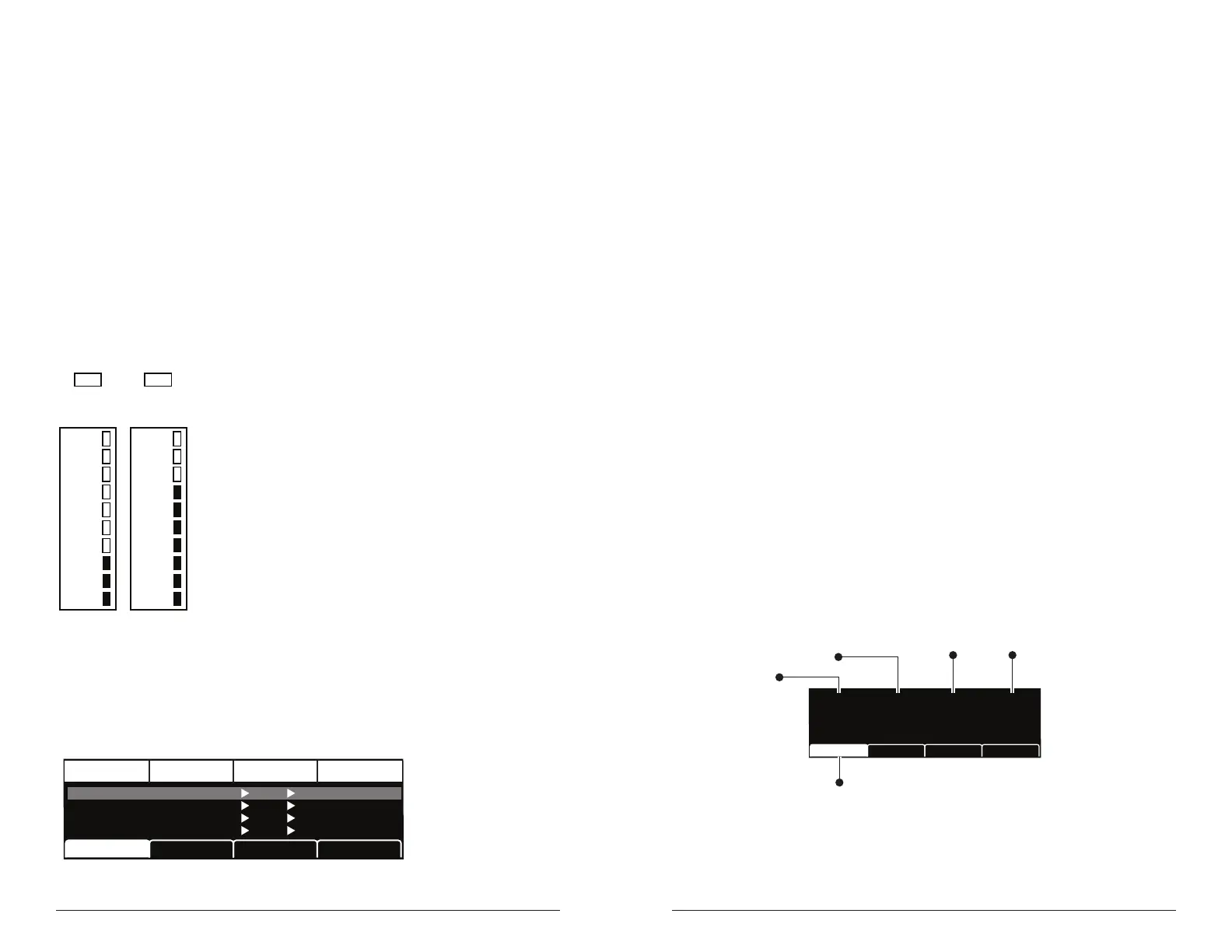
Each slider serves as a modulation source, the value of which is deter-
mined by nger position. The touch sliders appear in the modulation
matrix as Slider 1 and Slider 2. (See “Appendix A: Modulation Sources”
on page 130.)
Normally, the sliders affect the assigned modulation destinations only
while they’re being touched. But when
latch is on, the slider holds the
value from the position at which it was last touched.
Latch
Slider 1 Slider 2
Latch
Use the mod matrix to assign modulation destinations to the sliders. You
can route multiple modulation destinations to a slider. To display the
modulation matrix, press the assign source or assign dest buttons in the
Modulation section. Modulations slots and routings appear in the display.
DestinationEdit Mod 1 Source Amount
Sort SourceSlot Sort
Mod 1
Mod 2
Mod 3
Mod4
Slider 1
Slider 2
Aftertouch
Mod Wheel
60
35
25
80
Cutoff
Osc1 Shape
Drive
LFO1 Amt
Sort Dest
To assign a slider to a mod destination:
1. On the front panel modulation section, press and hold the assign source
button.
2. Touch slider 1. The mod matrix appears in the display and slider 1
position is assigned to an available modulation slot.
3. Turn Soft Knob 4 (destination) to choose a modulation destination.
4. Turn Soft Knob 3 (amount) to choose the maximum amount of modu-
lation applied when the mod wheel is turned all the way up.
5. To route the slider to more destinations, turn Soft Knob 1 (edit mod #)
to nd an open modulation slot and choose slider 1.
6. Repeat steps 3-4.
Play List
The Play List enables you to organize programs into lists for quick
recall. This feature is particularly useful for live performance where you
may want to have specic groups of programs at your ngertips.
Here’s how the Play List works:
• There are 10 sets.
• Each set contains 4 Lists.
• Each list contains 4 programs.
U1
Prophet Evolution
P1 List1 Set1
U3P75 U2P100 U1P25U1P1
Press soft key 1
to select this program
within the current List and Set
Turn soft knob 4
to select the Set (1-10)
Use soft knob 3
to select the List (1-4)
Use soft knob 2
to select a program
Use soft knob 1
to select a bank
The Play List Menu















 To Next Page