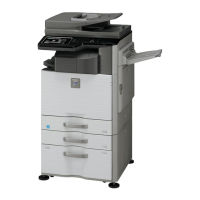
MX-M700N SIMULATION 7 – 60
63-2
Purpose
Adjustment
Function (Purpose)
Used to execute shading.
Section
Optical (Image scanning)
Operation/Procedure
1) Enter the number corresponding to the shading mode to be
executed.
2) Press the [START] key.
During execution, "EXECUTING" is displayed. When execution is
completed normally, "COMPLETED" is displayed.
63-7
Purpose
Adjustment
Function (Purpose)
Used to adjust the white plate scan start
position for shading. (Document table
mode)
Section
Scanner (Exposure)
Operation/Procedure
1) Enter 1 with 10-key.
2) Press the [START] key.
3) Enter the adjustment value with 10-key. (1count = 0.5mm)
4) Press the [START] key.
When a shading error occurs, this adjustment value is
changed.
64
64-1
Purpose
Operation test/Check
Function (Purpose)
Used to check the operation of the printer
section (self-print operation), (The print pat-
tern, the paper feed mode, the print mode,
the print quantity, and the density can be
optionally set.)
Section
—
Operation/Procedure
(Various print patterns output) (Table 1)
1) Select PRINT PATTERN with 10-key.
2) Enter the number corresponding to the print pattern to be
printed with 10-key.
3) Press the [START] key.
4) Select PRINT START with 10-key.
5) Press the [START] key.
(Print condition setting in this simulation)
* To select paper (paper feed tray), perform the following proce-
dures.
1) Select TRAY SELECT with 10-key.
2) Press [START] key. (The mode is changed to the paper feed
tray selection mode.)
3) Enter the number corresponding to the paper feed tray to be
used with 10-key.
4) Press [START] key. (The paper feed tray is selected.)
* To adjust the print density, perform the following procedures.
1) Select DENSITY with 10-key.
2) Enter the adjustment value with 10-key.
3) Press the [START] key.
* To set the print quantity, perform the following procedures.
1) Select MULTI with 10-key.
2) Enter the print quantity with 10-key.
3) Press the [START] key.
* To set the print quality mode, perform the following procedures.
1) Select MODE with 10-key.
2) Enter the number corresponding to the print quality mode with
10-key.
3) Press the [START] key.
* To set the print level, perform the following procedures.
1) Select LEVEL with 10-key.
2) Enter the adjustment value with 10-key.
3) Press the [START] key.
NOTE: In some print patterns, changing the level may not change
the picture quality.
* To set duplex/simplex print, perform the following procedures.
1) Select DUPLEX with 10-key.
2) Enter the number corresponding to the operation mode with
10-key.
3) Press [START] key.
(Table 1)
1 OC SHADING OC analog level correction and shading
correction (Document table mode)
2DSPF
SHADING
DSPF analog level correction and shading
correction (SPF mode)
Item
Setting
range
Default
1 CCD CCD scan 1 - 16 6
SIMULATION 63-2
SHADING EXECUTION. SELECT1-2, AND PRESS START.
1. OC SHADING
2. DSPF SHADING
1
㩷㩷㩷㩷
䋴
SIMULATION 63-7
SHADING POSITION ADJUSTMENT. PRESS START.
1. CCD 0
1
0 TRAY SELECT
1. TRAY1
2. TRAY2
3. TRAY3
4. TRAY4
5. BPT
6. LCC
Paper feed tray
1: Tray 1
2: Tray 2
3: Tray 3
4: Tray 4
5: Manual feed
6: LCC
1 PRINT START Print execution (Printing of the
set data is executed.)
2 PRINT PATTERN Print pattern (Note 1)
3 DENSITY Graphic density (Valid only when
No. 79, 80 or 84 is selected.)
4 MULTI Number of print
5MODE
1. STANDARD
2. SMOOTHING
3. TONER SAVE
4. HALF TONE
5. SMOOTHING + TONER
SAVE
6. SMOOTHING + HALF TONE
7. TONER SAVE + HALF
TONE
8. SMOOTHING + TONER
SAVE+ HALF TONE
Print mode
1. Standard
2. Smoothing ON
3. Toner save ON
4. Half tone ON
5. Smoothing + toner save
6. Smoothing + half tone
7. Toner save + half tone
8. Smoothing + toner save + half
tone
6 LEVEL Parameter of print image
process: (1 -5)
7 DUPLEX
1. NO
2. YES
Duplex
1 : Simplex
2 : Duplex



 To Next Page