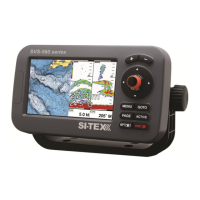
1. Fish Finder icon in the status bar, it means the sh nder is connected and active.
2. Color bar is a colored scale located on the left side of the screen that shows the colors used
in the echogram to represent the echoes strength. The color on the top of the bar represents
the maximum sonar strength, while the color on the bottom of the bar represents the minimum
sonar strength.
3. A fish icon with the depth value, on which it was detected, can be turned o on the Display
Settings page.
4. “Simulation” label appears only when Fish Finder Simulation is turned o (see Par. 13)
5. Water temperature and depth values, detected by a connected Fish Finder transducer, are
displayed at the bottom left corner.
6. Compass bar
Fish Finder frequency is displayed at the bottom right (200, 50 or 200/50 kHz).
7. The depth ruler shows the range of depth, on which the Fish Finder is operating. It is a scale
which reects the depth of the area being displayed.
8. Variable depth marker (VDM) is a horizontal white line on the echogram with a depth label.
The up/down joystick keys can move it up and down. The label displays the depth of the VDM
position.
9. The vertical time marker is a white line on the echogram, which can be moved by left/right
joystick keys along the echogram history.
10. Data Window
11. The current time representation of sh and bottom features passing through the beam of
the transducer.
The compass bar at the bottom and the data window can be turned o:
1. Open General Settings page
2. Select “Databox settings” tab
3. Select “Show compass bar” or “Show data boxes”
4. Press [ENTER]
Fish Finder Main Menu
Pressing [MENU] activates the Fish Finder page menu that allows adjustments of:
●frequency
●receiver sensitivity
●range mode
●gain mode
●transducer setup
●sensitivity
●display settings
The rest of the menu items are common for all the device pages: General Settings, System
Messages, Ports, Simulation, User Manual.


 To Next Page