5. Use the "START CONFIGURATION" button to launch the network con-
figuration.
9 Programming process is implemented
(in this case: reset)
.
9 The lock can then be re-incorporated into the MobileKey locking
system.
9 Lock is deleted.
6.4 Adding a PIN code keypad with online upgrade
ü Online PIN code keypad already configured (see supplied quick guide).
ü Lock for online PIN code keypad already added (see
Creating a lock
with online upgrade [}41]
).
ü Matrix screen open
1. Click on the Add Key icon (next to the SAVE button).
2. Enter a name for the PIN code keypad, e.g. "Office door".
3. Open the dropdown menu ▼ Lock.
4. Specify the lock on which the online PIN code keypad is operated.
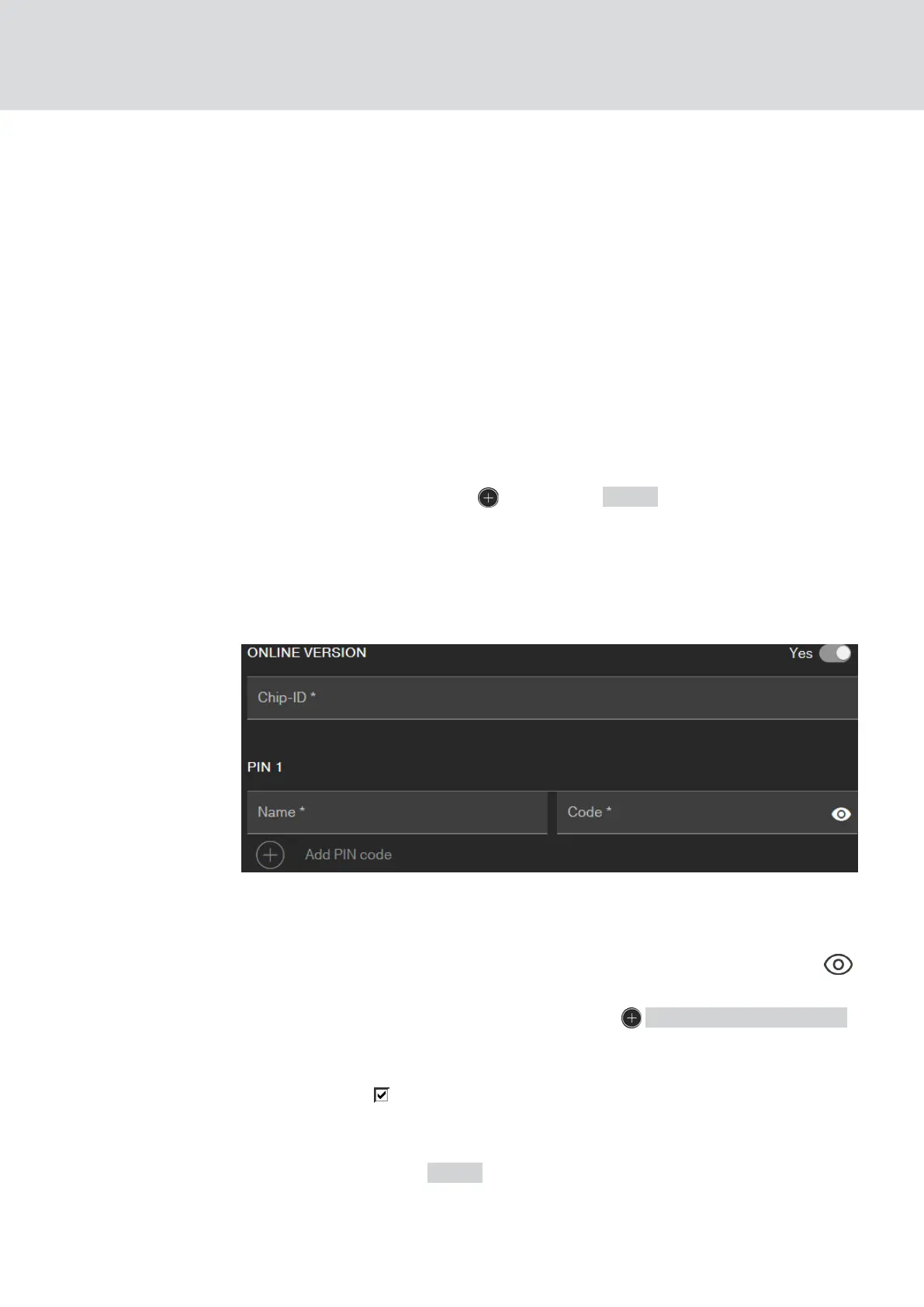
5. Activate the online upgrade.
6. Enter the chip ID (See packaging or back side, format: XXXXXXXX).
7. Enter a name for the first PIN, e.g. "Hans Müller".
8. Enter a PIN (you can see the PIN in plain text with the Visible button
)
9. If necessary, create up to two further PINs ( Create PinCode keypad
button).
10. If you want to create further PIN code keyboards with online upgrade,
activate the
Create another.
9 With this checkbox you stay in this view after saving and can
immediately create another PIN code keypad with online upgrade.
11. Click on the button SAVE .
9 Online PIN code keypad is added.
MobileKey (Manual)
6. MobileKey online upgrade
44 / 75



 To Next Page