4. Select one of the options: Opening duration in seconds or Per-
mantently open.
9 If you have selected Permantently open the lock will remain
engaged ready for use until it is actuated again with a key or by
remote opening.
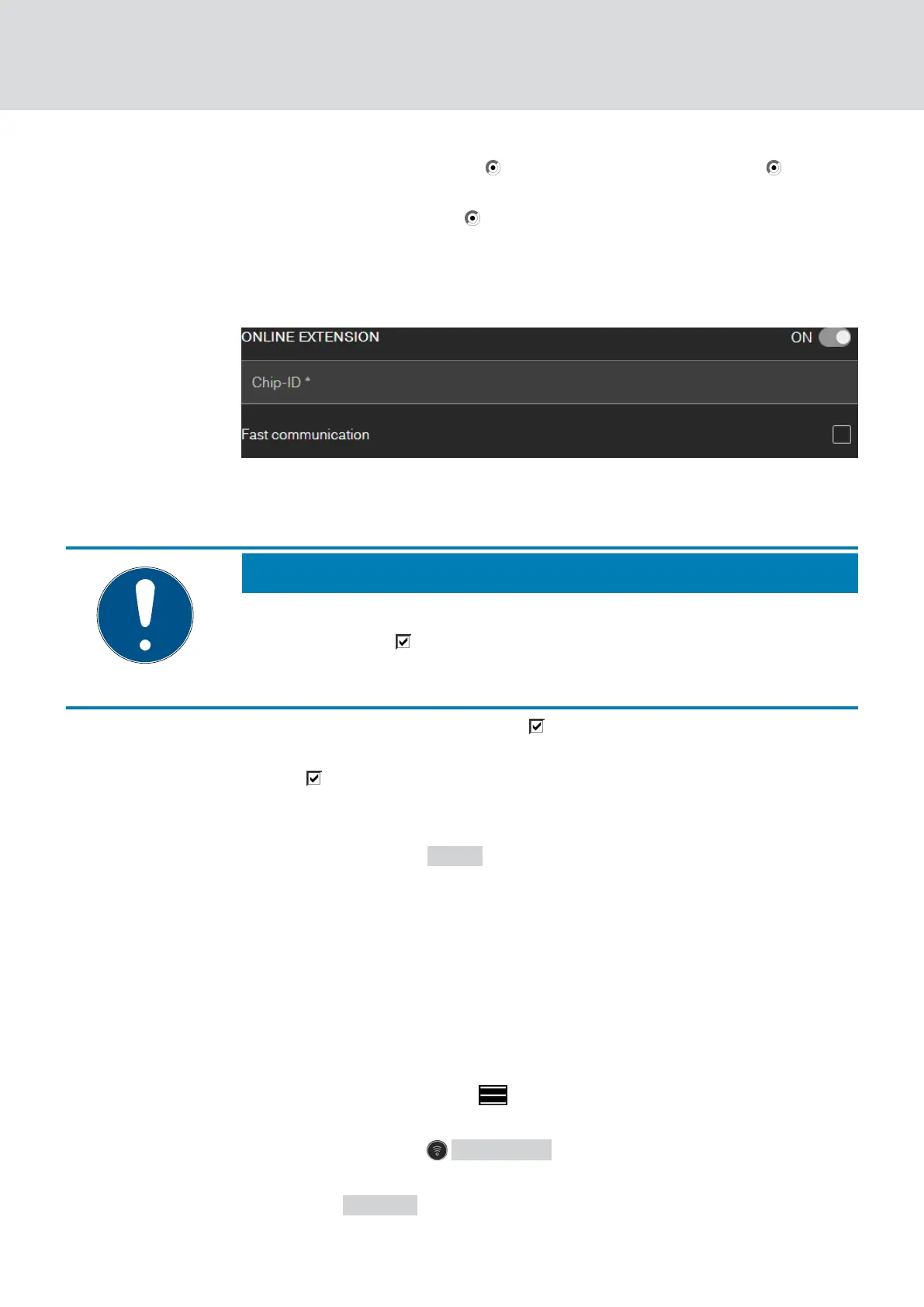
5. Activate the online upgrade.
6. Enter the Chip-ID (see packaging or inside of the thumb-turn, format
XXXXXXXX).
NOTE
Low battery life
If you activate the Fast communication, the locking device checks more
frequently whether an action should be performed. This reduces the re-
sponse time, but it also shortens the battery life by up to 30%.
7. Optionally select the checkbox Fast communication.
8. If you want to add another lock with online upgrade, activate the check-
box
Create another.
9 With this checkbox you stay in this view after saving and can
immediately add another lock with online upgrade.
9. Click on the button SAVE .
9 Lock with online function (LockNode) added.
6.3 Deleting a lock with online upgrade
This is how you delete an existing online locking device via the SmartBridge:
ü SmartBridge added
(see Setting up SmartBridges [}39])
ü Network set up and functioning
ü The online status of the lock that you wish to delete "ONLINE"
1. Click on the menu button .
9 Menu opens.
2. Click on the button NETWORK .
3. Click on the lock you wish to delete in the "NETWORK" menu.
4. Click the DELETE button.
9 The locking device is flagged for deletion.
MobileKey (Manual)
6. MobileKey online upgrade
43 / 75


 To Next Page