2-7
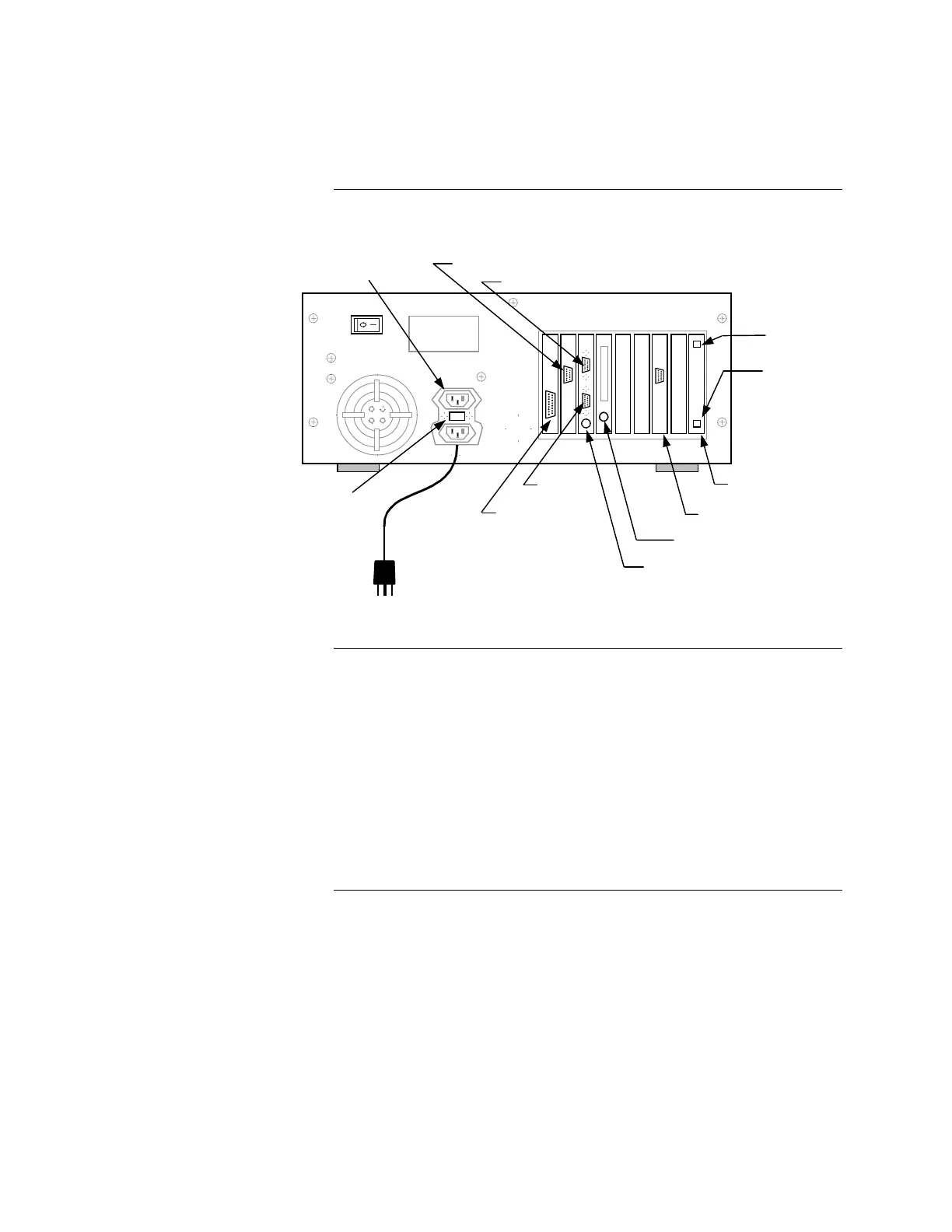
Figure 2-3. Computer Rear Panel Layout (Windows 3.1 Platform)
Position the monitor close enough to the PC so that you can connect the cables
from the monitor to the PC and perform the following steps:
• Connect the video cable to the video connector on the monitor.
• Connect the other end of the video cable to the video connector on the
back of the PC.
• Connect the AC power cord to the AC connector on the monitor.
• Connect the other end of the AC power cord to a UL-listed AC surge
protector and ensure that the surge protector is connected to an AC
power source.
Continued on next page
Connecting the GCC to the System, Continued
Connecting the Equipment
(Continued)
Connecting the Monitor
Voltage
Selector
Switch
Monitor
Fan
COMARK
Power
Switch
LPT1
Touch Screen Option
Card
Mouse
Keyboard
AC Power
COM1
COM2
AC Power
for Monitor
Network Interface Card
Left Network
Port
Right Network
Port



 To Next Page