5-15
Troubleshooting
5
Printer Quality Troubleshooting
Replace consumables to improve printer quality or maintain parts which reached their expiry.
See below instructions for printer quality troubleshooting.
If you cannot solve the problem, contact your place of purchase.
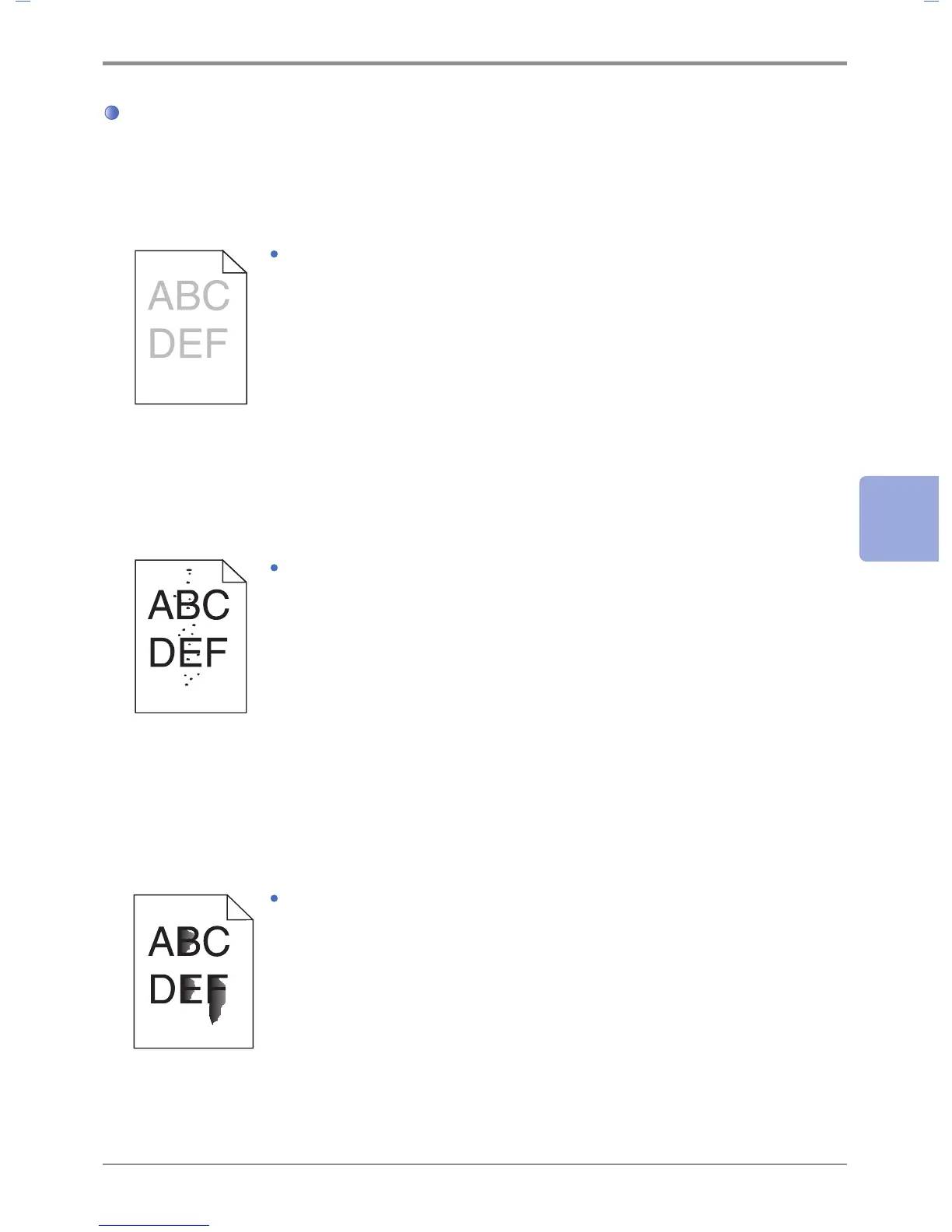
Problem 1: Text is blurred.
Solution: 1) The toner may have run out. Replace the toner cartridge.
2) The drum cartridge may be defective.
Replace with a new drum cartridge.
3) Set toner density to 8 or higher Printer Setting or Driver.
4) Select correct settings in printer driver to print on tracing
paper (OHP), card stock, label, etc.
5) Check if paper on the tray is not wet.
6) Do not use paper with rough surface.
Problem 2: Toner stains appear on the front or back of paper.
Solution: 1) Check if paper comes out straight without warping or curling.
2) There may be a problem with the toner cartridge.
Replace with a new one.
3) Toner is smudged on the send roller. Clean the send roller with a cloth.
To prevent contamination, do not feed paper smaller than the image
you are printing.
4) Assign the correct paper size in Print Settings or Driver.
5) Open and close the front cover on the top of the printer.
Printer will automatically clean the send roller.
Problem 3: The toner is smeared on paper.
Solution: 1) Set paper weight to Heavy and choose Rough texture from the print
setting.
2) Check if the paper is suitable for this printer.
3) Check if correct paper type has been selected in Printer Setting or Driver.
4) Use a different type of paper. Copier paper provides the best quality.
5) The toner cartridge may be defective. Replace with a new toner
cartridge.


 To Next Page