smart CX01 57
. If you want to move more than one
channel, then mark further channels by using the keys PR+ and PR-, and re-
spectively confirm by pressing OK. The channels to be moved should not be
necessarily in an uninterrupted sequence.
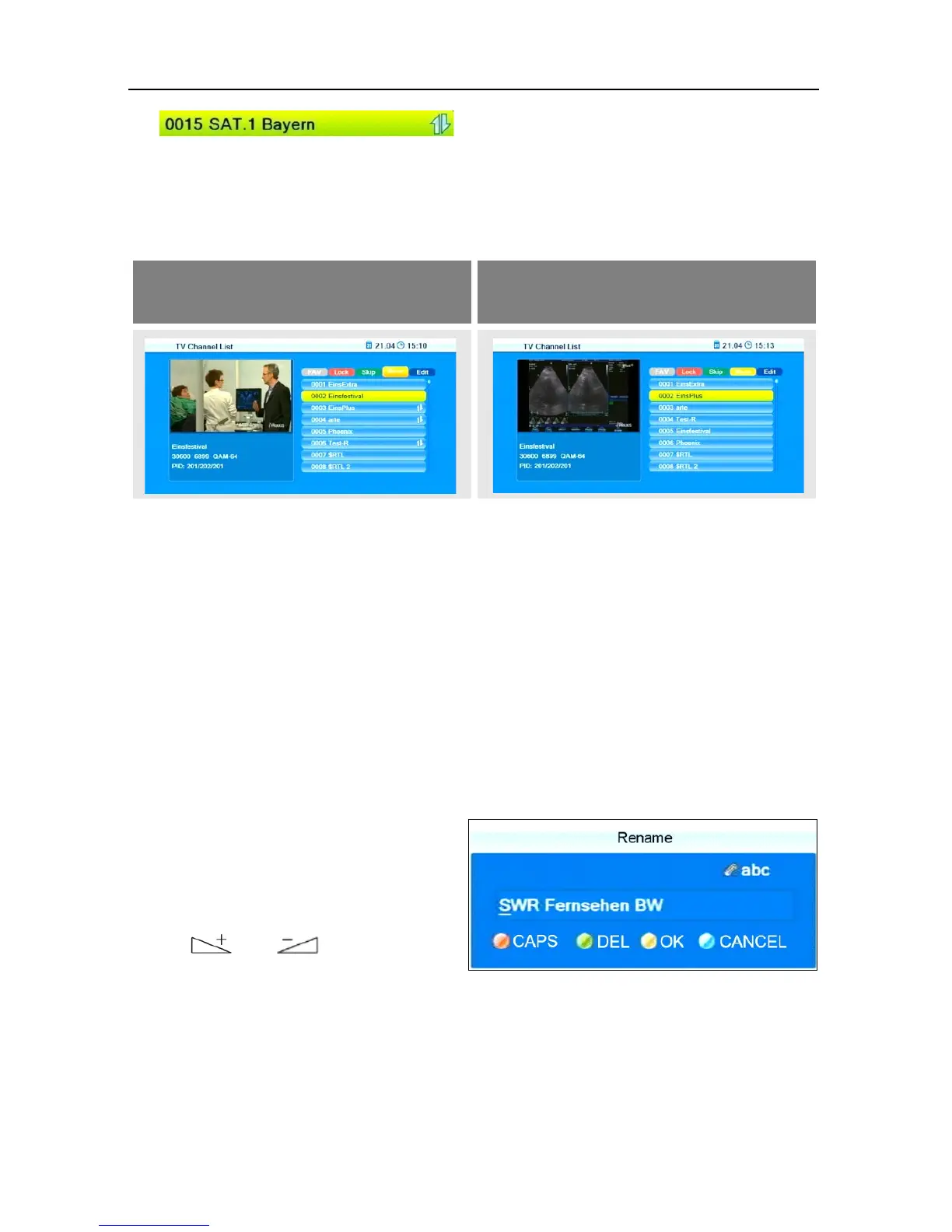
Example:
Before moving – three channels
are marked
After moving
3. Select the channel number to which the channel/channels are to be moved
to by using the keys PR+ and PR-, and again press the yellow function key.
4. Press the EXIT key to leave the function Move.
7.2.5 Rename Channels
1. In the sub-menu Edit Channel – TV Channel List, press the blue function
key.
2. Press the green function key to activate the renaming process.
3. Mark the channel to be renamed by using the keys PR+ and PR-, and con-
firm by pressing OK.
4. The window Rename will be
displayed.
− Select the character to be
changed by using the keys
and .
− Enter the new character respectively by using the numeric keys of the
remote control.
− Press the red function key (CAPS) to switch between upper case and
lower case.
− Press the green function key (DEL) to delete the respectively selected
character.


 To Next Page