Chapter 4
35 smarttech.com/kb/170295
Chapter 4: Using the XCP
Connecting the XCP to the projector 36
XCP input connections 37
Using the XCPprojector controls 38
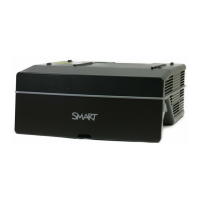
If you purchased a LightRaise projector control (XCP), you can mount it on the wall beside your
interactive surface, giving you a convenient location to connect your peripheral devices and to control
basic projector operations.
You can connect a single USB cable to the SMART Connect port for an all-in-one audio, video and
data connection to your computer. The XCP features built-in composite connectors, as well as a
multi-pin recessed connector used to connect VGA or HDMI adapters (see XCP adapters on page
5).
N O T E
If you experience poor video quality when using the single USB cable to connect the XCP to your
computer, you might need to switch to a VGA or HDMI cable.
I M P O R T A N T
l You must enable the Control Panel setting in the on-screen display (OSD) menu before you
can use the XCP (see Adjusting projector settings on page 19).
l There are no projector menu options on the XCP. Keep your remote control in a safe place,
such as the pen holder, because the XCP is not a substitute for the remote control.



 To Next Page