C H A P T E R 7
Troubleshooting your interactive projector
62 smarttech.com/kb/170295
4. Select your troubleshooting issue from the list that appears, and then click Next.
5. Follow the on-screen instructions.
Troubleshooting pen and finger touch issues
If you’re experiencing issues with finger touch or the interactive pen, you can troubleshoot the
following common issues.
Interactive pen issues
To resolve common interactive pen issues, complete the following tasks:
ll Ensure that the pen’s battery is charged and the switch on the base of the pen is turned on (see
Interactive pen components on page 31 for the location of the On/Off switch).
l Ensure that the Touch USB cable is properly connected to your computer.
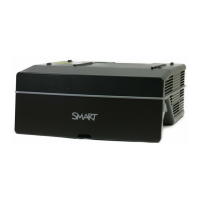
l Ensure that the TDM is properly connected and operational and that its status light is solid green
or flashing green (see Determining touch status on page 57).
l If something is blocking the projected image and creating a shadow on the surface, the
interactive pen doesn’t work in the shadow area. When you write on the surface, ensure that
your body doesn’t create a shadow on the writing area.
l Ensure that the current video input corresponds with the Touch setting in the OSD menu (see
Touch on page 24).
Finger touch issues
To resolve common finger touch issues, complete the following tasks:
N O T E
Finger touch is disabled until the alignment process is completed for the first time.



 To Next Page