C H A P T E R 7
Troubleshooting your interactive projector
60 smarttech.com/kb/170295
Determining XCP status
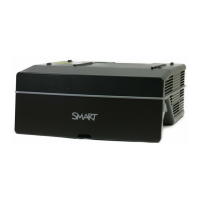
The XCP has one projector status light and two active input lights.
Projector status light
The XCP Power button illuminates to indicate the projector status and provides the same status
information as the Power button on the interactive projector.
See Determining projector status on page 56 for more information on the Power status light.
Active input status lights
The XCP has two input status lights. The status light is illuminated next to the active input.
Troubleshooting your SMART product with the
Connection Wizard
SMARTProductDrivers enables you to view information about your interactive projector and can
help you troubleshoot your interactive projector.
To troubleshoot your SMART product with the Connection Wizard
1.
Click the SMART Board icon in the Windows notification area or the Mac Menu bar, and
then select SMART Settings.
The SMARTSettings window appears.
o
If your interactive projector is connected to your computer and working, the following text
appears: The SMARTBoard interactive whiteboard is working properly.
o
If your interactive projector isn’t connected to your computer, the following text appears: No
SMARTBoards are connected.



 To Next Page