Chapter 4: Setup and Operation 25
User Setup
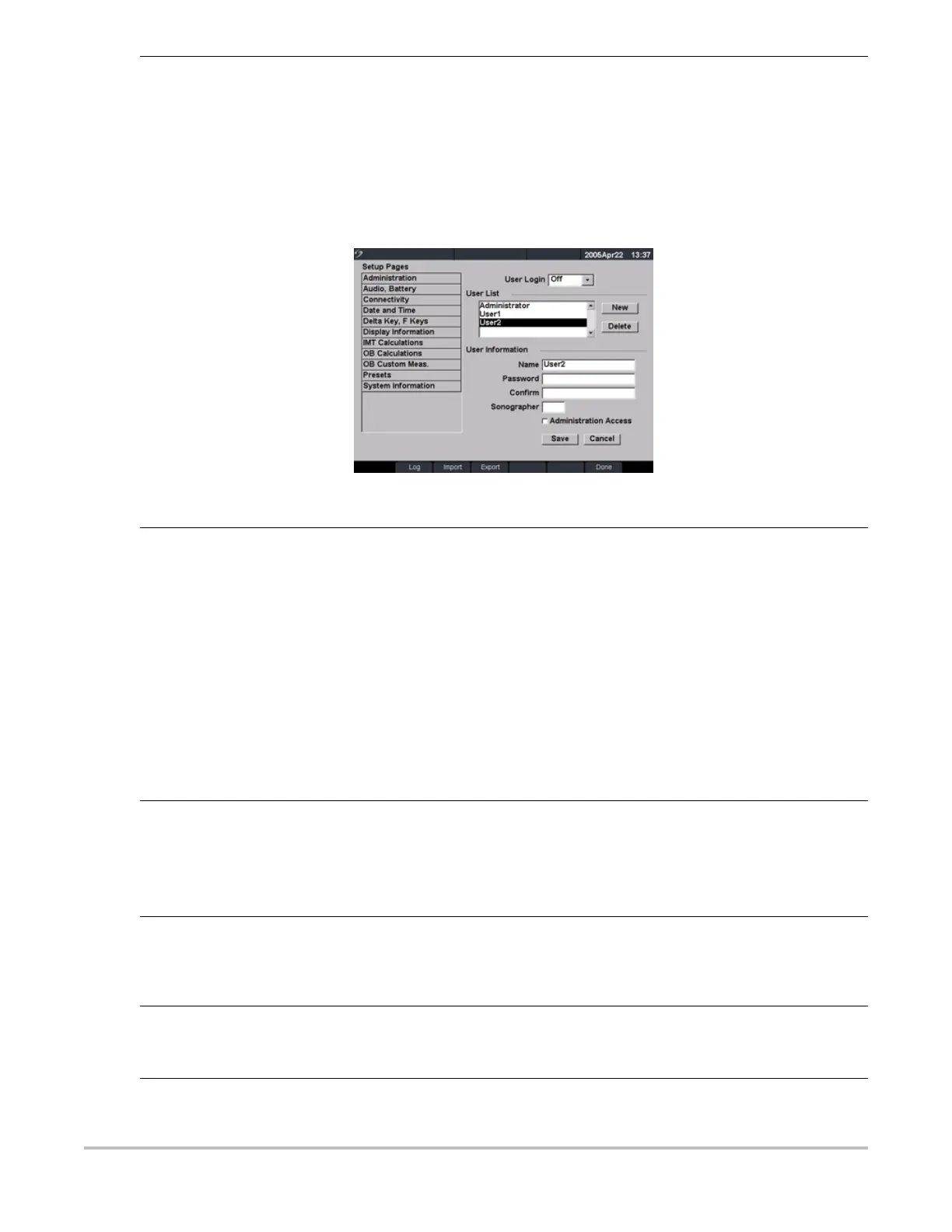
Figure 6 Setup Screen: User List Information
User Login Setting 1 In the User Login list, select On or Off.
• Selecting On restricts access to the system and requires the user to enter a
user name and password.
• Selecting Off allows access to the system and does not require the user to
enter a user name and password.
2 After making changes in the Administration setup, reboot the system to log off
as administrator.
Add New User 1 Select New.
2 In User Information, enter information in Name, Password, and Confirm fields.
To ensure passwords are secure, it is recommended that passwords contain
characters from the following categories:
• Upper case characters: A-Z
• Lower case characters: a-z
• Numbers: 0-9
Note: The name and password are case-sensitive.
3 In Sonographer, enter the user’s initials to display the information in the patient
header and the sonographer field in the Patient Information form. (Optional)
4 In Administration Access, click the check box to allow users access to all
administration privileges or leave unchecked to restrict access. (Optional)
5 Select Save.
Modify User Information 1 In the User List, select desired user name.
2 Enter the new name.
3 Enter the new password and confirm.
4 Select Save.
Any change to the user name replaces the old name.
Delete User 1 In the User List, select the desired user name.
2 Select Delete.
A dialog is displayed.
3 Select Yes to delete or No to cancel.
Change User Password 1 In the User List, select the desired user name.
2 Enter the new password and confirm.
3 Select Save.
Done Select Done from the on-screen menu to return to live imaging.


 To Next Page