Chapter 4: Setup and Operation 27
Login to System as User
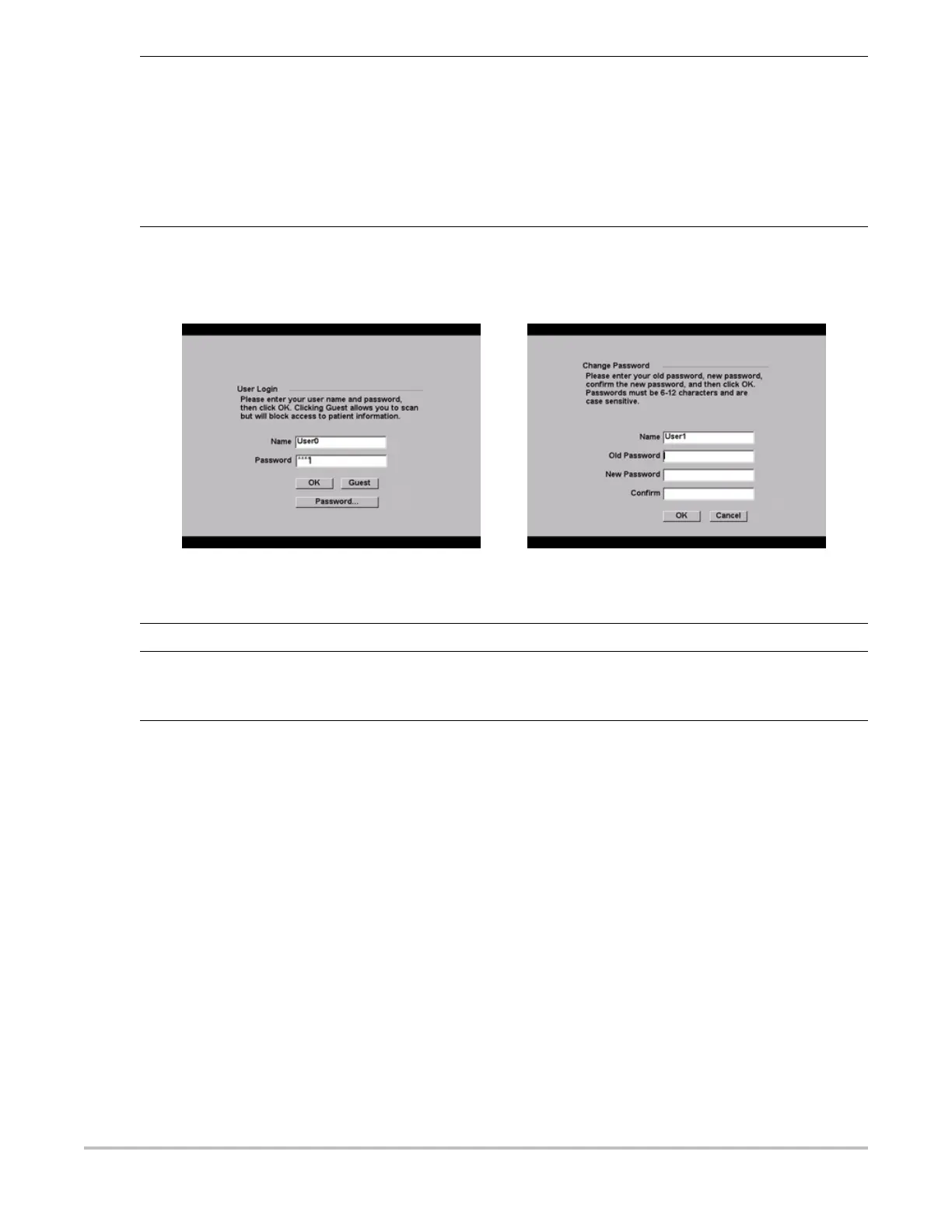
Figure 8 User Login and Change Password
Note: User Login is displayed when system access is turned on.
Export Event Log Note: The Event log and the DICOM network log have the same filename (log.txt). When
you export either one to the same CompactFlash card, it will overwrite the existing
log.txt file.
1 Insert the CompactFlash card in the back slot of the system.
2 Select Log and then Export from the on-screen menu.
3 View the files on a CompactFlash reader.
The log is a text file that can be opened by a text file application, e.g., Microsoft
Word or Notepad. The log file is named log.txt.
Clear Event Log 1 Select Clear from the on-screen menu.
2 Select Yes to delete or No to cancel.
User Login In User Login, enter Name and Password and click OK.
Guest Login In User Login, select Guest.
In Guest mode the user is able to scan but is restricted from accessing system setup and patient
information.
Change
Password
1 In User Login, select Password.
2 Enter your old password, new password, confirm the new password and then click OK.
To ensure passwords are secure, it is recommended that passwords contain characters from
the following categories:
• Upper case characters: A-Z
• Lower case characters: a-z
• Numbers: 0-9
Note: The password is case-sensitive.


 To Next Page