Chapter 5: DICOM Connectivity 125
DICOM
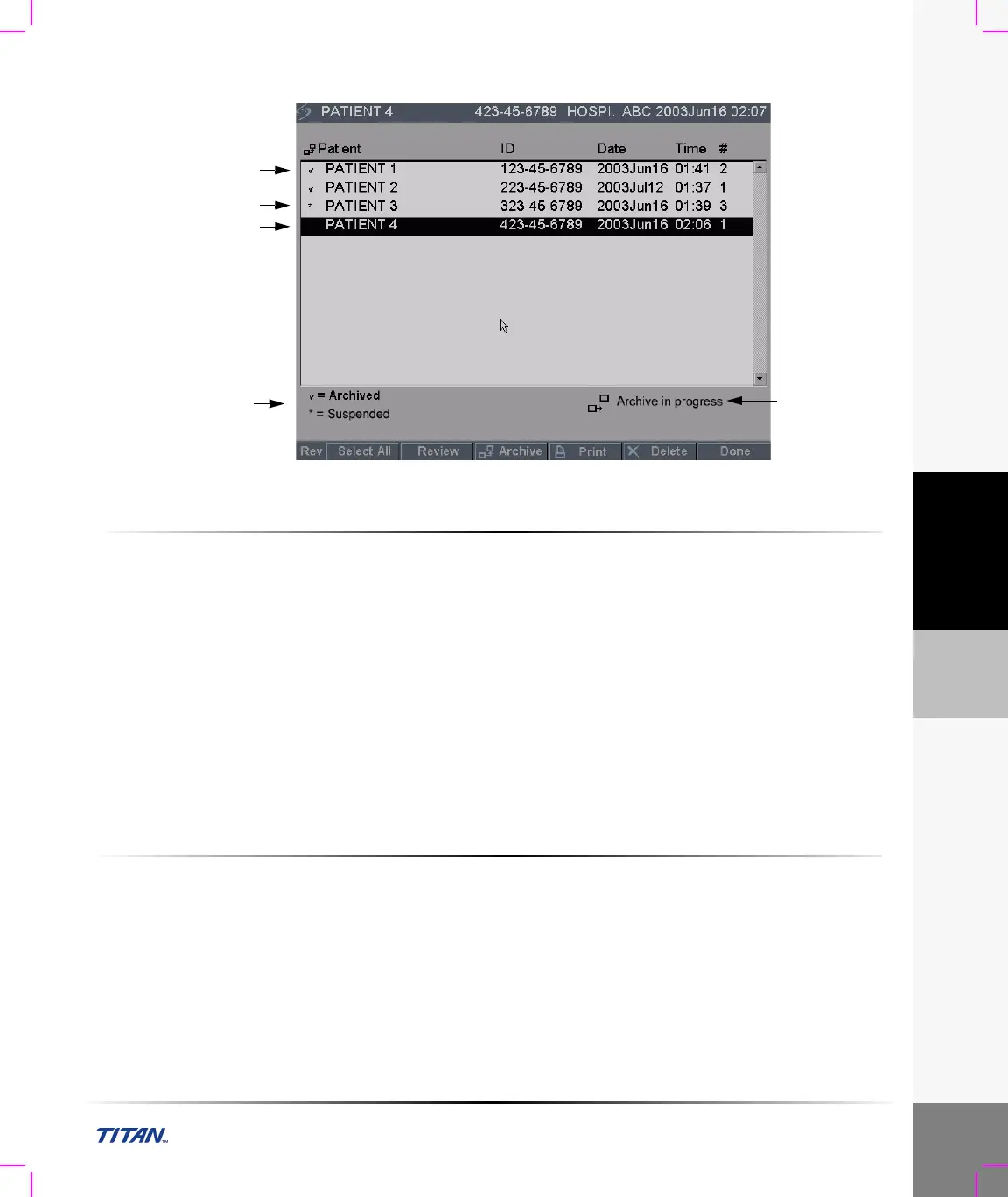
Figure 14 Patient List
To automatically archive or print images:
Images are automatically transferred to the selected devices. Pending exams are archived or printed
starting at the top of the list. The network connection icon in the system status area is animated
during DICOM network activity.
1 Ensure the current location is selected in the DICOM main screen.
2 Ensure connection to LAN. See “Ethernet Connection” on page 105.
With the system on, check the LAN link light (green LED) next to the mini-dock connector to
verify physical connection to LAN.
3 Verify patient exam is closed. See“Patient Information” on page 41.
Note: Images saved on the TITAN ultrasound system are stored on a CF. See “Image Storage” on page 60.
Images transferred to DICOM devices are automatically sent from the CF after you end the exam. All images
in the patient exams are sent at once to the DICOM devices, rather than the individual images. The DICOM
formatted files are not saved to the CF card. File transfer of pending patient exams occurs only when you end
the exam or create a new patient.
To verify images are sent:
Press the Review key.
The Patient List indicates the status of image transfer. See Figure 14 on page 125.
• Patient exams that are checked are archived.
• Patient exams that are not checked are pending archive.
• Patient exams that are identified with an asterisk are suspended.
Transfer of images is suspended when the TITAN system executes the number of Attempts and
Interval configured in the configuration setup. These exams need to be manually archived.
Archived
Pending
archive
Suspended
Status
Images
archiving icon
and message



 To Next Page