Chapter 3: Imaging 47
Imaging
Modes
2D Imaging
The system has advanced image optimization technology that greatly simplifies user controls. To
achieve the best possible image quality, it is important to properly adjust the display brightness,
gain, depth settings, and exam type.
It is also important to select an optimization setting that best matches your needs.
The system has a high-performance, liquid crystal display (LCD). To optimize image quality, adjust
the display for viewing angle, and brightness.
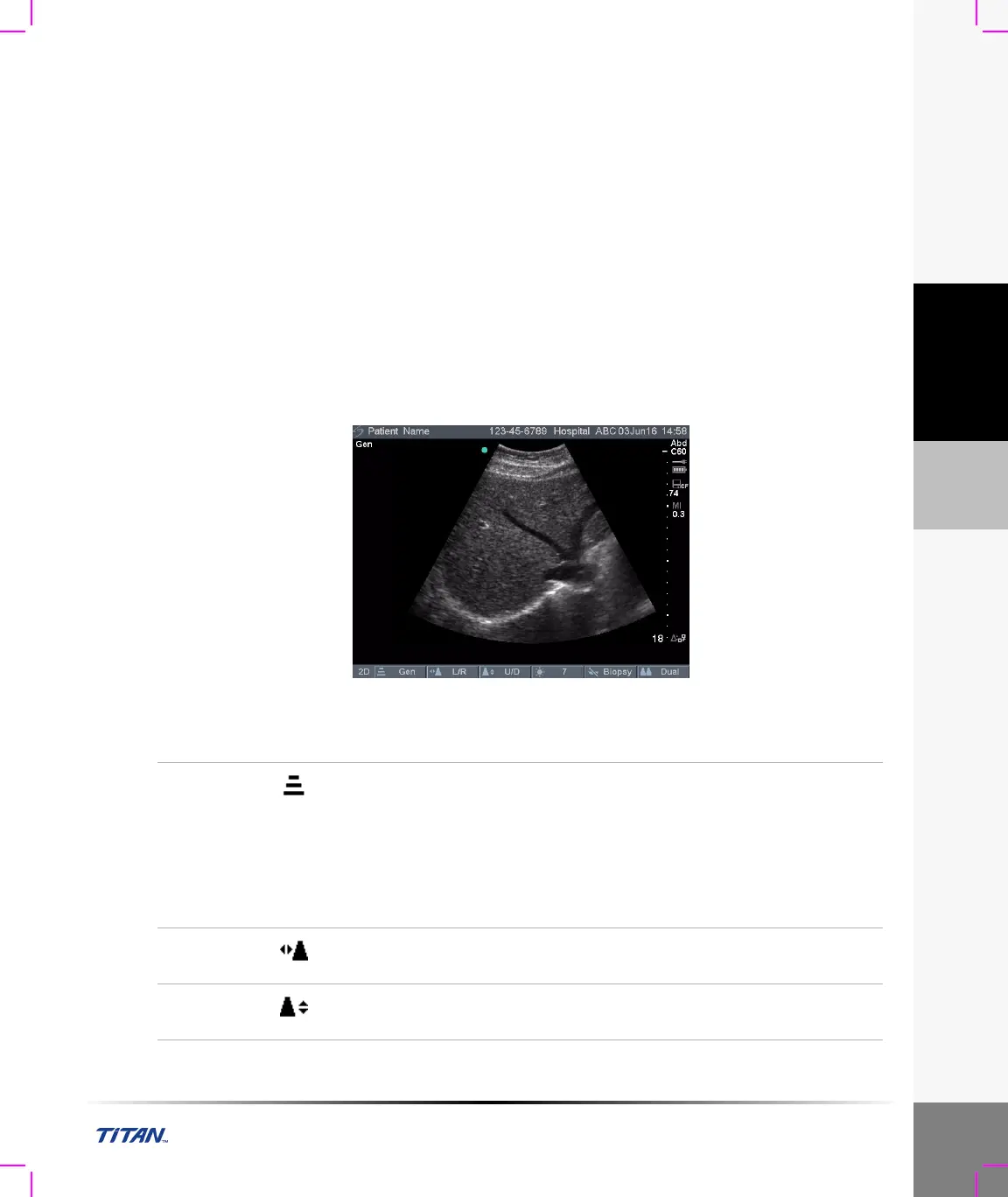
Each time you turn the system on, the 2D image is displayed. It displays echoes in two dimensions
on the display by assigning a brightness level based on the echo signal amplitude. This is the
system’s default imaging mode. When imaging in another mode, you may return to 2D imaging by
pressing the 2D key. If the system does not return to 2D imaging after pressing the 2D key, ensure
the system is in live imaging.
Figure 3 2D Image
Optimize
Select the desired optimization setting from the on-screen menu.
• Res provides the best possible resolution.
• Gen provides a balance between resolution and penetration.
• Pen provides the best possible penetration.
Note: Some of the parameters that are optimized to provide the best image
include: focal zones, aperture size, frequency (center and bandwidth), dynamic
range, and waveform. They cannot be adjusted by the user.
Horizontal
Flip
Select left or right flip from the on-screen menu to change image
orientation.
Vertical
Flip
Select up or down flip from the on-screen menu to change image
orientation.



 To Next Page