21
GB
Setting up
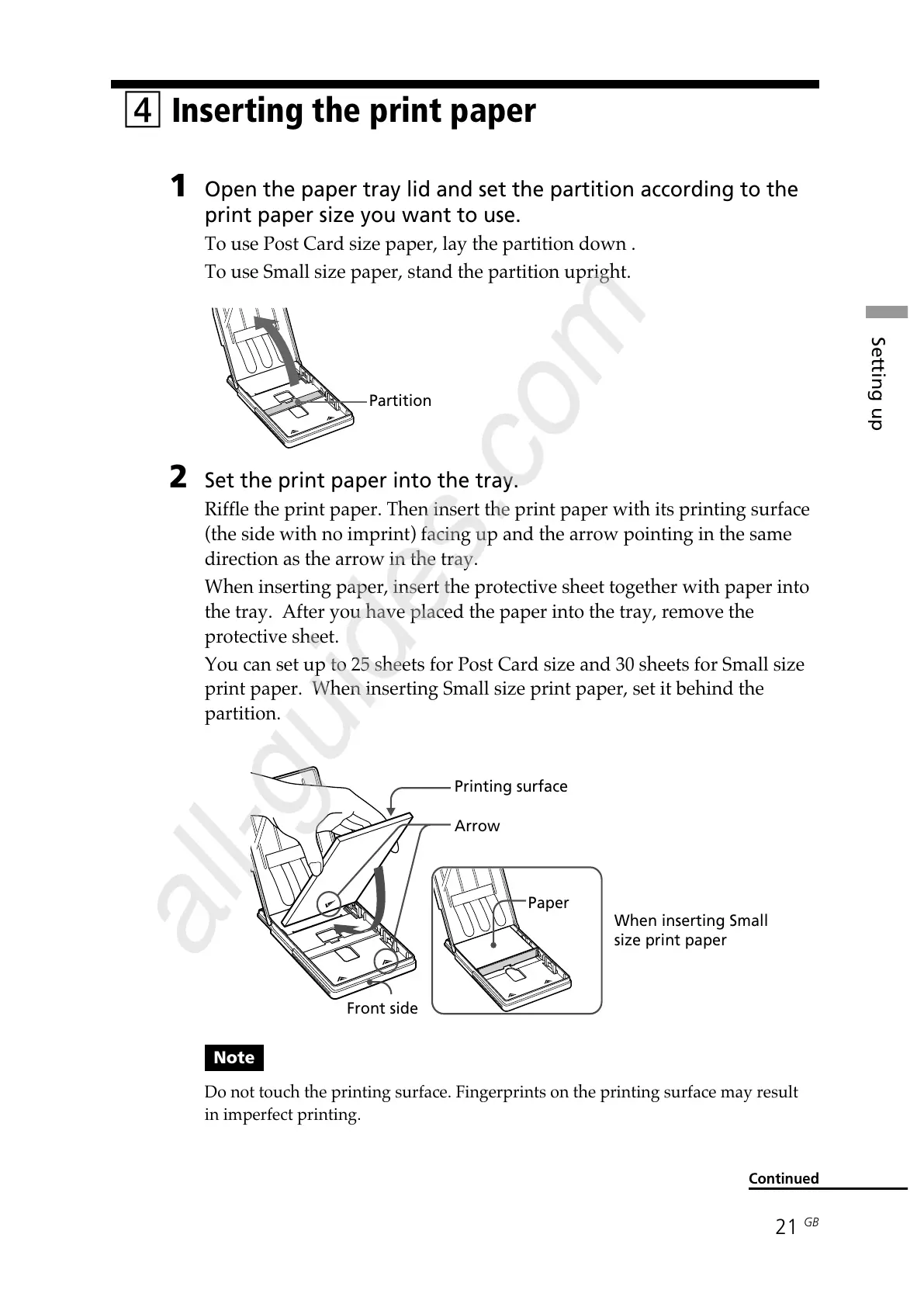
Partition
4 Inserting the print paper
1 Open the paper tray lid and set the partition according to the
print paper size you want to use.
To use Post Card size paper, lay the partition down .
To use Small size paper, stand the partition upright.
2 Set the print paper into the tray.
Riffle the print paper. Then insert the print paper with its printing surface
(the side with no imprint) facing up and the arrow pointing in the same
direction as the arrow in the tray.
When inserting paper, insert the protective sheet together with paper into
the tray. After you have placed the paper into the tray, remove the
protective sheet.
You can set up to 25 sheets for Post Card size and 30 sheets for Small size
print paper. When inserting Small size print paper, set it behind the
partition.
Note
Do not touch the printing surface. Fingerprints on the printing surface may result
in imperfect printing.
Continued
When inserting Small
size print paper
Printing surface
Arrow
Paper
Front side


 To Next Page