78
GB
Using your printer with Windows computers
Printing from a software application
You can use the “Print ”command of a software application to print an image
from your computer’s hard disk with the DPP-SV77 Digital Photo Printer.
Notes
• This sections explains the settings and operations with a typical application as an
example. Depending on the application, print settings and operations may differ. For
the details, refer to the manual of your application.
• To get the print you expect, we suggest you use application software that allows you
to check the print preview. Otherwise, make the image size 1664 (dots) x 2466 (dots)
and the resolution 403 dpi.
1
Start the application software that you use to print with, and
select the image to be printed.
2
Click “Print Setup” from the “File” menu of the application.
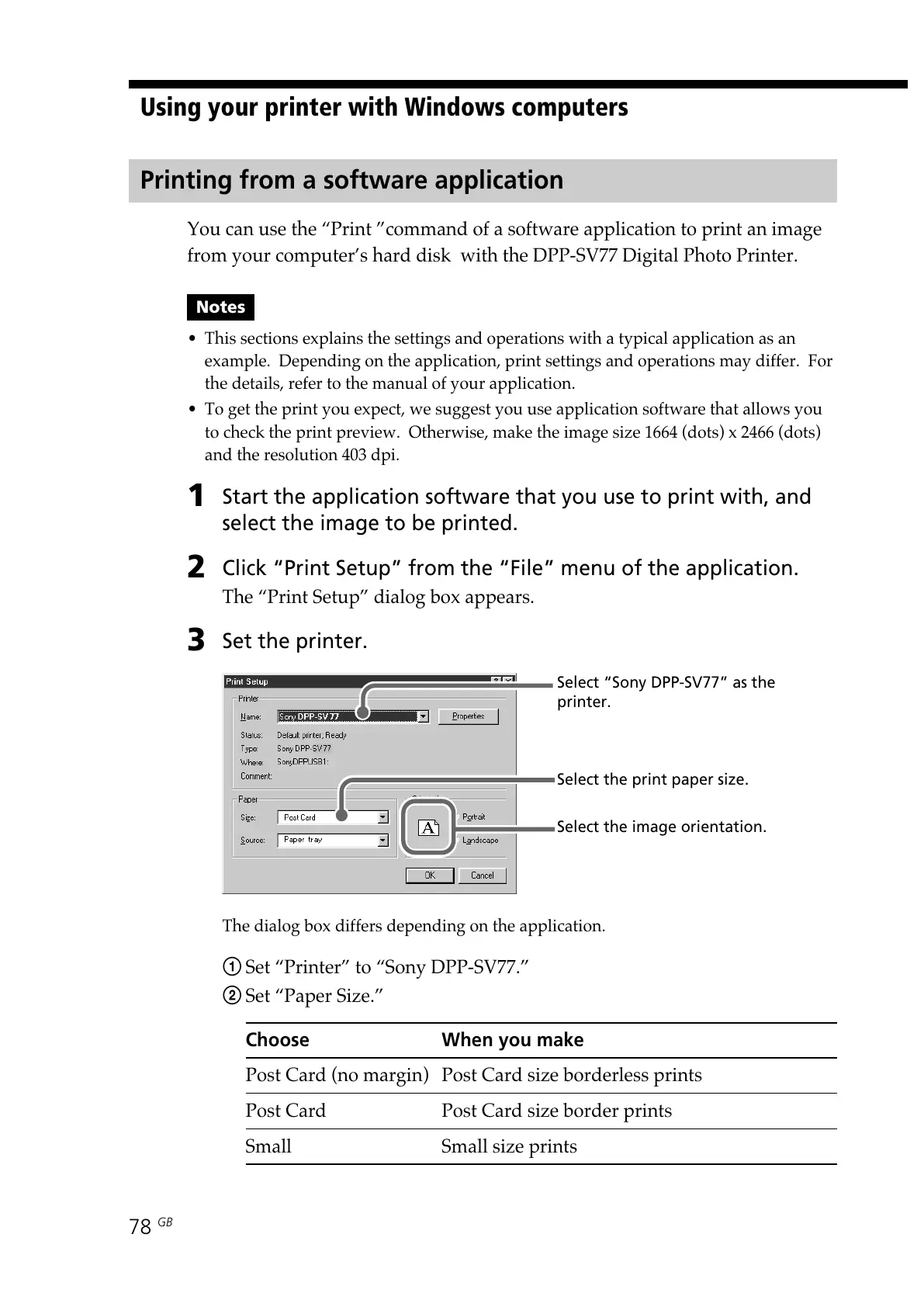
The “Print Setup” dialog box appears.
3
Set the printer.
The dialog box differs depending on the application.
1 Set “Printer” to “Sony DPP-SV77.”
2 Set “Paper Size.”
Choose When you make
Post Card (no margin) Post Card size borderless prints
Post Card Post Card size border prints
Small Small size prints
Select “Sony DPP-SV77” as the
printer.
Select the print paper size.
Select the image orientation.


 To Next Page