75
GB
Printing from your computer
4 Click “Yes.”
The relevant files are removed from your computer’s hard disk.
Note on DPP-SV77 software installation for the customers using
Sony DPP-SV55 digital photo printer
When you have already installed the Sony DPP-SV55 printer driver or reader
software onto your computer with Windows 98/98SE/Me operating system,
your computer cannot detect the DPP-SV77 connected via USB port as new
hardware. Follow the procedures below to change the DPP-SV55 USB driver
into the DPP-SV77 USB driver. Then run “Setup.exe” contained in the CD-
ROM supplied with the DPP-SV77 to install the software.
Once you have changed the USB driver, you can connect and use the DPP-
SV55 as well as DPP-SV77. The DPP-SV55 is displayed as DPP-SV77 on your
computer, which is not problem.
1
Start Windows, turn on the printer and connect the printer
with the computer via USB port.
2
Click “Start” from the Windows taskbar, point to “Settings”
and then click “Control Panel.”
3
Double-click “System” to open the “System Properties”
window.
4
Open the “Device Manager” tab, select “Sony DPP-SV55 USB
Digital Photo Printer” under the “Universal serial bus
controller” and then click “Properties.”
5
Open the “Driver” tab and click “Update driver.”
6
Click “Next.”
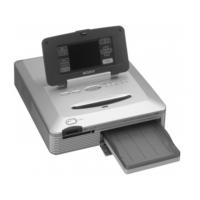
7
Click “Display a list of all the drivers in a specific location, so
you can select the driver you want” and then click “Next.”
Continued


 To Next Page