EasyManua.ls Logo

Sony SLV-SE620 - Step 2: Setting up the remote commander

Sony SLV-SE620
96 pages
Print Icon
To Next Page IconTo Next Page
To Previous Page IconTo Previous Page
Loading...
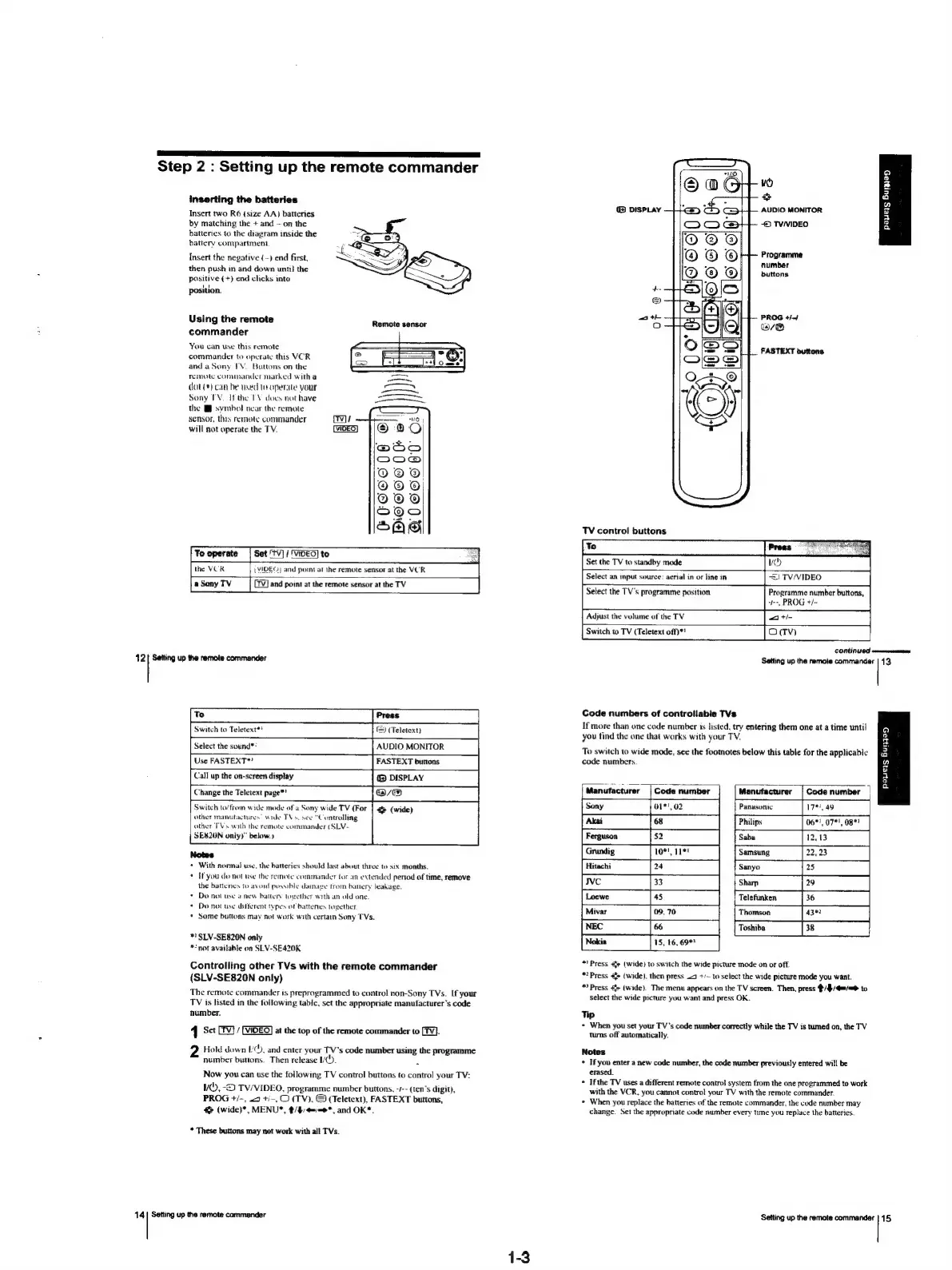
sl
Step
2
:
Setting
up
the
remote
commander
inserting
the
batteries
Insert
two
R6
(size
AA)
batteries
by
matching
the
+
and
on
the
batteries
to
the
diagram
inside
the
battery
compartment
Insert
the
negative
(-)
end
first,
then
push
in
and
down
until
the
positive
(+)
end
clicks
into
position.
Using
the
remote
commander
Remote
sensor
You
can
use
this
remote
commander
to
operate
this
VCR
and
a
Sony
TV.
Buttons
on
the
Temote
commander
marked
with
a
dot
(*)
can
be
used
te
operate
your
Sony
TV.
Ifthe
TV
does
nat
have
the
BB
symbol
near
the
remote
sensor,
this
remote
commander
will
not
operate
the
TV.
To
operate
|
Set
TV}
/
(VIDEO)
to
oS
the
VCR
(VIDEO)
and
pornt
at
the
remote
sensor
at
the
VCR
and
point
at
the
remote
sensor
at
the
TV
12|
Setting
up
the
remote
commander
(Teletext)
AUDIO
MONITOR
FASTEXT
buttons
DISPLAY
@
(wide)
Switch
to
Teletext*!
Select
the
sound**
Use
FASTEXT*!
Call
up
the
on-screen
display
Change
the
Teletext
page*!
Switch
to/trom
wide
mode
of
a
Sony
wide
TV
(For
other
manutactures’
wide
TVs.
see
“Controlling
other
TVs
with
the
remote
commander
(SLV-
SE820N
only)”
below.)
*
With
normal
use,
the
batteries
should
last
about
three
to
six
months.
*
Ifyou
do
not
use
the
remote
commander
tor
an
extended
period
of
time,
remove
the
batteries
to
avord
possible
damage
trom
battery
leakage.
*
Do
not
use
a
new
battery
together
with
an
old
one.
Do
not
use
different
types
of
battenes
together.
*
Some
buttons
may
not
work
with
certain
Sony
TVs.
*!
SLV-SE820N
only
**not
available
on
SLV-SE420K
Controlling
other
TVs
with
the
remote
commander
(SLV-SE820N
only)
The
remote
commander
is
preprogrammed
to
control
non-Sony
TVs.
If
your
TV
is
listed
in
the
following
table,
set
the
appropriate
manufacturer's
code
number.
41
Set
[Fv}/
at
the
top
of
the
remote
commander
to
[TV].
2
Hold
down
LC),
and
enter
your
TV’s
code
number
using
the
programme
number
buttons.
Then
release
1.
Now
you
can
use
the
following
TV
control
buttons
to
control
your
TV:
VW,
-D
TV/VIDEO,
programme
number
buttons.
-/--
(ten’s
digit),
PROG
+/-,
9
+/-,
O
(TV),
&
(Teletext),
FASTEXT
buttons,
@
(wide)*,
MENU*,
#/$:4=/<0*,
and
OK*.
*
These
buttons
may
not
work
with
all
TVs.
14|
Setting
up
the
remote
commander
1-3
ie)
@
AUDIO
MONITOR
TVNIDEO
@
DISPLAY
payers
Burgyag
Programme
number
buttons
4
)
ath
PROG
+/-4
fe)
ase
FASTEXT
buttons
TV
control
buttons
Select
an
input
source:
aerial
in
or
fine
in
=)
TV/VIDEO
Select
the
TV's
programme
position
Programme
number
buttons,
“hy
PROG
+/~
Adjust
the
volume
of
the
TV
Switch
to
TV
(Teletext
off)*!
Ov
TV)
CONLIN
UOT
smmuaromaaaioon
Setting
up
the
remote
commander
|
13
Code
numbers
of
controllable
TVs
If
more
than
one
code
number
1s
listed,
try
entering
them
one
at
a
time
until
a
you
find
the
one
that
works
with
your
TV,
By
To
switch
to
wide
mode,
see
the
footnotes
below
this
table
for
the
applicable
2
code
numbers.
a
o
a
Oo
a
Manufacturer
____
Sony
ber
|
Manufacturer
|
Code
number
Panasonic
1781.49
Philips
06*!,
07"!
08%?
12,13
Samsung
Sanyo
Telefunken
Thomson
Toshiba
15,
16,
69%?
*'
Press
(wide)
to
switch
the
wide
picture
mode
on
or
off.
*?
Press
<+
(wide).
then
press
J
+/—
to
select
the
wide
picture
mode
you
want.
*
Press
»
(wide).
The
menu
appears
on
the
TV
screen.
Then,
press
#/$/4=/=>
to
select
the
wide
picture
you
want
and
press
OK.
Tip
*
When
you
set
your
TV's
code
number
correctly
while
the
TV
is
tumed
on, the
TV
tums
off
automatically.
Notes
*
Ifyou
enter
a
new
code
number,
the
code
number
previously
entered
will
be
erased.
*
Ifthe
TV
uses
a
different
remote
control
system
from
the
one
programmed
to
work
with
the
VCR,
you
cannot
control
your
TV
with
the
remote
commander.
¢
When
you
replace
the
batteries
of
the
remote
commander,
the
code
number
may
change.
Set
the
appropriate
code
number
every
time
you
replace
the
batteries.
Setting
up
the
remote
commander
|
15

Table of Contents

Related product manuals