- 13 -
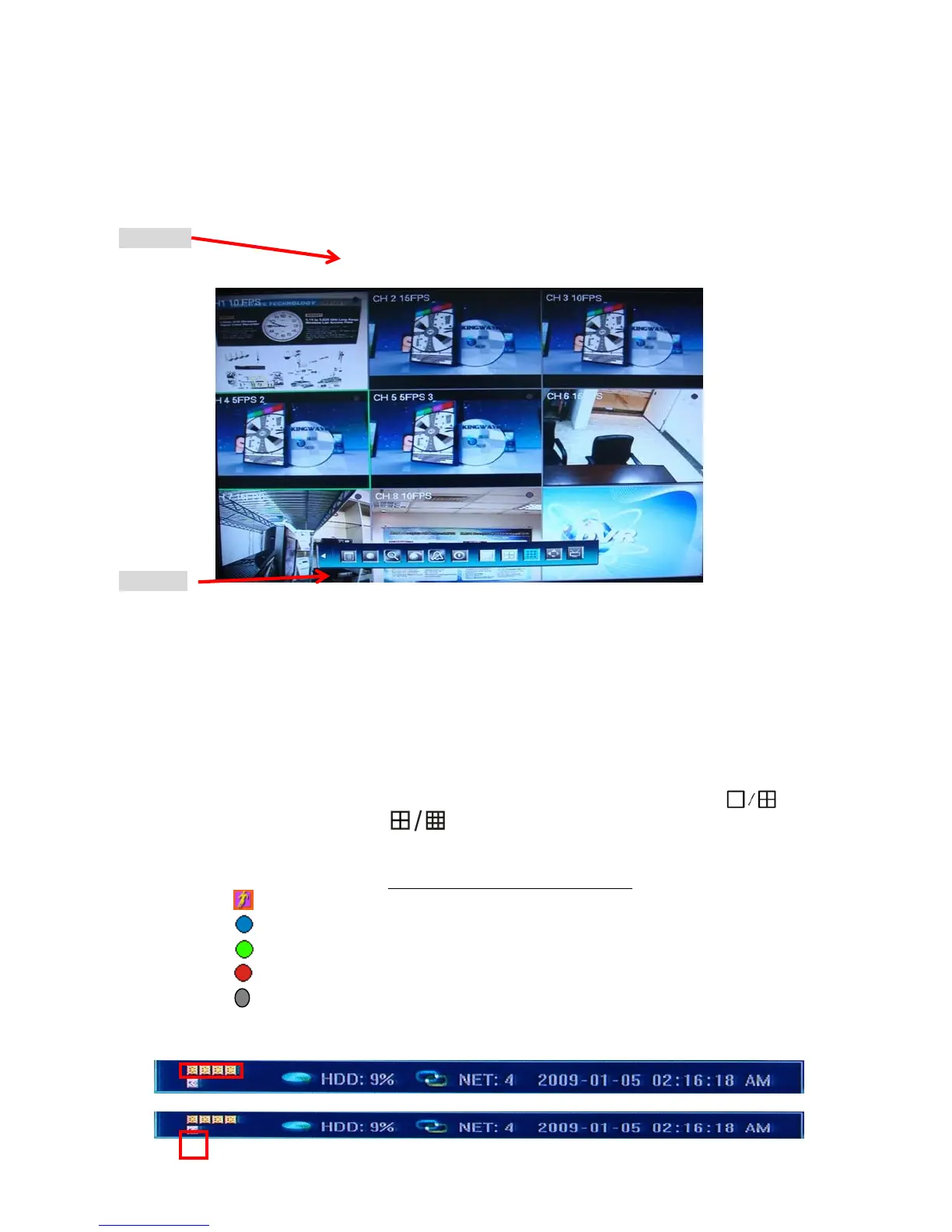
Status Bar
Tools Bar
DVR system status bar at the bottom of the screen. Right-click mouse key or press 【Enter】at front panel will
open【Tools Bar】for system setting and operating.
4.1 Live View Screen (Status Bar)
Single Channel display: When in 4/9 split view modes, the window with highlight green border is
the current selected one. User can use mouse or press 【Direction】 buttons to switch to another channel.
If the audio output device is connected, the audio can also be monitor together with video. User can
select to display a single particular channel by pressing the corresponding
【Numbers】buttons 1~8. When in single split view mode, user can enter into 4/9
splits view mode by pressing or
button directly, or reverse.
Channel Status Display: Indication of “motion detection” / “common recording” / “alarm recording”
and etc. will be displayed on the right upper corner of each split screen
. The details are as follows:
Indicates “motion detection”.
Blue indicates “common recording”
Green indicates “motion detection triggered recording”
Red indicates “alarm triggered recording”
Grey indicates “manual recording”
Peripheral alarm input / alarm output/HDD/Network display : Indication will be displayed on
system status bar:
The four icons (4/8CH) indicate the alarm input status. When happened, it changes into red color.



 To Next Page