- 43 -
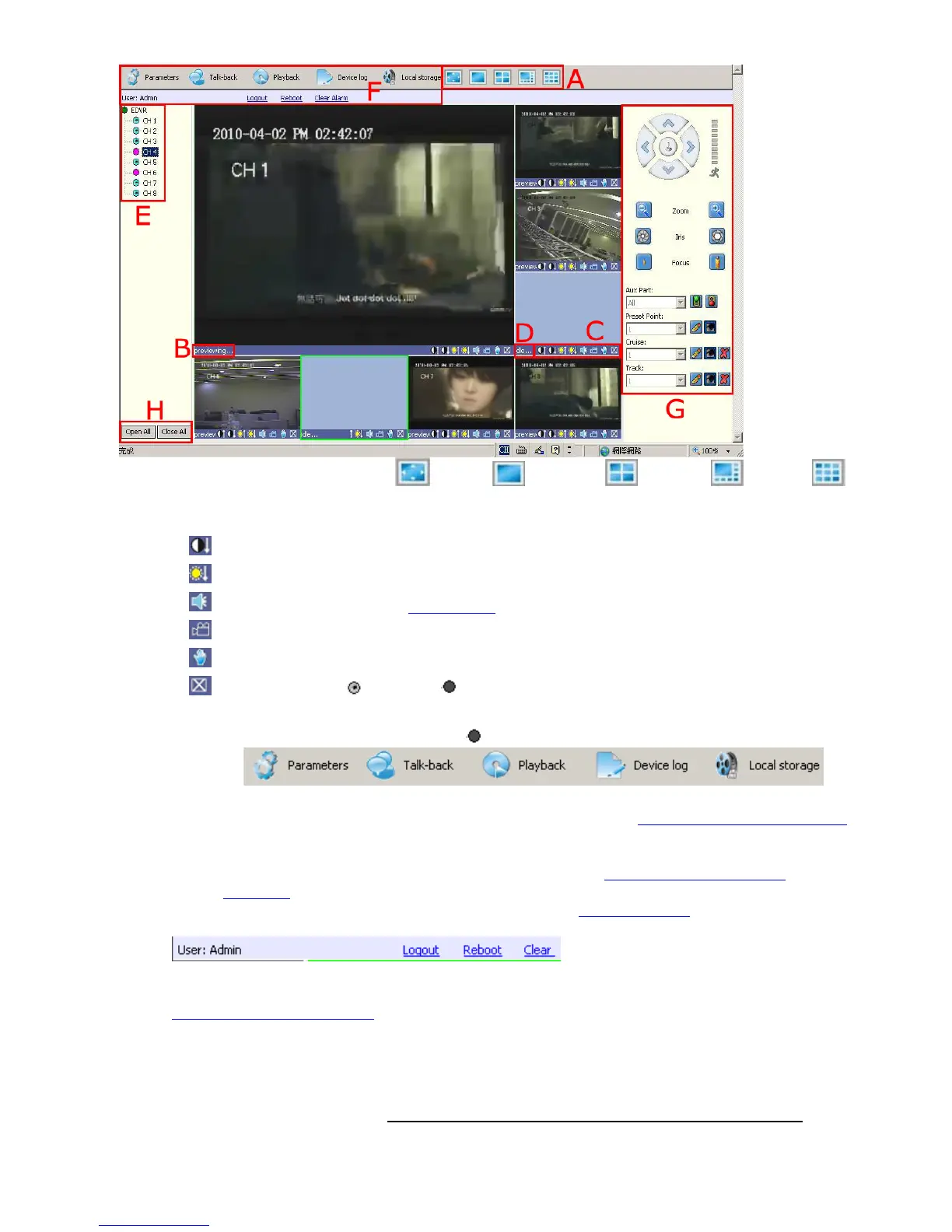
Check “Automation Open All Preview” to watch all cameras after login.
A. Camera view window: Full Screen /1 camera / 4 cameras / 8 cameras /9 cameras
B. Camera view is previewing
C. Camera view tools
:Adjust image contrast up/down.
:Adjust brightness up/down.
:Start/stop voice monitoring(Chapter 5.3.5). The icon will turn to green when recording.
:Start/stop recording. The icon will turn to green when recording.
:Click to snapshot.
:Stop preview, the will turn to on the E Available Camera list
D. Camera view is idle if not opened
E. Available Camera list: double right-click the to open the channel
F. Tools Bar
The description of icons from left to right is:
z Parameters: configure device parameters(set up), please refer to 6.5 Device Parameters Settings
z Talk-back: use channel 1 only, please open PC microphone and speakers, and DVR need to
connect active microphone/speaker
z Playback: Search and playback record files, please refer to 6.6 Video Files Playback &
Download
z Device log: View logs and export them, please refer to 6.6.3 Device Log
z Local storage: Set the storage directory of record files and pictures captured
From left to right: Current Login Account, Log-out, Restart DVR remotely, Clear alarm
G. PTZ Control
Please refer to 4.8 PTZ Control
H. Open All/Close All: open or close all the channel preview
6.4 Alarm Notification
When network connection is broken or abnormal, the alarm notification of “No heartbeat of device,
please check the network!” will be displayed in the right up side of the main screen
. After
recovery of network, the preview will be displayed automatically.



 To Next Page