- 58 -
Network Info.
Network Type: Network through which you connect to the internet, like 3G, WiFi or others
Click
after setting to connect, or click to choose other DVR that ever set up
for streaming.
③ Function buttons
Click
icon to connect DVR immediately, after login DVR successfully, user can watch the remote
video from mobile phone; the other icons function are as follows:
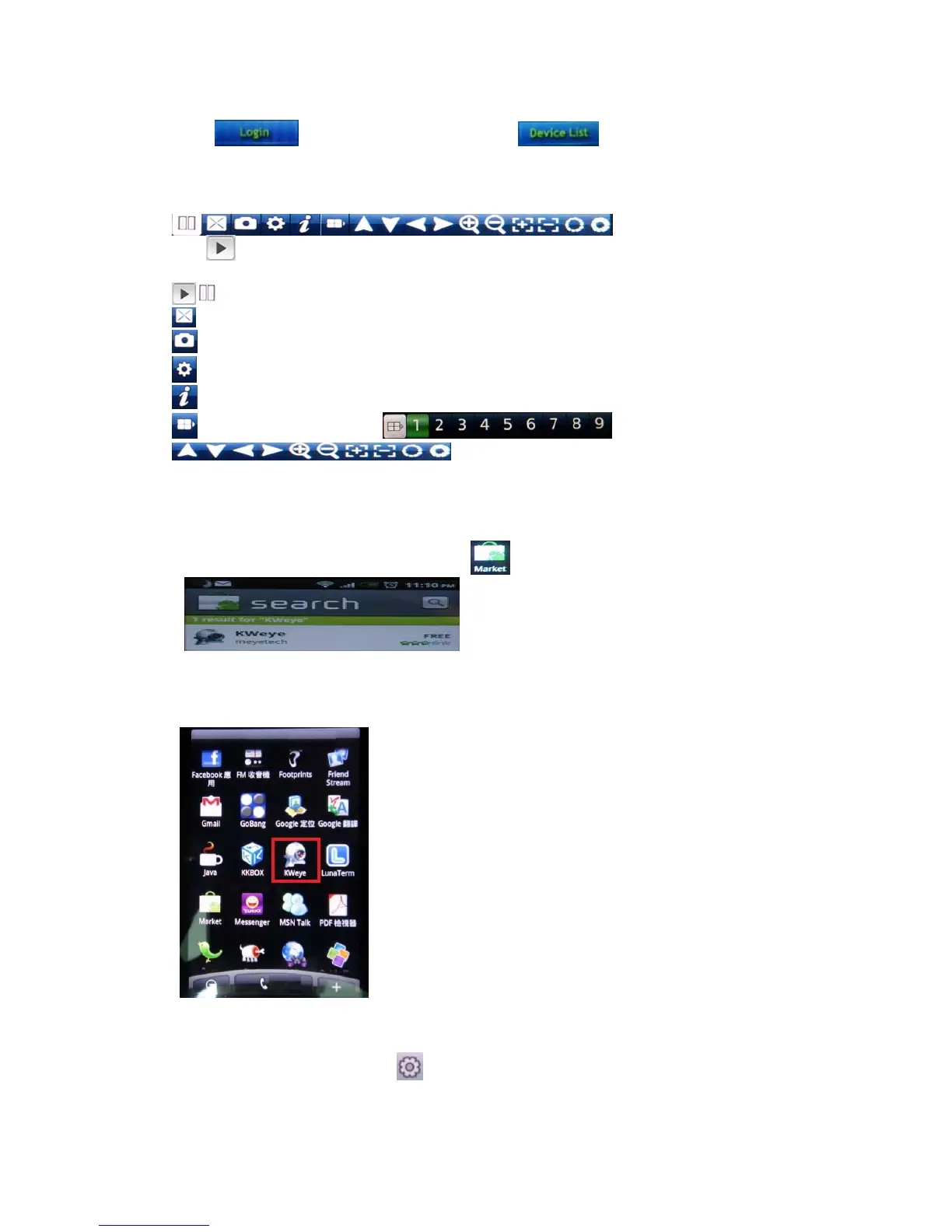
Play / Stop button
Full Screen
Picture Snapshot
DVR settings
This software information
Click to choose channel list
Control PTZ camera direction, Zoom, Iris and Focus.
7. 5 Android Mobile (Google Phone compatible)
1. Software Installation
1.1 Please go to Andord sofwtare market
to search “KWeye” as below:
, click to enter and start to “Install”; or copy the software
“KWeye.apk” from the CD:/Mobile Phone software/Android to the Android phone(SD card) to
install.
1.2 After installed successfully, it will appear KWeye icon in the “All appas”:
2. Software Operation
2.1 After the installation, click the “KWeye” icon in the “All appas” to run, it will show the main
page as left phot, click the Settings
, it will show the right photo:



 To Next Page