- 20 -
playback MPEG4 file by Windows Media Player.
Please note you don’t have to install this component for playback every time, it is one time installation; or
you can use the “MP4Player
” to play back MPEG4 format, please refer to Utility inside the CD of this
package(Appendix D
).
For H264 video format playback, you may go to www.videolan.org/vlc
to download vlc binaries
player according to your operation system, but must rename the stored video file from *.264 to *.h264.
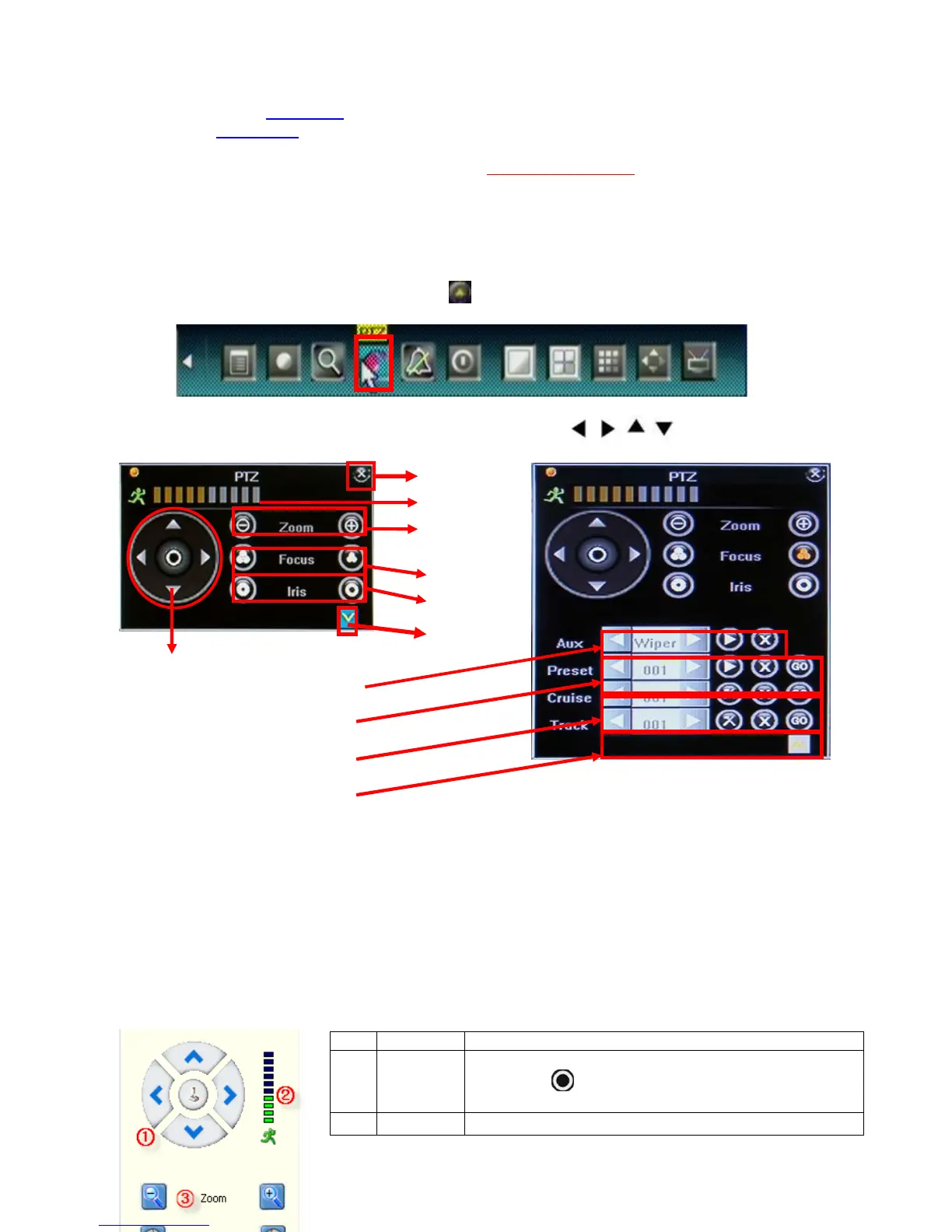
4.8 PTZ Control
Local Operate
Select single camera view and press <PTZ> button in front panel. Press direction key to move highlight
and press <Enter> to set the action. Press
icon to open more menu, and please refer to next page for
functions descriptions
Mouse operation is quite easy for PTZ control, just click and move, by remote control or keypad,
should press “Enter” key after any function keys such as
, , , pressed to make it
active.
Internet explorer web browser Operate
NO. Name Description
○
1
Direction
Click the arrow icons to control direction of PTZ. Click the
center icon
to call sequence or run scanning. Please
refer to the PTZ manual for details of PTZ scannin
mode.
○
2
Speed Set the turning speed of PTZ camera.
Close
More menu
○
1 Direction
2.Speed
3.Zoom
4.Iris
5.Focus
6.Auxiliary
7.Preset
⑧Cruise
Se
uence
⑨Track



 To Next Page