- 21 -
○
3
Zoom
Click to zoom in/zoom out (it is disabled for cameras with
automatic focus).
○
4
Iris
Click to make the image brighter or darker (it is disabled
for cameras with automatic iris ad
ustment).
○
5
Focus
Click to focus-in and focus-out (it is disabled for cameras
with automatic focus).
○
6
Auxiliary
Open/close auxiliaries.
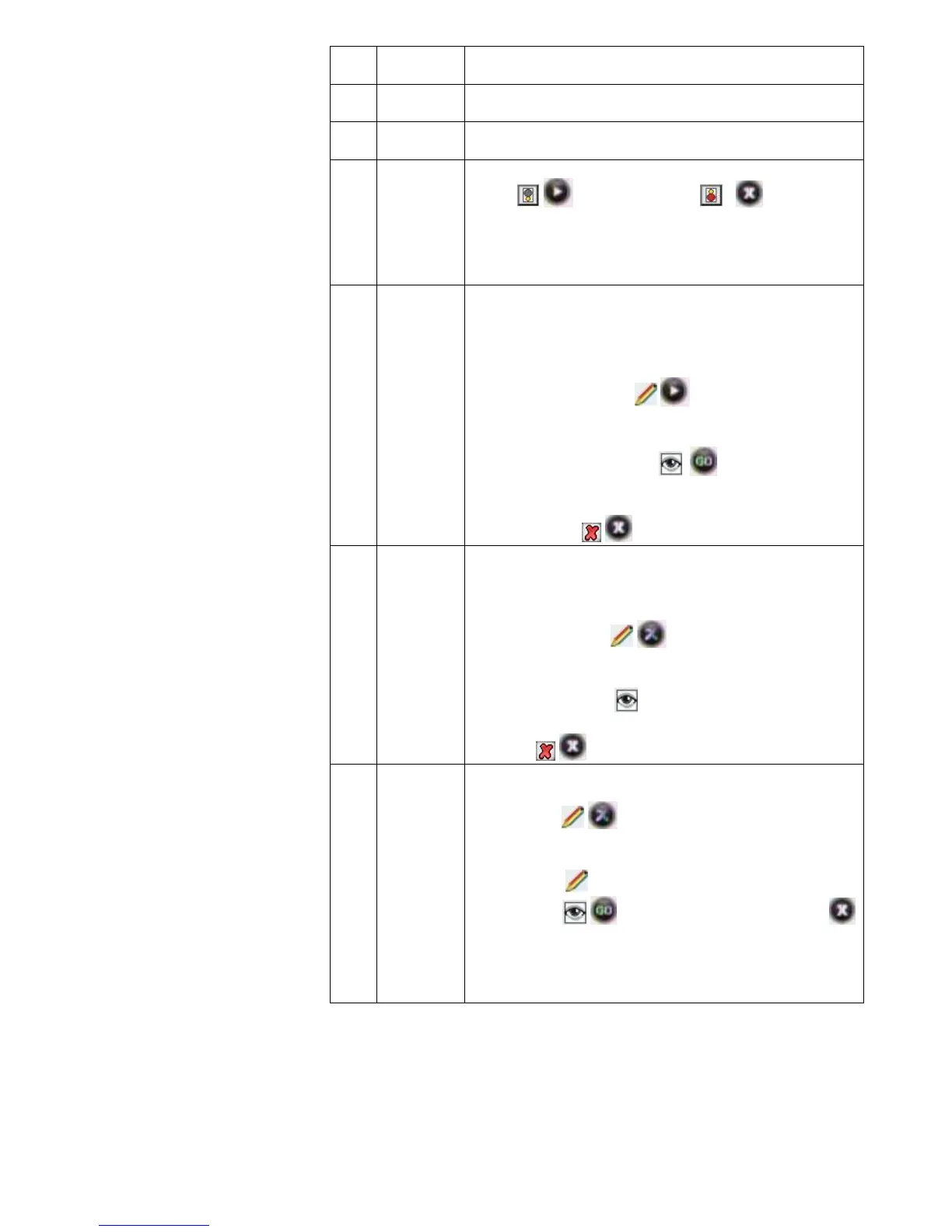
Click
/ to open and click / to close, and
use arrow keys to choose. Different functions respond to
different protocols. The auxiliaries include light, rain
brash, and power etc. please refer to PTZ manual for
details.
○
7
Preset
Preset is to set camera position, focus, zooming, and iris
position, and then mark them in numbers for later calling.
1. Select the preset number you want to name as.
2. Position the camera as desired position including
direction, focus, iris and zoom value.
3. Click on the set button
/ .
call preset:
1. Select the preset number you want to call.
2. Click on the go-to button
./
Clear/reset preset:
Select the preset number you want to clear/reset. Click on
the clear button
/
⑧
Cruise
(Sequence)
Cruise is a running route of camera that passes through
multiple presets.
Set sequence:
1. Select preset number you want to call.
2. Click on set button
/ .
3. Repeat step 1 and 2 to add the other presets till
finishing.
4. Click on run button
.
Clear sequence:
Click on
/ button to clear sequence.
⑨
Track
Track is a continuous running route of camera.
Set track:
1. Click on
/ to start setting.
2. Move camera as the track and start/stop time you want
it to run.
3. Click on “
/”OK” to finish setting.
4. Click on / to run track and click again or
to stop running.
NOTE: Whether Track is supported or not is depending on
the type of PTZ.



 To Next Page