- 29 -
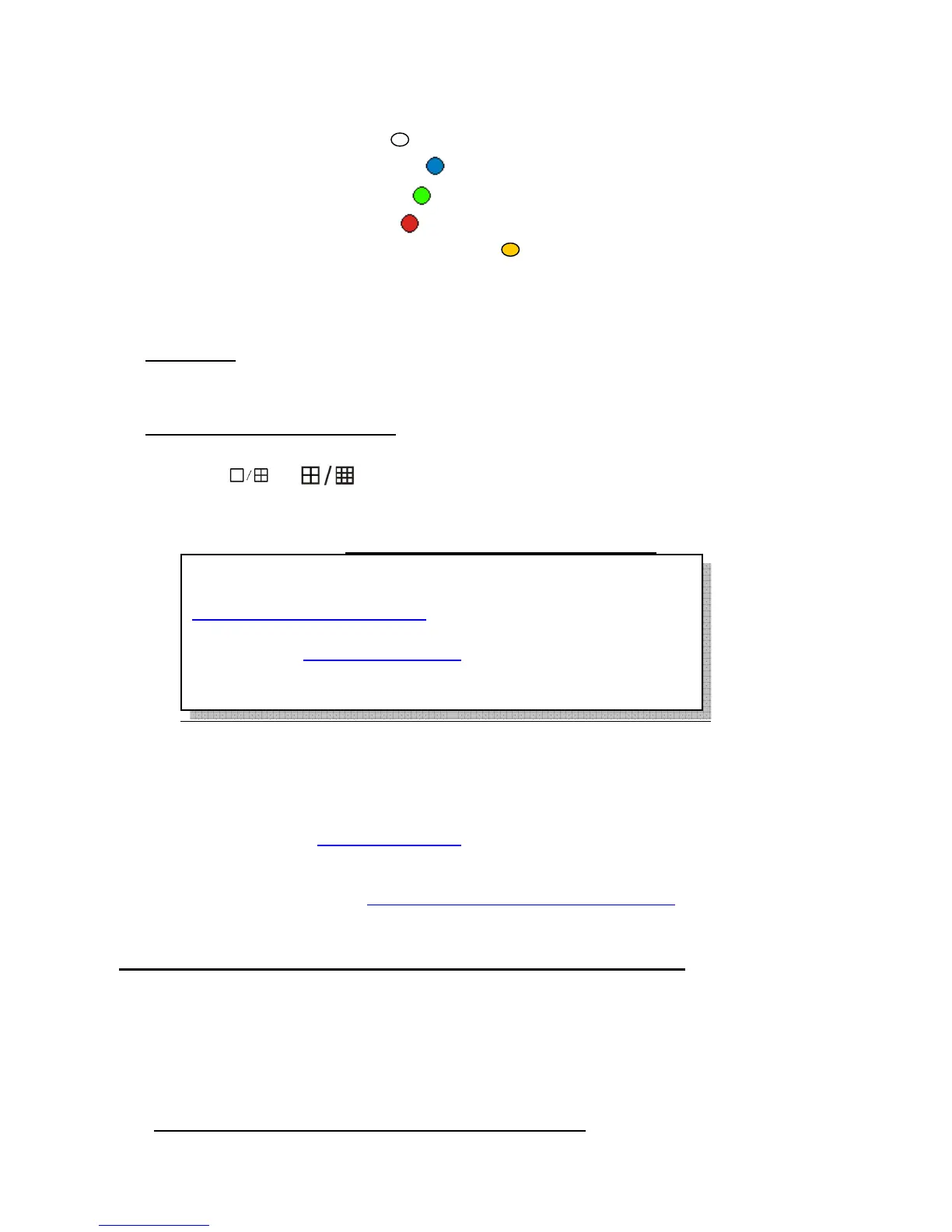
①. The current recording channel number
②. The record schedule
③. Description of record type
z no record (white ): No recording during this time
z common record (blue
): Recording always
z move record (green
): Motion-detection triggered recording
z alarm record (red
): Alarm-triggered recording
z move and alarm record (yellow ): Recording triggered by either alarm or motion
detection.
System provides a recording option for 24 hours every day and Sunday through Saturday every week. Unit
is hour. One grid indicates one hour.
Mouse set up
- select a record type, move to a time grid, left click it or hold it, and dragging to the desired
region; color of the grid will change relevantly; left click the week day if you want that day with all the same
record type.
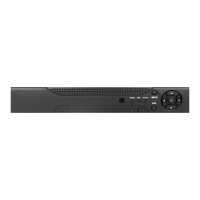
Faceplate or Remote control buttons
–
Using【Direction】buttons to a time grid, select the record type by repeat pressing【Enter】button until done;
or press the
or (faceplate button), or [FN] (remote control), and dragging to the desired
region, and press again to finish; color of the grid will change relevantly; Move to the week day, and repeat
pressing【Enter】button until done if you want that day with all the same record type.
Select OK to confirm settings. The settings will take effect after being saved.
5.3.3 Video Quality
Select quality level for record audio/video. The pre-define selection from Best 768kbps ÆHigh 640kbps
ÆMid 512kbps ÆLow 384kbps or user define. User can manually input bit rate for recording. (Kbit/s). The
higher video bit rate would impact network remote viewing if you don’t open the sub code(sub streaming) for
dual streaming, please refer to 5.3.8 Dual Streaming
.
5.3.4 Record Frame Rate
Select recording frame rate per second. The pre-define selection from Full (30/25fps) Æ 15 fps Æ 7fps Æ 3fps
Æ 1 fps or user define; please refer to Chapter 5.2.9 Resource Management for details
5.3.5 Record Source
Two type selection of recording, Video with audio or Video only.
Only select “Video with audio”, can hear the sound via internet or playback
5.3.6 OSD Setting
Define OSD (On Screen Display) string. The options have as following
1) Camera’s Name and Time Stamp
2) Camera Name
3) Time Stamp
4) None
Only select “Time Stamp”, can see time display when playback
When motion detection & alarm recording is selected, the motion
detection sensitivity and area should be set ahead. Please refer to
5.4.6 Motion Detection Settings
for details. When alarm recording
is selected, the alarm triggering settings should be set ahead.
Please refer to 5.6.3 Event Handling
for details; the recording time
would be 30 sec. when motion detect or alarm happened except
continuous happened, which will be accumulated to the last one.



 To Next Page