- 14 -
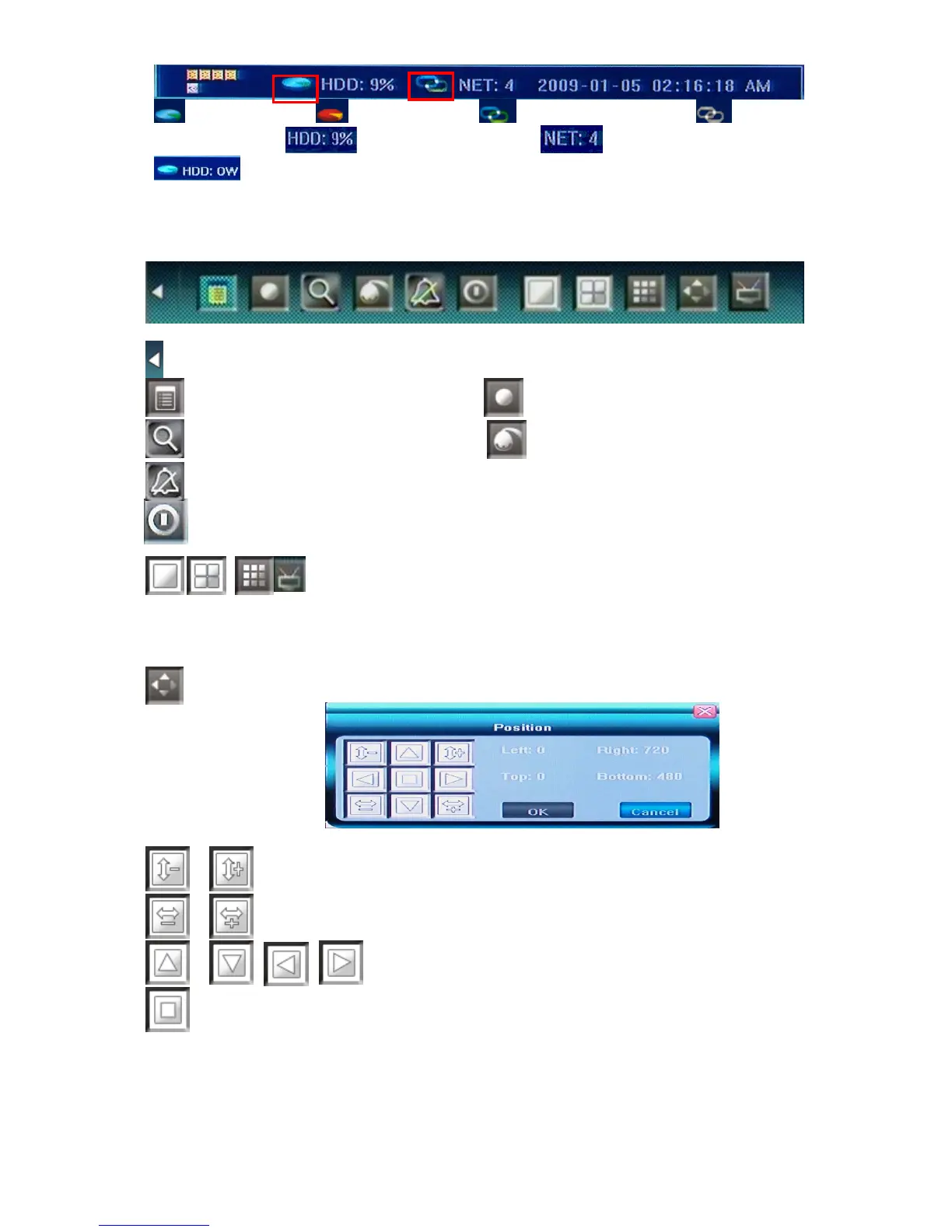
The The last icon (4/8CH) indicates alarm output. When happened, it changes into red color.
HDD normal(blue) HDD Failure(red) Network connected(blue) Network
disconnected(gray)
HDD percentage recorded No. of cameras network connected
Hard Disk Overwrite
4.2 Main Menu(Tools Bar)
Right click mouse or press 【Enter】 button in preview mode, the Tool Bar shown as below will appear:
: Hide the tool bar.
: System configuration : Manual record
:: Search, playback and backup record files
: PTZ operation
:: Cancel alarm notification. Click this button will pop a message to show the present alarm
information.
Shut down the system before power off, good for HDD protection
To switch screen display mode “Single camera” Æ “Quad 4 camera” Æ”9
camera”
To switch the OSD control between TV and VGA monitor, also can be done by pressing
“ESC” + “1” +”ESC” continuously from faceplate or remote control
:To adjust the screen, 8 pixels per unit can be adjusted as follows:
:To reduce or increase screen in vertical direction.
:To reduce or increase screen in horizontal direction.
:To move the screen up, down, left, right
:To zoom out the screen to largest and show in central.
4.3 Format HDD
Login DVR system as【Admin】account.
Select <Tool Bar> → <Setting> → <Maintenance> → <HDD Manage> item. Click〖>>〗to open HDD
Mange window.



 To Next Page