- 16 -
Schedule Record
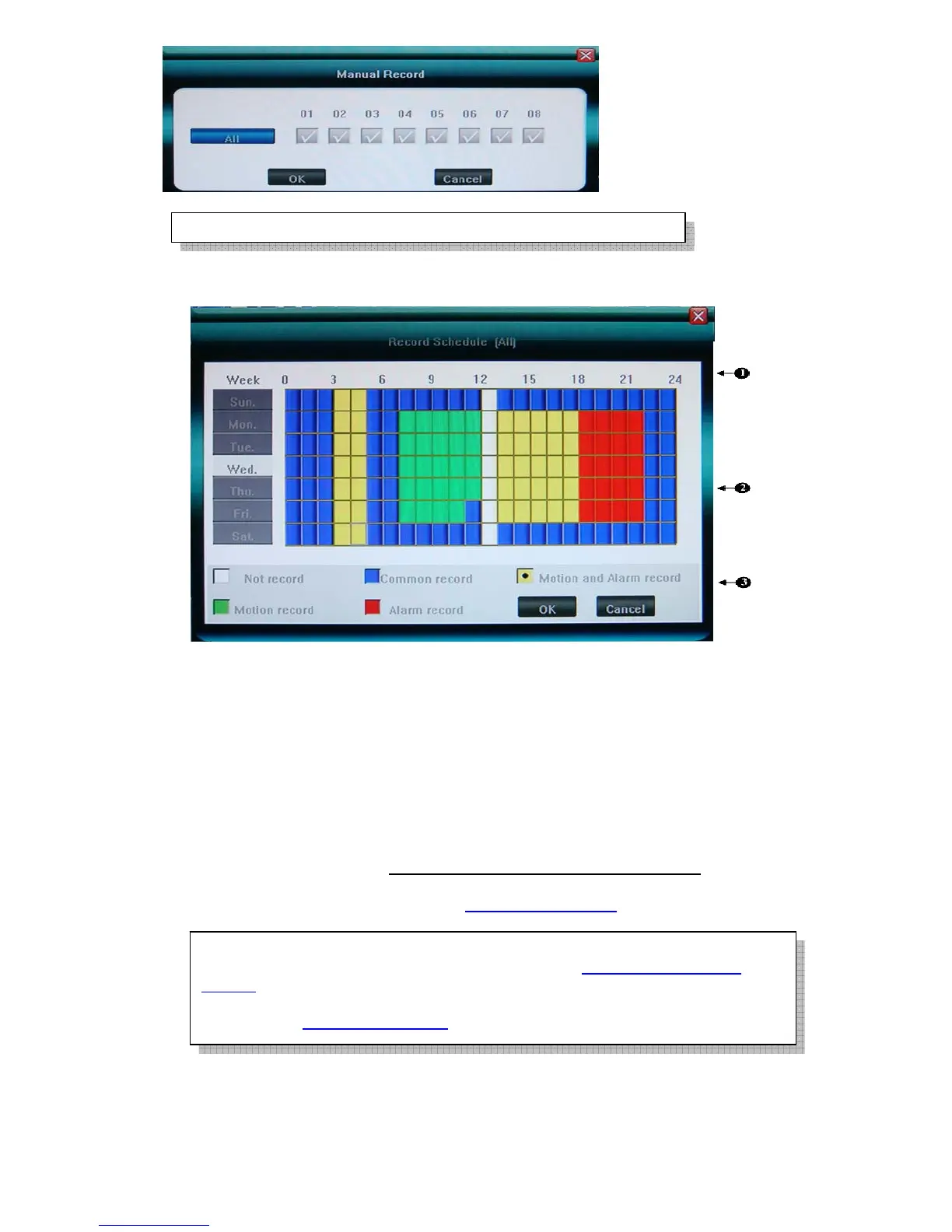
Please select <Tool Bar> → < Setting > → <Record> → < Record Schedule> to set.
The setting screen is shown as the figure below:
①. The current recording channel number
②. The record schedule
③. Description of record type
System provides a recording option for 24 hours every day and Sunday through Saturday every week.
Unit is hour. One grid indicates one hour.
Move highlight icon to a time grid using 【Direction】 buttons.
Specify the recording type by repeat pressing 【Enter】 button or double left clicking mouse,(the color
of the grid will change relevantly).
Select OK to confirm settings. The settings will take effect after being saved.
For the detailed operations, please refer to 5.3.2 Record Schedule
4.5 Video Playback
Specify the date/time and channel number by selecting <Tool Bar>→<Record Search>.
The searching results will be list on the screen in responding different colors so as to distinguish different
When motion detection & alarm recording is selected, the motion detection
sensitivity and area should be set ahead. Please refer to 5.4.6 Motion Detection
Settings for details.
When alarm recording is selected, the alarm triggering settings should be set ahead.
Please refer to 5.6.3 Event Handling
for details.
The video recorded manuall
is named “common recordin
”



 To Next Page