- 17 -
record types.
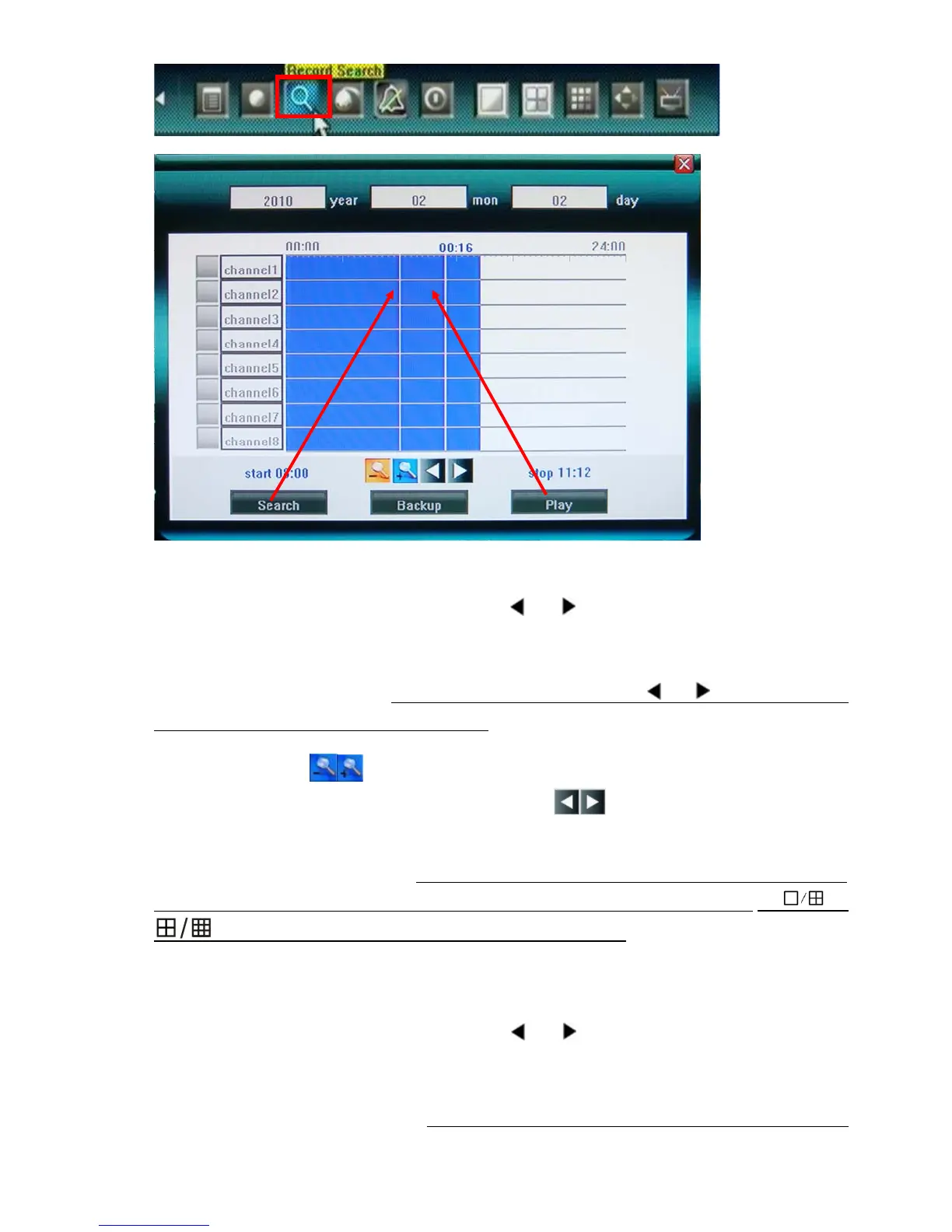
Date & time search by Panel or remote control
In order to playback a certain video feed from a particular camera, you first need to indicate what time and
which camera you wish to receive this information from.
Move highlight icon to relevant selection box using 【
】,【 】buttons.
Move highlight icon to date/time selection box, modify time using 【▲】,【▼】 buttons. Move highlight
icon to channel selection box, press【Enter】 button to select it or cancel selection.
After setting time, channel number , move highlight icon to Search using 【
】,【 】 buttons, and press
【Enter】 button to start searching recorded video.
Move highlight icon to
, press 【Enter】 button to zoom in/zoom out timeline.
If the timeline is out of screen, please move highlight icon to
and press 【Enter】 button to
display the part out of screen.
After searching over, by remote control, press【FN】button will move to timeline to select start time, then
press 【FN】button again to select stop time, after that, press【FN】button to finish the setup; by or
button of faceplate to select start/stop time as【FN】above..
The available recordings will be represented by differently colored bars on the time line depending on the
type of the recording (Blue: common recording, Green: motion detection triggered recording, Red: alarm
triggered recording, Grey: manually made recording).
After all settings, move highlight icon to Play using 【
】,【 】 buttons, and press 【Enter】button to
start playing.
Date & time search by Mouse
User can mouse click to specify time. First left-click on timeline will mark 【start time】and there will



 To Next Page